Frappe
Cloud
Marketplace
Frappe
Products
Insights

Installation Guide
installs
Publisher
Supported versions
Categories
E-Commerce
Resources

About
Official docs: https://github.com/developmentforpeople/dfp_external_storage
DFP External Storage
😊 Thanks!
If you find this code useful, please help me (https://github.com/sponsors/developmentforpeople) to keep it updated, improved and safe. Thank you very very much for your help 🫶!
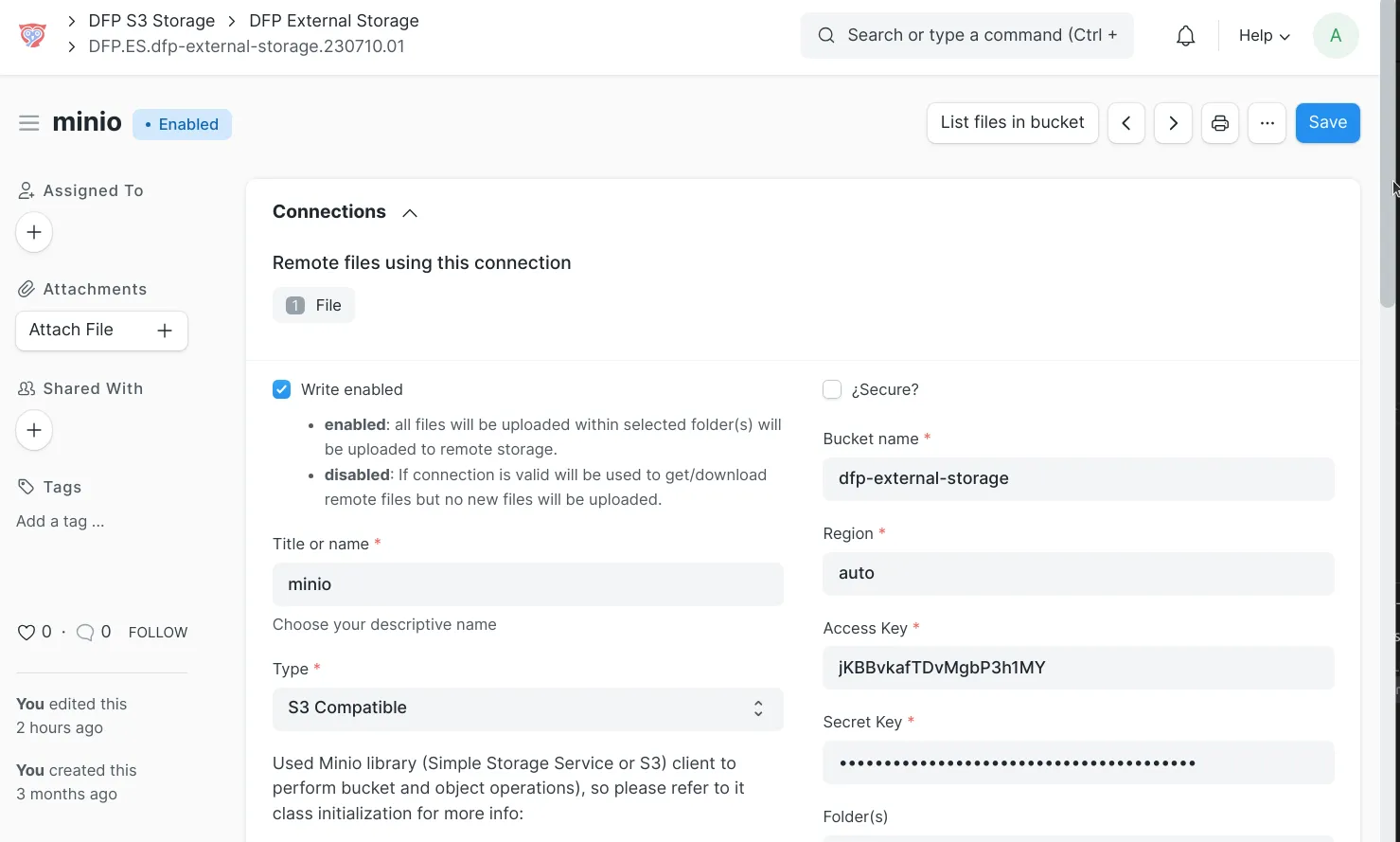
Simplest cloud file management for Frappe / ERPNext. S3 compatible external bucket can be assigned per Frappe folder, allowing you to fine-tune the location of your Frappe / ERPNext "File"s: within local filesystem or to exteral S3 bucket.
Examples / Use cases
All Frappe / ERPNext files into external S3 compatible bucket
upload_frappe_erpnext_files_s3_compatible_bucket.webm
Move files / objects from S3 compatible bucket to another S3 compatible bucket (between buckets in same or different connection)
move_objects_from_one_s3_compatible_bucket_to_another.webm
Move files / objects from S3 compatible bucket to local file system
move_objects_from_s3_compatible_to_local_filesystem.webm
Move files in local filesystem to S3 compatible bucket
move_local_files_to_s3_compatible_bucket.webm
Per file examples
move_file_from_s3_compatible_bucket_to_different_one_then_to_local_file.webm
List all remote files in bucket
Shows all files in bucket, even the ones not in Frappe File doctype.
list_files_in_remote_s3_bucket.webm
Customizable
Choose the best setup for you: S3 only for all site files or specified folders, use S3 / Minio presigned urls, cache or not small files, etc.
Requirements
Frappe version >= 14 (Try to use last version: 15)
Functionalities
S3 bucket can be defined per folder/s. If "Home" folder defined, all Frappe / ERPNext files will use that S3 bucket.
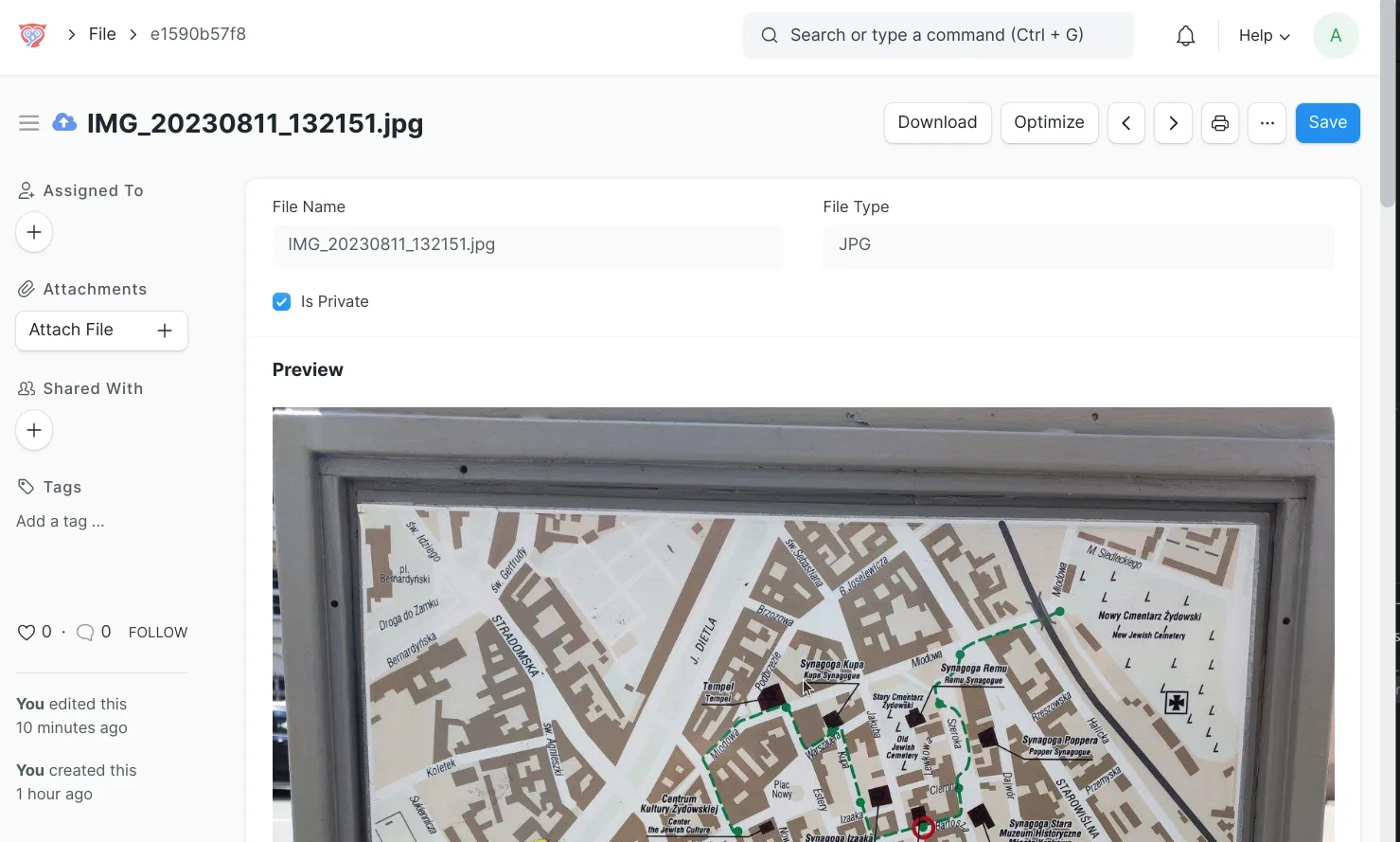
Files accesible with custom URLs: /file/[File ID]/[file name.extension]
Frappe / ERPNext private/public functionality is preserved for external files. If an external private file is loaded not having access a not found page will be showed.
External Storages can be write disabled, but files will be visible yet.
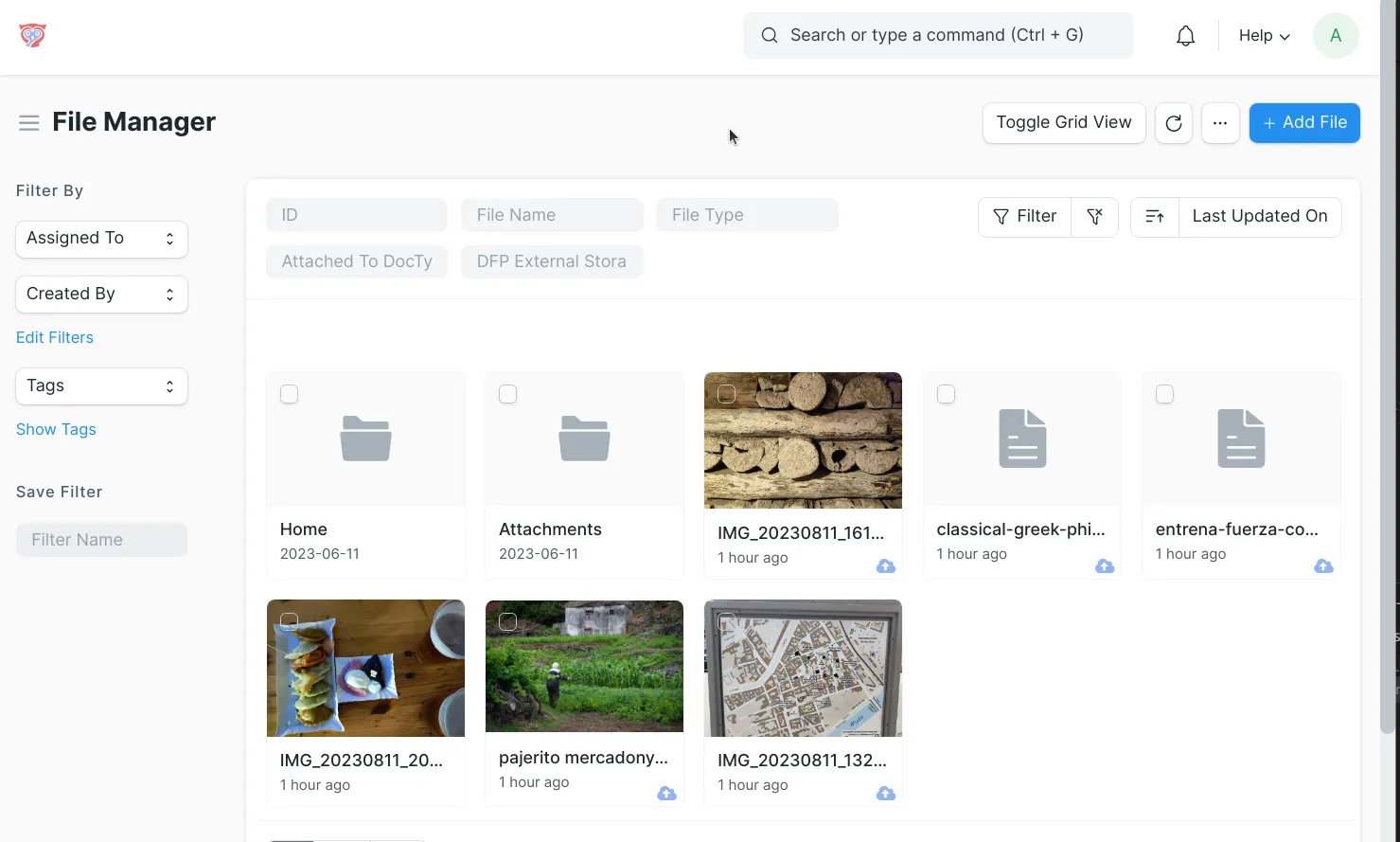
Bulk file relocation (upload and download). You can filter by local S3 bucket/local filesystem and then change all those files to a different S3 bucket or to local filesystem. All files are "moved" without load them fully in memory optimizing large ones transfer.
Small icon allows you visualize if file is within an S3 bucket.
Same file upload (same file hash) will reuse existent S3 key and is not reuploaded. Same functionality as Frappe has with local files.
Choosed S3 bucket file listing tool.
S3 bucket can not be deleted if has "File"s assigned / within it.
If bucket is not accesible file will be uploaded to local filesystem.
Stream data in chunks to and from S3 without reading whole files into memory (thanks to Khoran)
List all remote objects in bucket (includes too the ones not uploaded trough Frappe)
Support for S3 / Minio presigned urls: allowing video streaming capabilities and other S3 functionalities.
Presigned url can be used for all files in defined folders but defined by mimetype.
Files are now streamed by default.
Extended settings per External Storage doc:
Cache only files smaller than
Cache for x seconds
Stream buffer size
Presigned url activation
Presigned url only for mimetypes defined
Presigned url expiration
Use S3 file size instead of saved on Frappe File (needed for files > 2GB)
... maybe I am forgetting something ;)
Flow options
No S3 external storages defined
or S3 external storages defined but not assigned to folders:
All uploaded files are saved in local filesystem
One S3 external storage assigned to "Attachments" folder:
Only files uploaded to that folder will be use that S3 bucket
One S3 external storage assigned to "Home" folder:
All files uploaded to Frappe will be located within that bucket. Except the files uploaded to "Attachments" that will use the above defined bucket
File actions available
If a "File" has an "DFP External Storage" assigned.
If changed to a different "DFP External Storage" file will be:
"downloaded" from previous bucket > "uploaded" to new bucket > "deleted" from previous bucket.
If leaved empty, file will be "downloaded" to local filesystem > "deleted" from bucket.
If a "File" has no "DFP External Storage" assigned, so it is in local filesystem:
If assigned a "DFP External Storage", file will be:
"uploaded" to that bucket > "deleted" from filesystem
Setup or try it locally
Install Frappe 15
Follow all steps for your OS within official guide: https://docs.frappe.io/framework/v15/user/en/installation.
Create your personal "frappe-bench" environment (customizable folder name)
Into your home folder:
cd ~
bench init frappe-bench
Install "dfp_external_storage" app
cd ~/frappe-bench
# Version 15: recommended
bench get-app --branch version-15 [email protected]:developmentforpeople/dfp_external_storage.git
# Version 14: deprecated
bench get-app --branch version-14 [email protected]:developmentforpeople/dfp_external_storage.git
# Not stable but with latest features (for testing or developing)
bench get-app --branch develop [email protected]:developmentforpeople/dfp_external_storage.git
Create a new site with "dfp_external_storage" app installed on it
cd ~/frappe-bench
bench new-site site_name.localhost --install-app dfp_external_storage

# If you need to delete site to recreate it (Be careful! all data will be lost, only for testing!):
bench drop-site --no-backup --force site_name.localhost
Initialize servers to get site running
cd ~/frappe-bench
bench start
Create one or more "DFP External Storage"s
Add one or more S3 bucket and, this is the most important step, assign "Home" folder to it. This makes all files uploaded to Frappe / ERPNext being uploaded to that bucket.
You can select a different folder and only those files will be uploaded, or select different buckets for different folders, your imagination is your limit!! :D
Stream data to and from S3 without reading whole files into memory
Option is valuable when working with large files.
For uploading content from a local file, usage would look like:
file_doc = frappe.get_doc({
    "doctype":"File",
    "is_private":True,
    "file_name": "file name here"
})
file_doc.dfp_external_storage_upload_file(filepath)
file_doc.save()
To download content to a local file:
file_doc = frappe.get_doc("File",doc_name)
file_doc.dfp-external_storage_download_to_file("/path/to/local/file")
To read remote file directly via a proxy object:
file_doc = frappe.get_doc("File",doc_name)

#read zip file table of contents without downloading the whole zip file
with zipfile.ZipFile(file_doc.dfp_external_storage_file_proxy()) as z:
  for zipinfo in z.infolist():
     print(f"{zipinfo.filename}")
Uninstall "dfp_external_storage" app
# First uninstall app from site:
bench --site {site} uninstall-app {app} --no-backup
# Then remove app from bench:
bench remove-app {app}
Pending
Make tests:
Create DFP External Storage
Upload file to bucket
Read bucket file
Relocate bucket file
Delete bucket file
Contributing
Attributions
cloud storage by Iconstock from Noun Project
License
MIT
User Reviews
No reviews yet, be the first to review.
0.0
0 rating
Explore more apps