Frappe
Cloud
Marketplace
Frappe
Products
Insights
Installation Guide
installs
Publisher
Supported versions
Categories
E-Commerce
About
ERPNext S3 Integration
ERPNext S3 Integration is a Frappe app by Solufy that stores ERPNext attachments and backups in S3-compatible object storage.
It supports AWS S3 and compatible providers such as MinIO, keeps existing S3-backed files accessible inside ERPNext, and provides a settings-driven workflow for file migration and backup sync.
Features
Store new ERPNext
Fileattachments in S3 instead of the local filesystem.Open S3-backed files inside ERPNext through a secure application route.
Support both direct streaming and pre-signed URL redirects for file delivery.
Migrate existing local attachments to S3 in the background.
Sync database and file backups to S3.
Schedule backup sync using a CRON expression from the settings doctype.
Optionally delete S3 objects when the related ERPNext
Filerecord is deleted.Optionally remove local backup files after successful S3 upload.
Support custom bucket prefixes for both attachments and backups.
Support S3-compatible endpoints with path-style addressing for MinIO and similar providers.
Requirements
Frappe / ERPNext v16 bench
Python 3.14+
An S3-compatible bucket
Valid access credentials for the target bucket
Setup
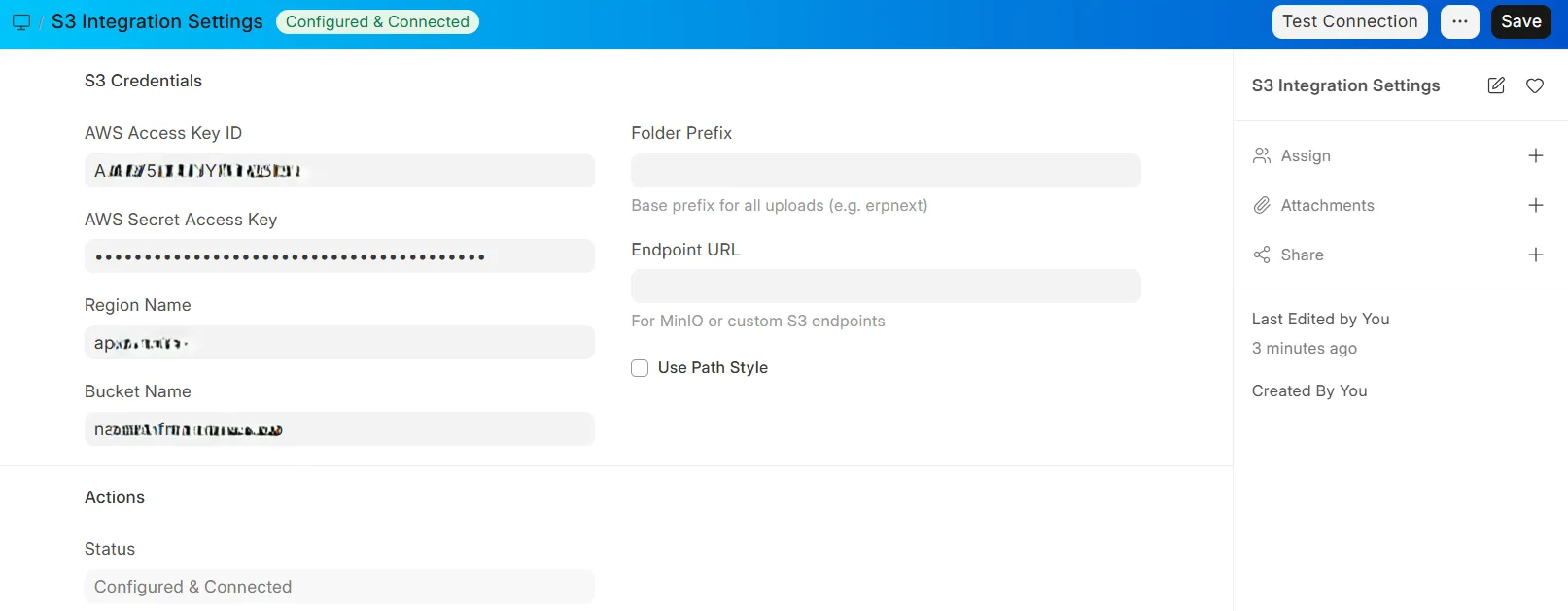
Open S3 Integration Settings in ERPNext.
Enter the S3 connection details:
AWS Access Key IDAWS Secret Access KeyRegion NameBucket NameEndpoint URLif you are using MinIO or another S3-compatible serviceUse Path Styleif required by your storage provider
Optionally set
Folder Prefixto keep all objects under a dedicated root path.Save the document.
Click
Test Connection.
Attachment Storage Setup
To store new attachments in S3:
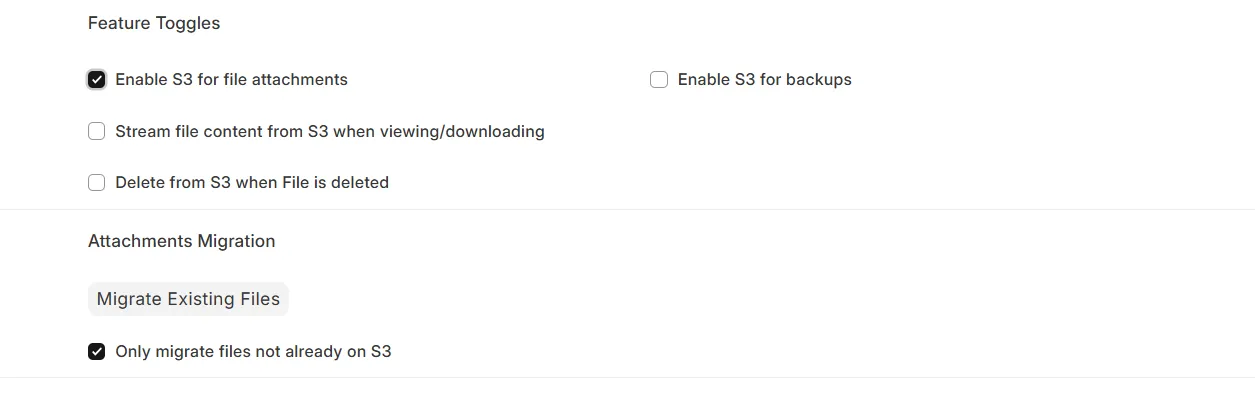
Enable
Enable Attachments S3.Choose whether files should be streamed through ERPNext or served with pre-signed URLs using
Stream From S3.Optionally enable
Delete From S3 On File Delete.Save the settings.
From that point onward, newly uploaded ERPNext attachments are stored in S3.
Existing File Migration
To migrate existing files already stored on disk:
Open S3 Integration Settings.
Ensure
Enable Attachments S3is enabled.Enable
Migrate Only Unmigratedif you want to skip rows already pointing to S3.Click
Migrate Existing Files.
The migration runs as a background job. It uploads local files to S3 and updates the corresponding File.file_url to the /s3/... route used by the app.
Backup Sync Setup
To send ERPNext backups to S3:
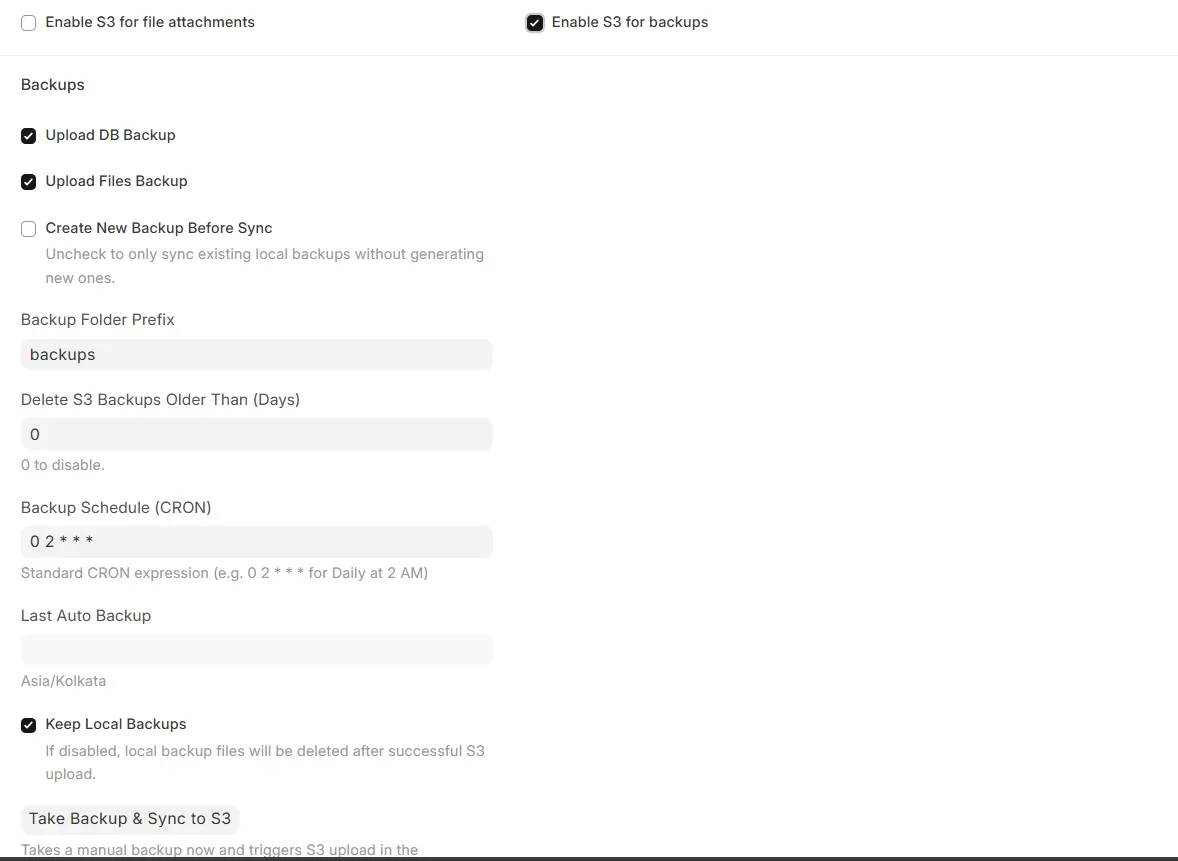
Enable
Enable Backups S3.Choose whether to upload database backups, file backups, or both.
Set
Backup Folder Prefixif you want backups stored separately from attachments.Set
Backup CRON Expression.Choose whether to create a fresh backup before sync.
Choose whether to keep local backups after upload.
Save the settings.
The scheduler checks the CRON expression and uploads backup files to S3 when the next run time is due.
You can also trigger an immediate manual sync from the settings form with Take Backup and Sync.
Behavior Notes
Disabling
Enable Attachments S3stops new uploads from being redirected to S3.Existing files that already point to
/s3/...remain accessible as long as the S3 credentials are still configured.External file URLs such as
http://andhttps://are skipped by the migration tool.The app uses a
Fileoverride so ERPNext can read S3-backed files without expecting them on local disk.
Verification Checklist
Test Connectionsucceeds.A newly uploaded attachment gets a
/s3/...URL in theFilerecord.Opening an existing S3-backed file works from ERPNext.
Manual backup sync uploads the expected backup artifacts.
Scheduled backup sync runs with the configured CRON expression.
Support
Company: Solufy Pvt. Ltd.
Email: [email protected]
User Reviews
No reviews yet, be the first to review.
0.0
0 rating
Explore more apps