Frappe
Cloud
Marketplace
Frappe
Products
Insights

Installation Guide
installs
Publisher
Supported versions
Categories
E-Commerce
About
Sync your Frappe/ERPNext data to Google BigQuery for analytics, dashboards, AI, and data warehousing — with near real-time updates (every few minutes), incremental exports, pagination, and fine-grained control over which doctypes, columns, and rows go out.
Who is this for?
Teams that want BigQuery for BI/AI, without writing custom ETL. Works great with Looker Studio, dbt, Vertex AI, Colab/Notebooks, etc.
Key Capabilities (at a glance)
Near real-time sync: schedule refreshes every few minutes.
Selective export: pick doctypes, columns, and row filters (e.g., only submitted documents, a date window, or a specific company).
Incremental export: only send new/changed records using
modified/namemarkers.Pagination & resumability: handles large tables, continues where it left off.
Idempotent writes: syncs into BigQuery tables (creates if missing), updates on re-runs.
One-time setup: paste a Google service account JSON with BigQuery write access — you’re done.
How it Works (high level)
You install the app and add a Google service account JSON with access to your BigQuery project/dataset.
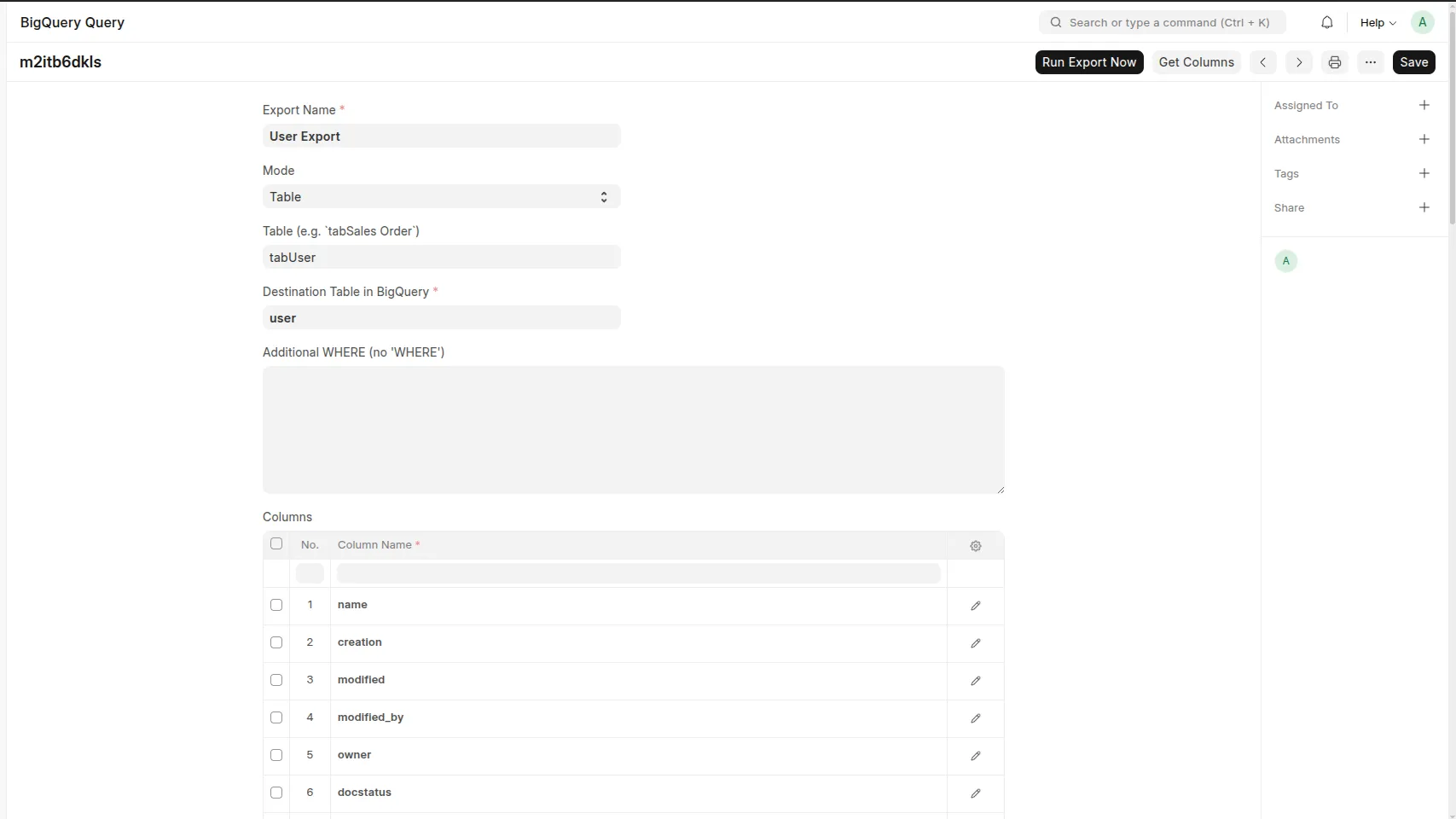
You choose which doctypes to export (and which columns & filters apply).
The connector batches records (paginated), remembers the last successful checkpoint, and exports only the delta on each run.
A scheduler (background job) keeps your BigQuery tables fresh.
Prerequisites
Frappe v15/16 (or ERPNext on Frappe v15/16).
A Google Cloud project with BigQuery enabled.
A Service Account JSON key with the following minimal roles:
On the target dataset: BigQuery Data Editor (or Data Owner if you want table create/alter).
On the project: BigQuery Job User (to run load jobs).
The dataset already created (recommended), e.g.
my_company_dw.
Security note: store the service account privately. You can revoke or rotate the key anytime in Google Cloud.
Install
On Frappe Cloud Marketplace
Open Marketplace → search “Frappe BigQuery Connector (Niyu Labs)”.
Click Install to your site.
After install, you’ll see BigQuery Connector in the Desk.
(Self-hosted bench users can install from the repo as needed.)
Setup (5 minutes)
Go to BigQuery Connector Settings (Desk → Search bar).
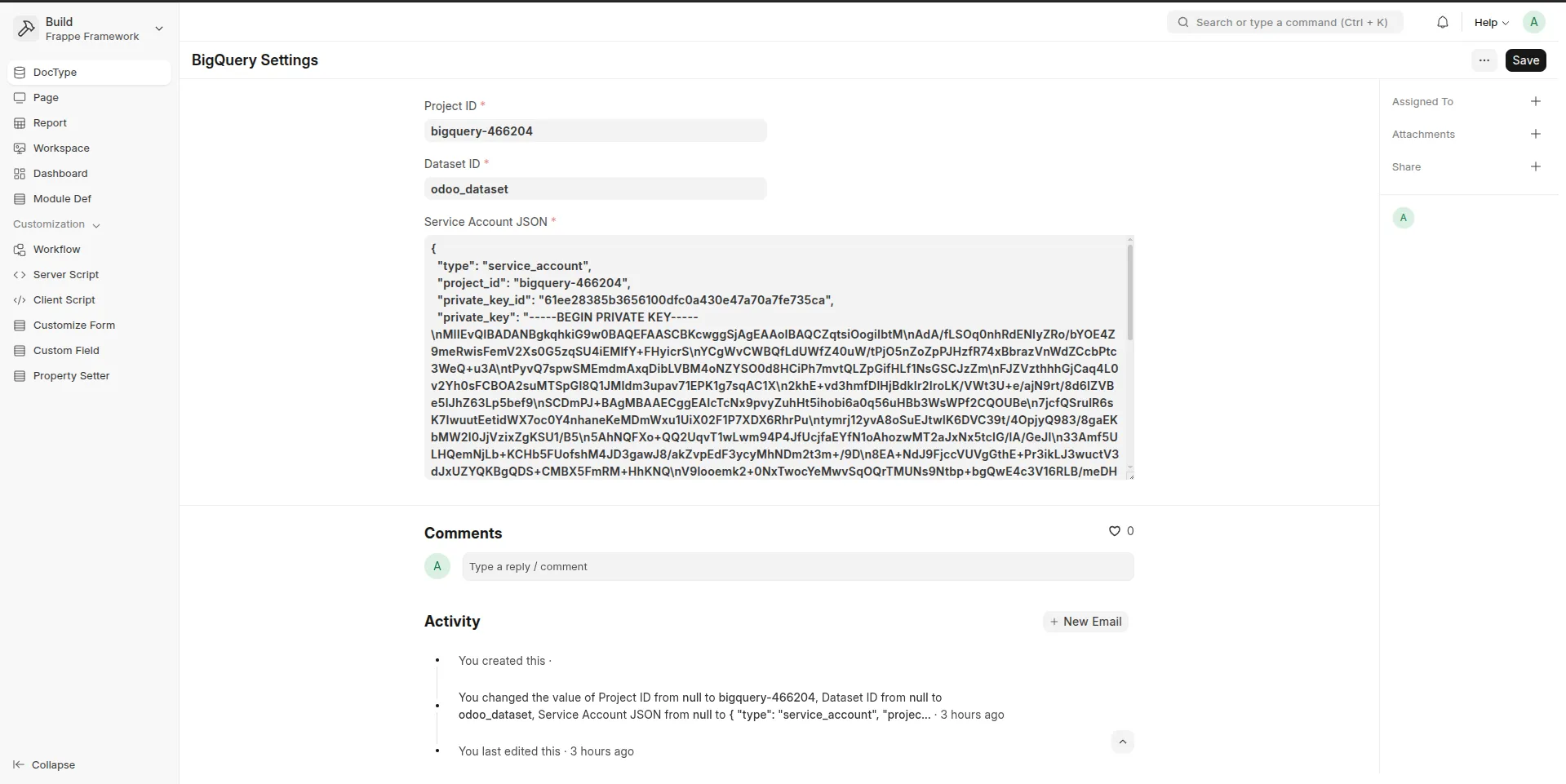
Paste your Service Account JSON.
Set:
Default Project ID (e.g.
acme-prod)Default Dataset (e.g.
frappe_dw)Click Test Connection → should show “Success”.
Save.
First Sync (guided)
Open BigQuery Exports → New Export.
Pick a Doctype (e.g., Sales Invoice).
(Optional) Choose Columns (defaults to all).
(Optional) Add a Row Filter (SQL-like WHERE fragment, e.g.
docstatus = 1 AND posting_date >= CURDATE() - INTERVAL 30 DAY).Choose Incremental Keys (defaults:
Timestamp:
modifiedPrimary key:
nameRun Now to push the first batch to BigQuery.
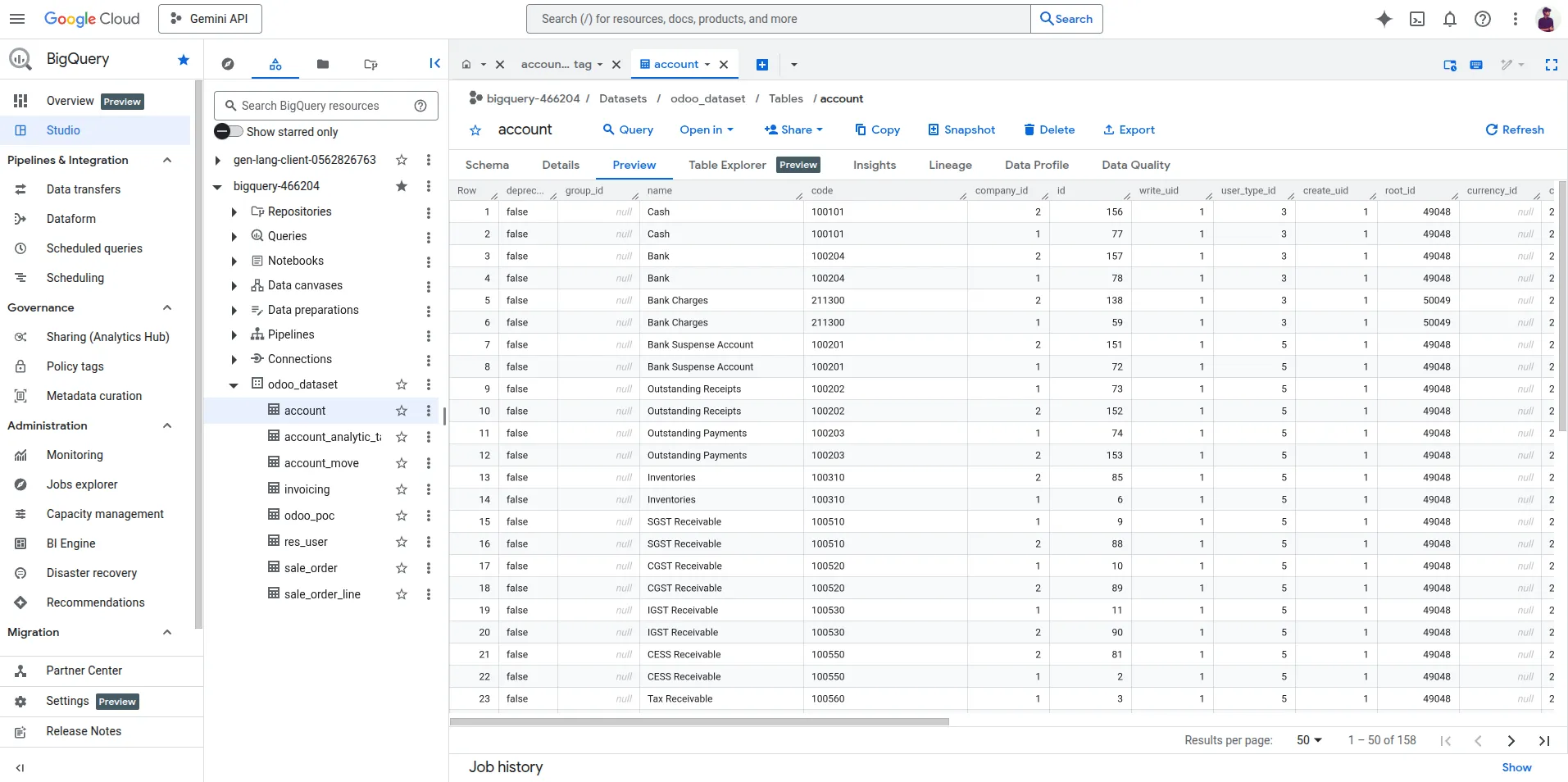
Verify in BigQuery (see below).
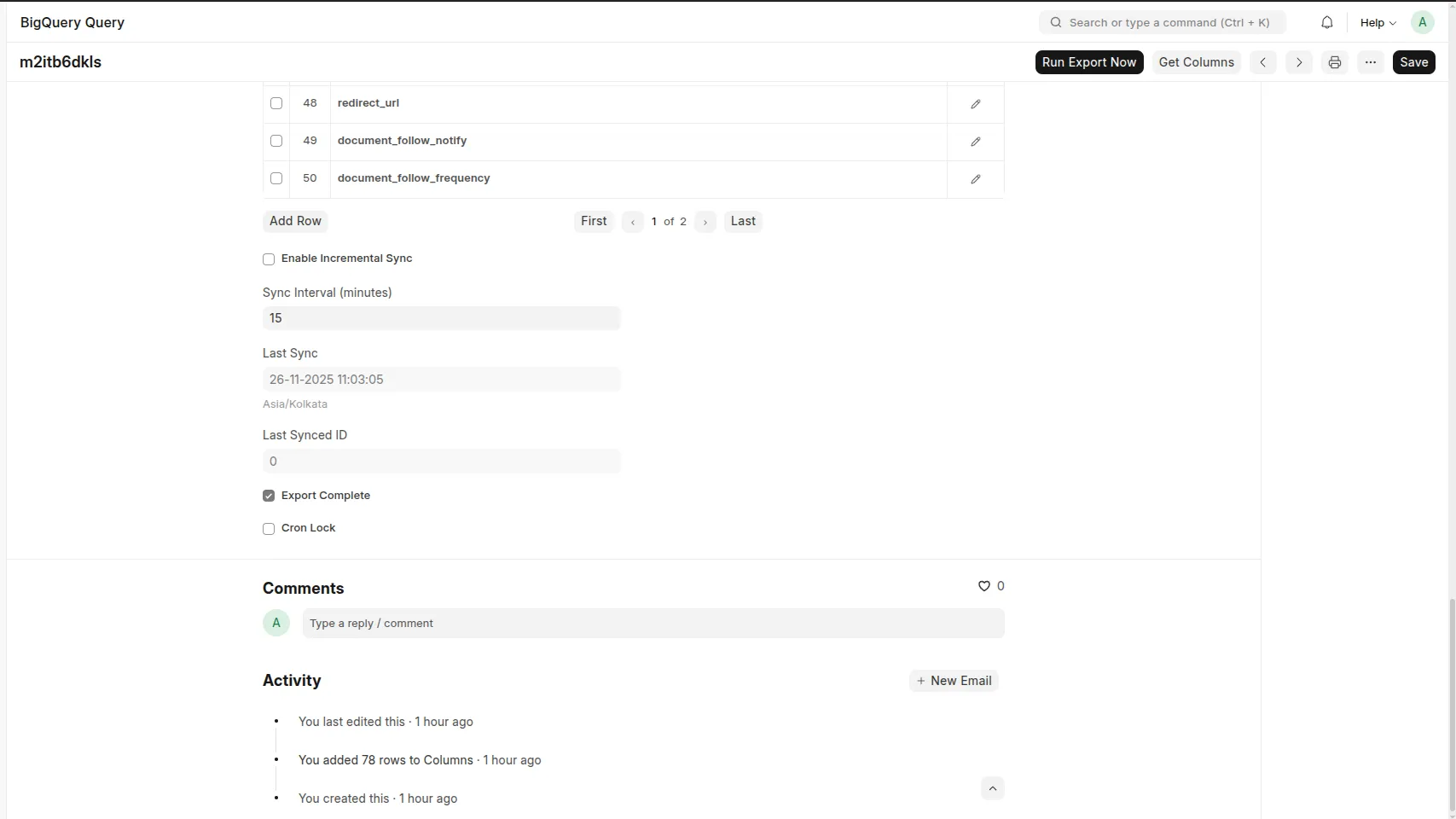
Toggle Auto Refresh and pick the schedule (e.g., every 5 minutes).
Verify in BigQuery (examples)
-- count rows in the exported tableSELECT COUNT(*) FROM `acme-prod.frappe_dw.tabSales Invoice`;
-- recent 30 days by company (company-currency totals):
SELECT company, SUM(base_grand_total) AS base_total
FROM `acme-prod.frappe_dw.tabSales Invoice`
WHERE posting_date >= DATE_SUB(CURRENT_DATE(), INTERVAL 30 DAY)
AND docstatus = 1
GROUP BY company
ORDER BY base_total DESC;
Tables are created as
tab{Doctype Name}to match Frappe conventions (spaces included). Use backticks in MySQL/Frappe; use standard BigQuery quoting in SQL as shown above.
Filters & Column Selection — Quick Examples
Only submitted docs:
docstatus = 1Only one company:
company = "Acme Pvt Ltd"Date window:
posting_date >= DATE_SUB(CURRENT_DATE(), INTERVAL 90 DAY)Exclude cancelled:
docstatus != 2Combine:
company = "Acme Pvt Ltd" AND docstatus = 1 AND posting_date >= "2025-01-01"
Pick only the columns you need to keep BigQuery storage lean.
Incremental & Pagination (what happens under the hood)
The connector stores a checkpoint (e.g.,
last_modifiedandlast_name) per export.On each run, it fetches only changed/new rows since the last checkpoint.
Large exports are paged (configurable page size) to avoid timeouts and memory spikes.
If a run is interrupted, the next run resumes from the last clean checkpoint.
Scheduling
Enable Auto Refresh on each export and choose a cadence (e.g., every 5 min).
Use site scheduler / background jobs; the app is safe to run alongside your other jobs.
You can also Run Now manually whenever you want.
Typical Data You’ll Send
Sales/Invoices: Sales Invoice + Items, Purchase Invoice + Items, Delivery Notes, etc.
Masters: Customer, Supplier, Item, Company, Warehouse.
Accounting: Journal Entry + Accounts (be mindful of volume).
Custom Doctypes: fully supported — pick columns and filters as needed.
Tip: For currency-correct totals across companies, prefer base_* totals (e.g.,
base_grand_total) so everything shows in company currency at export time.
Troubleshooting
“Permission denied / not authorized”
The service account must have BigQuery Job User (project) and Data Editor/Owner (dataset).
Check the dataset name & location (e.g.,
us,europe-west1) match your project.
“Dataset not found”
Create the dataset first (BigQuery console), or grant Data Owner if you want the connector to create tables.
“Key is invalid JSON”
Paste the full JSON (including all braces/quotes). Don’t paste the “Private key ID” alone — paste the entire file contents.
“Tables too large / timeouts”
Use filters to narrow the scope (last 90 days, submitted docs only).
Lower the page size (pagination) in the export config.
“Numbers don’t match”
For cross-company sums, use
base_*columns instead of currency columns.Check your filters (e.g.,
docstatus).
Security & Access
Only users with the role you assign (e.g., BigQuery Connector User) can configure or trigger exports.
Data is sent from your site to BigQuery over Google’s APIs using your service account.
You can revoke the key anytime in Google Cloud (Service Accounts → Keys).
Screenshots (suggested)
Settings – service account JSON, project, dataset, Test Connection.
New Export – choose Doctype, columns, filter, incremental keys.
Export List – status, last run, schedule.
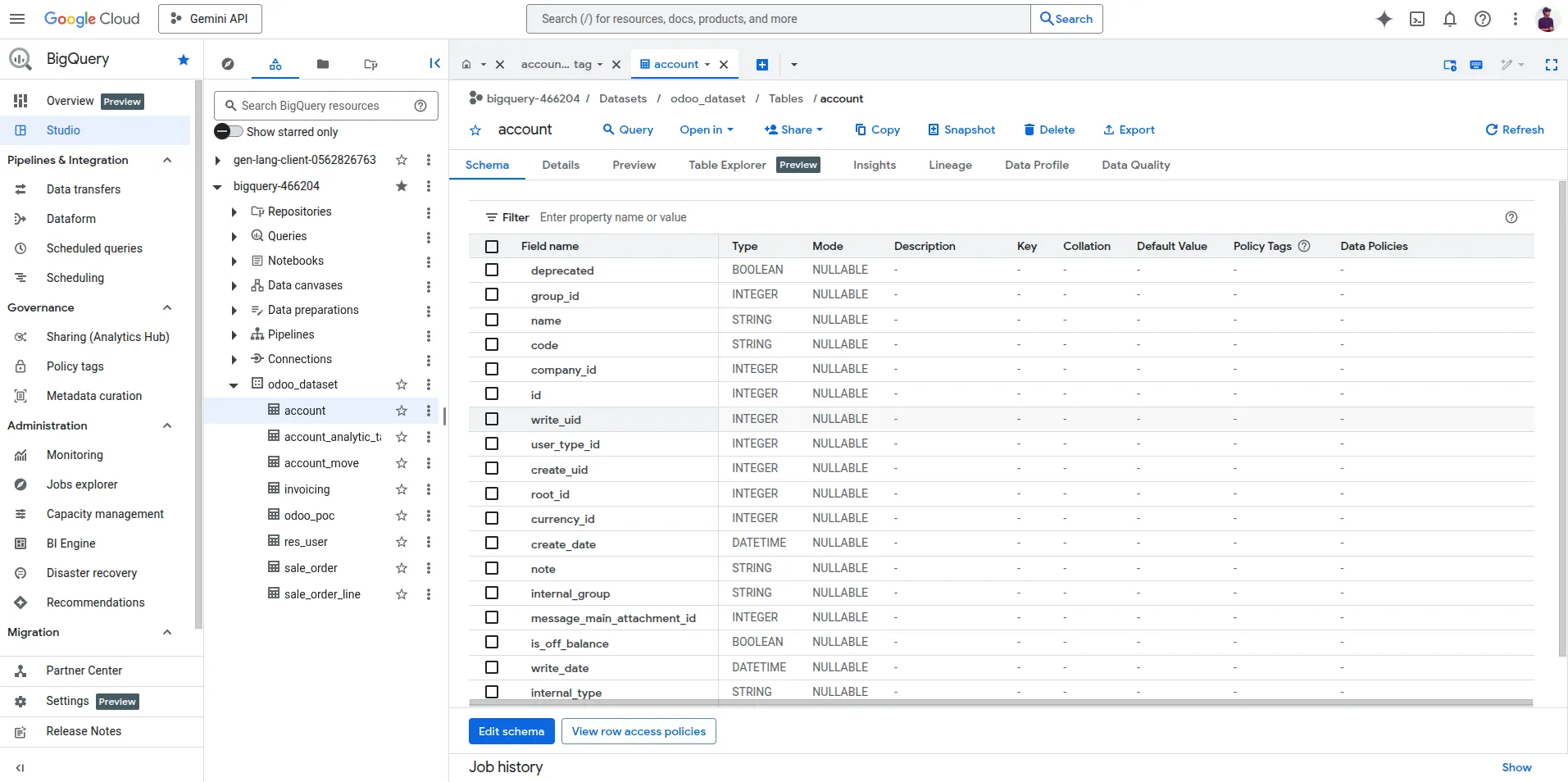
BigQuery Table – sample rows in the console.
Developer - Niyu Labs
Support
Email: [email protected]
Website: niyulabs.com
Issues: GitHub →
NiyuFrappe/frappe_bigquery
Attribution
Google BigQuery and the BigQuery logo are trademarks of Google LLC. This app is an independent integration by Niyu Labs and is not affiliated with or endorsed by Google LLC.
Changelog
v0.1.0 — Initial release: selective doctypes/columns, filters, incremental export, pagination, scheduled refresh, connection test.
Why this connector?
Zero-code pipeline from Frappe to a modern, scalable warehouse.
Clean, predictable tables for BI/AI.
Built by a team that ships similar connectors for other ecosystems (with battle-tested incremental logic and safeguards).
Once data is on Bigquery, you can Connect it with Microsoft Power BI, Google Looker, Tableau and many more.
User Reviews
5 stars
%
4 stars
%
3 stars
%
2 stars
%
1 star
%
•
Reply
5.0
1 rating
Explore more apps