Frappe
Cloud
Marketplace
Frappe
Products
Insights
Installation Guide
installs
Publisher
Supported versions
Categories
E-Commerce

About
Frappe Paystack is a payment gateway integration for Frappe Framework and ERPNext that lets businesses collect, reconcile and refund Paystack payments without leaving the desk. It supports NGN, USD, GHS, ZAR and KES, and multiple companies, each with its own keys and accounts.
Key Features
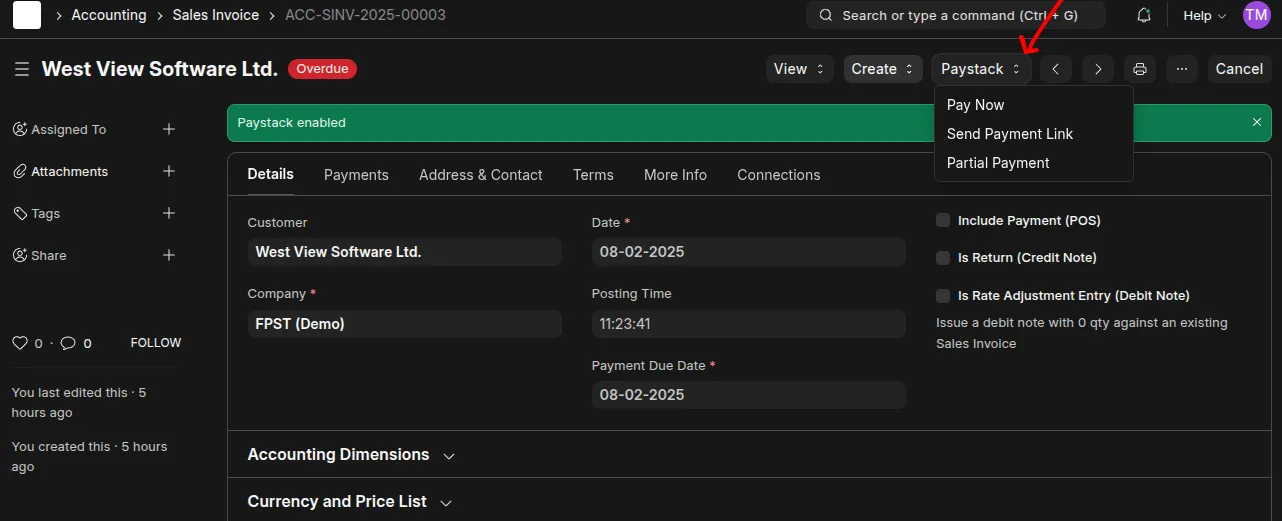
Payment Links - Generate a checkout link for a Sales Invoice, Sales Order, POS Invoice or Dunning, and email it to the customer. Links can be set to expire, and an invoice can be printed with the link as a QR code the customer scans to pay.
Webshop / Shopping Cart - Customers shop and pay directly from the webshop, and a paid order is invoiced automatically.
Inline or Hosted Checkout - Choose Paystack's inline popup or a hosted checkout page per gateway.
Partial Payments - Collect part of a document's balance; the remainder stays outstanding.
Saved Cards - Store a customer's card after a successful payment and bill it again later, without asking them to check out a second time. If the bank asks the customer to approve the charge, you are told to send them a checkout link instead.
Subscription Auto-Collection - Charge subscription invoices raised by ERPNext Subscriptions to the customer's saved card automatically, opt-in per company.
Point of Sale - Send a payment link to the shopper by email or phone from the POS, and watch the till for the balance as it is paid.
Refunds - Refund a payment in full or in part, or have a refund raised automatically when a Credit Note is issued. You can never refund more than was collected, and the reversal is booked against the ledger.
Settlements - Import Paystack payouts and record the gross, fees and net against your bank, fee and suspense accounts, so the money that reaches your account matches the money in your books. Payments Paystack has not paid out yet are listed separately.
Reconciliation - Every recent payment is checked against Paystack daily, and anything where the amount, currency or status disagrees is flagged. Ones you have already looked into can be marked as reviewed with a note.
Payment Validation - Every payment is confirmed with Paystack before it is recorded, so a fake or repeated notification never marks a document as paid.
Secure Webhooks - Payment notifications are verified as genuinely from Paystack, can be restricted to Paystack's own addresses, and a repeated notification never bills a customer twice.
No Double Payments - A document with a payment in progress reads Processing Payment and cannot be paid a second time.
Nothing Left Behind - A payment Paystack took but your books have not recorded is retried until it is recorded, and anything still outstanding is listed on the workspace.
Customer Portal - Customers see their payments and refunds at /my-payments and download PDF receipts for what they have paid.
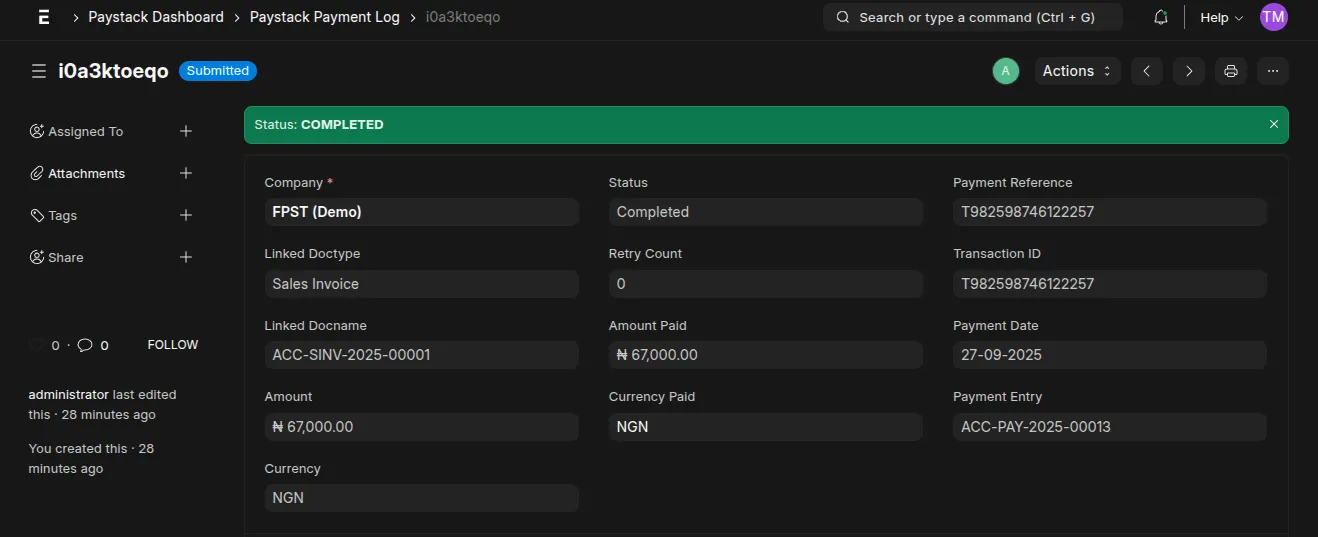
Payment Logs - Every payment, refund and payout is recorded with its Paystack reference and status, along with everything Paystack sent back. Card numbers are never stored.
Reports & Dashboard
Paystack Transactions - Every payment with status, amount, reference and timestamp.
Customer Paystack Volume - Totals per customer.
Paystack Activity - A single feed of payments, refunds and payouts, flagged by how much attention each one needs.
Paystack Settlements vs Ledger - What Paystack paid out against what your books recorded.
Paystack Unsettled Payments - Payments Paystack has not paid out yet.
Reports and dashboard cards respect company permissions, so a user restricted to one company sees only that company's money.
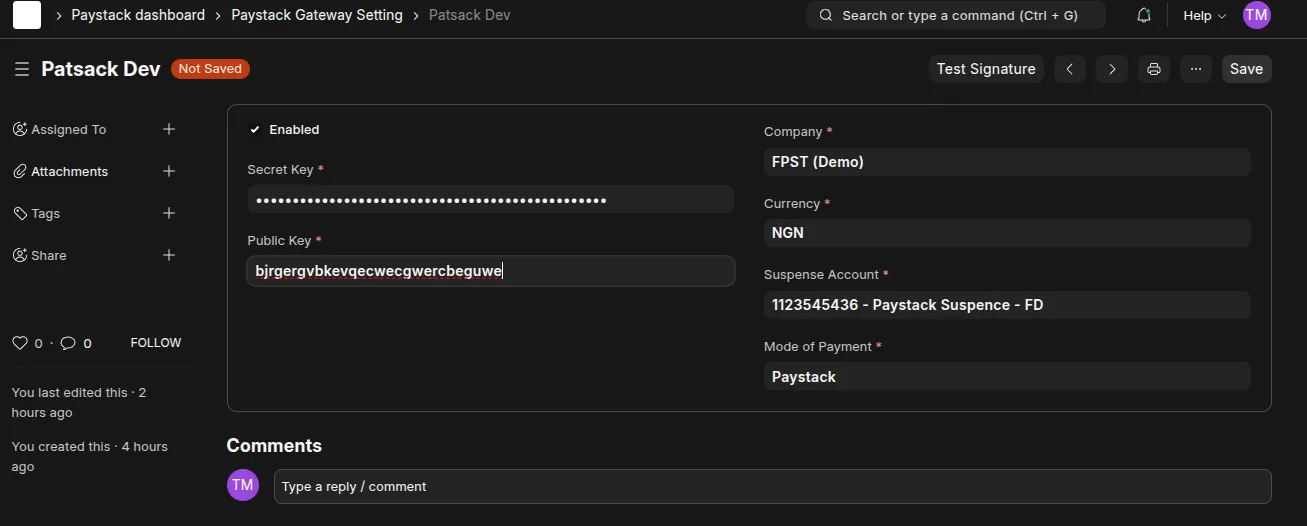
Configure Paystack Gateway Settings
Log in as a System Manager.
Go to Paystack Gateway Setting.
Copy your Public Key, Secret Key and Webhook Secret from the Paystack Dashboard.
Set the Company and Currency the gateway collects for.
Set a Suspense Account to hold funds before settlement, and optionally a Settlement Bank Account and Paystack Fee Account for payouts.
Select a Mode of Payment, choose a Checkout Mode, and set Payment Link Validity if links should expire.
Optionally enable Auto Refund on Credit Note and Auto Charge Subscription Invoices.
Tick Enabled and save.
Point your Paystack webhook at https://yoursite.com/api/method/frappe_paystack.api.paystack_webhook
Ensure your Paystack account is verified and active before going live.
Start Accepting Payments
Open a Sales Invoice, Sales Order, POS Invoice or Dunning.
Click Payment and choose Paystack.
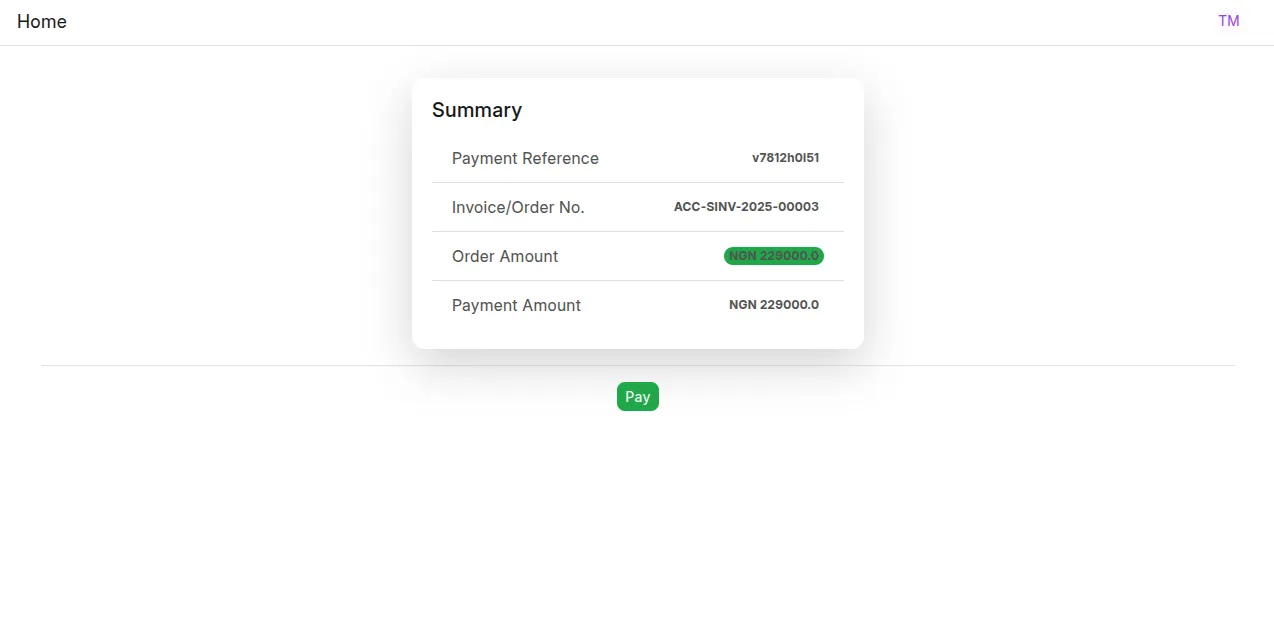
A checkout link is generated and can be emailed to the customer.
On success, the document is marked Paid, or partially paid, and a Payment Entry is booked against it automatically.
User Reviews
No reviews yet, be the first to review.
0.0
0 rating
Explore more apps