Frappe
Cloud
Marketplace
Frappe
Products
Insights

About
Your ZKTeco fingerprint machines, wired straight into ERPNext attendance
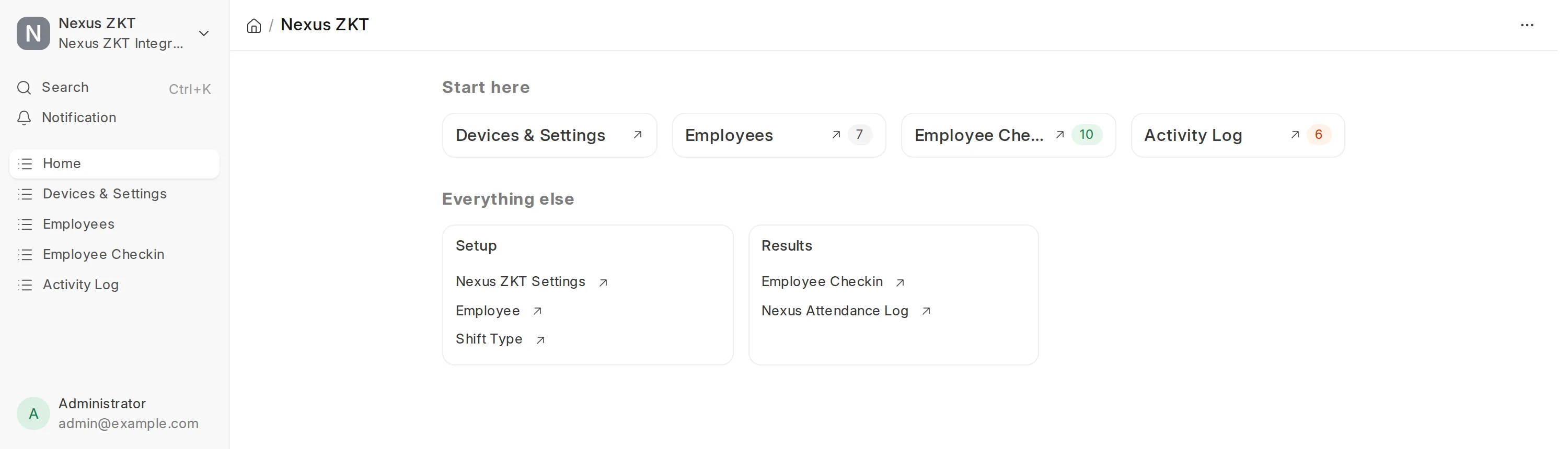
Punches go in one end, Employee Checkin records come out the other. No exports, no spreadsheets, no typing. Front door and back door read as one day.
Works with Frappe, ERPNext and HRMS version 15 and 16.
What it does
Every run, for each device you have listed:
Looks up your people. Collects the Attendance Device ID of every Active employee.
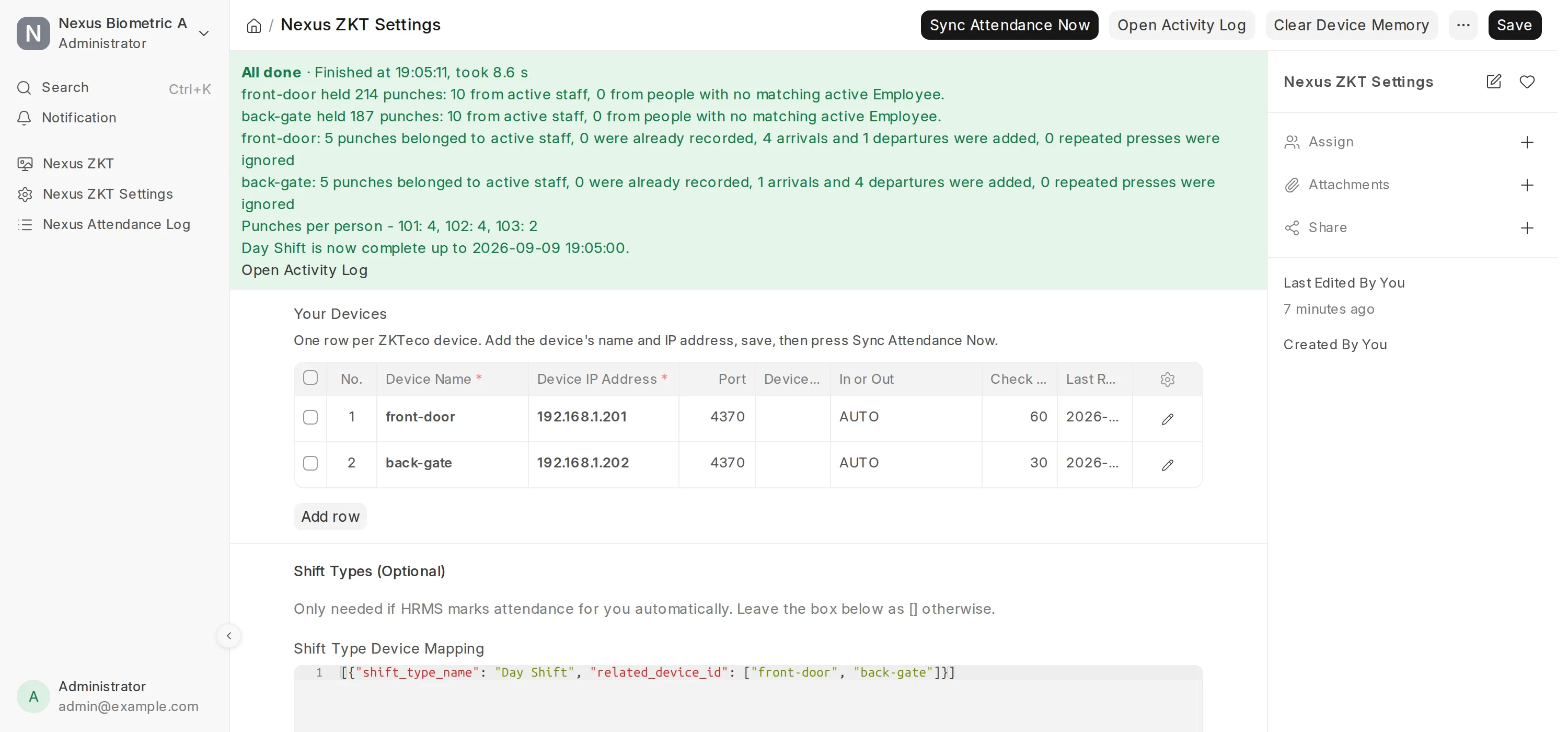
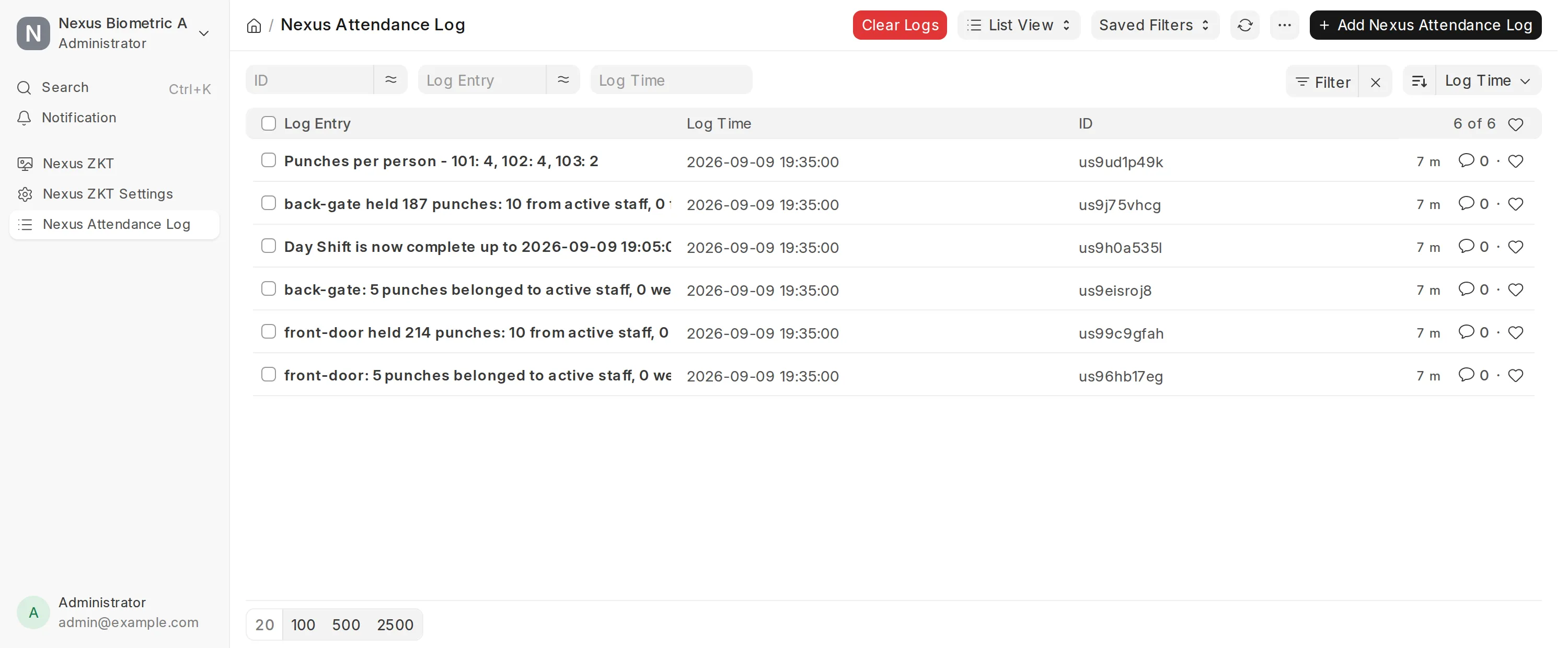
Reads the devices. Pulls each machine's attendance log and keeps only those people's punches. Punches from unknown or inactive users are ignored.
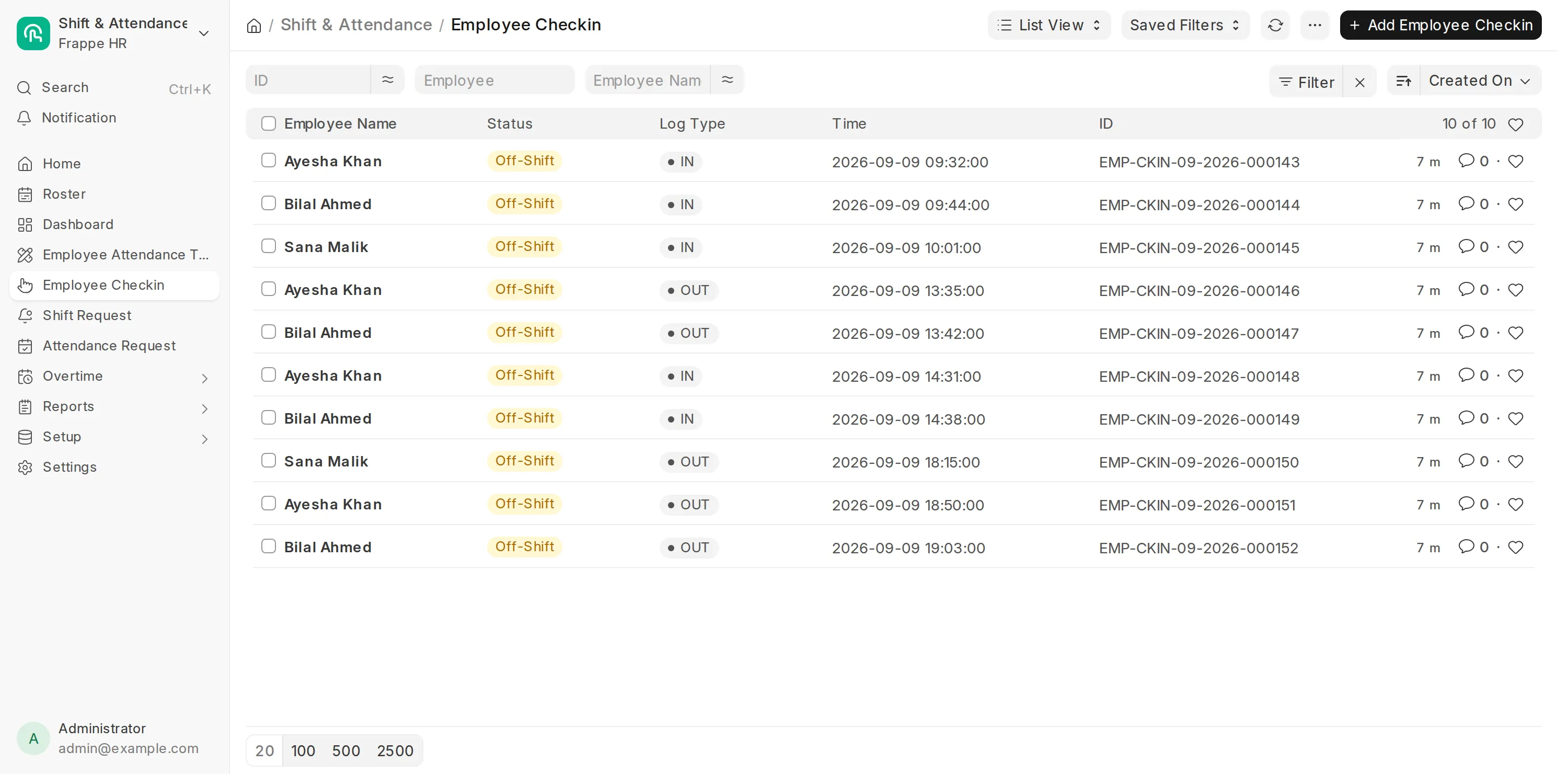
Writes the check-ins. Puts every punch from every machine in one list in time order, then creates one Employee Checkin each, marked IN or OUT. A punch that is already recorded is skipped, so running the sync twice never doubles anything.
Everything is written to the Nexus Attendance Log, so you can always see what happened and why.
What makes it different
More than one door is handled properly. A person who walks in the front and out the back has one day, not two half-days. Every machine is read before any direction is decided.
Two machines can share one public address, told apart by port — the usual shape of an office behind a single router.
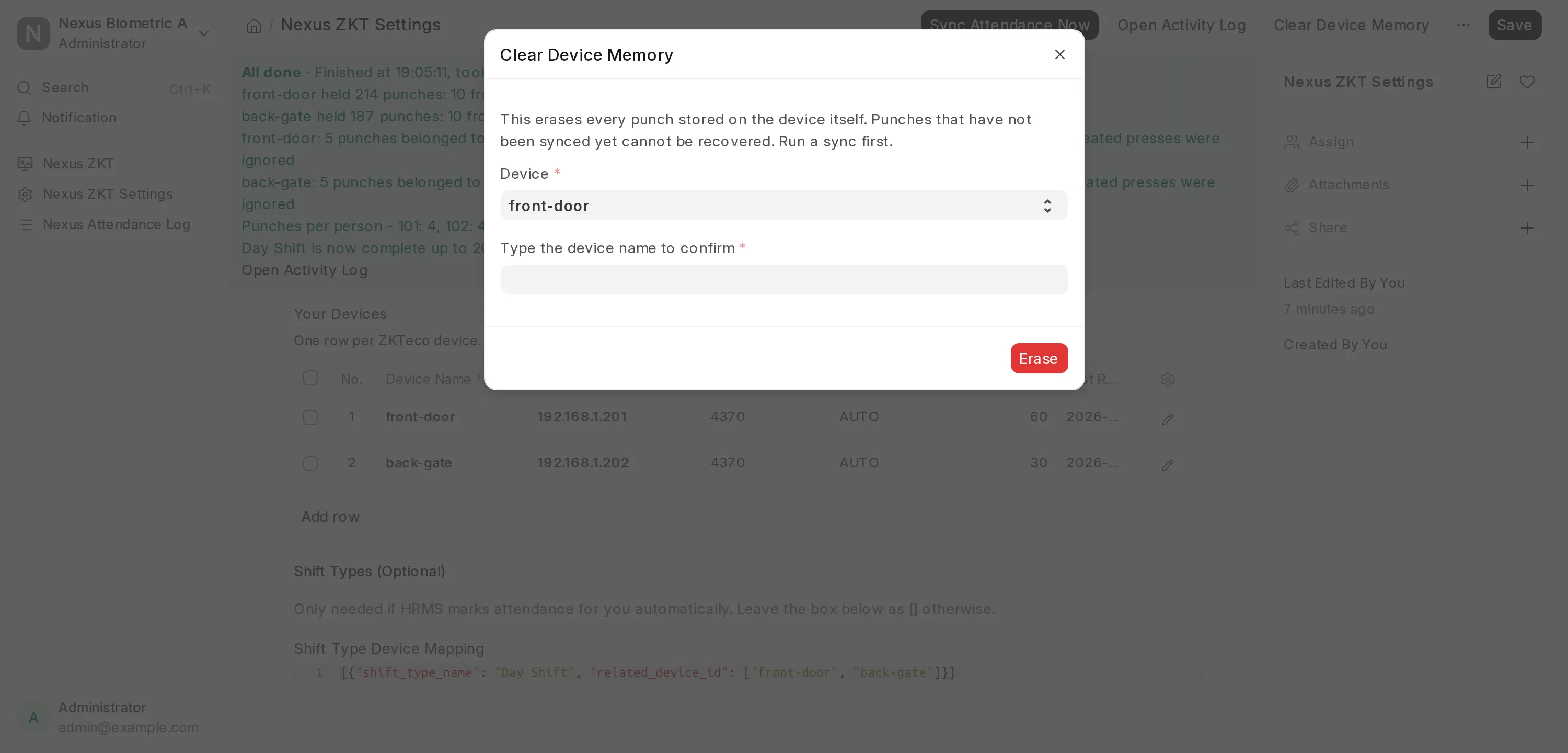
Nothing is erased by accident. A sync never touches a machine's memory. Clearing is a separate button that makes you type the device name back.
It never invents data. No example device is created, so your log does not fill with failures pointing at an address nobody owns.
Smart IN / OUT. Works whether or not your device records a punch direction: punches alternate per person across all doors, a forgotten check-out does not break the next day, and a double tap within two minutes counts once.
106 automated tests, run against Frappe 15 and 16 on every change.
What you need
Frappe, ERPNext and HRMS (version 15 or 16)
Each device reachable from your server on its TCP port (4370 by default)
Tested with ZKTeco F22 and K40; any device speaking the ZK SDK protocol should behave the same
Getting started
Open Nexus ZKT Settings and add one row per machine: a name, its IP address and port.
On every Employee, fill in Attendance Device ID with that person's user ID on the machine.
In each Shift Type, set Determine Check-in and Check-out to Alternating entries as IN and OUT during the same shift.
Press Sync Attendance Now — or let the hourly schedule do it for you.
Documentation and support
A full setup walkthrough, notes on multiple doors and a troubleshooting guide are in the app's documentation, linked from this listing.
Licensed under MIT. Built and maintained by Abbas Raza.
User Reviews
No reviews yet, be the first to review.
0.0
0 rating
More apps from
Explore more apps