Frappe
Cloud
Marketplace
Frappe
Products
Insights

Installation Guide
installs
Publisher
Supported versions
Categories
E-Commerce
About
Solvronix Desk
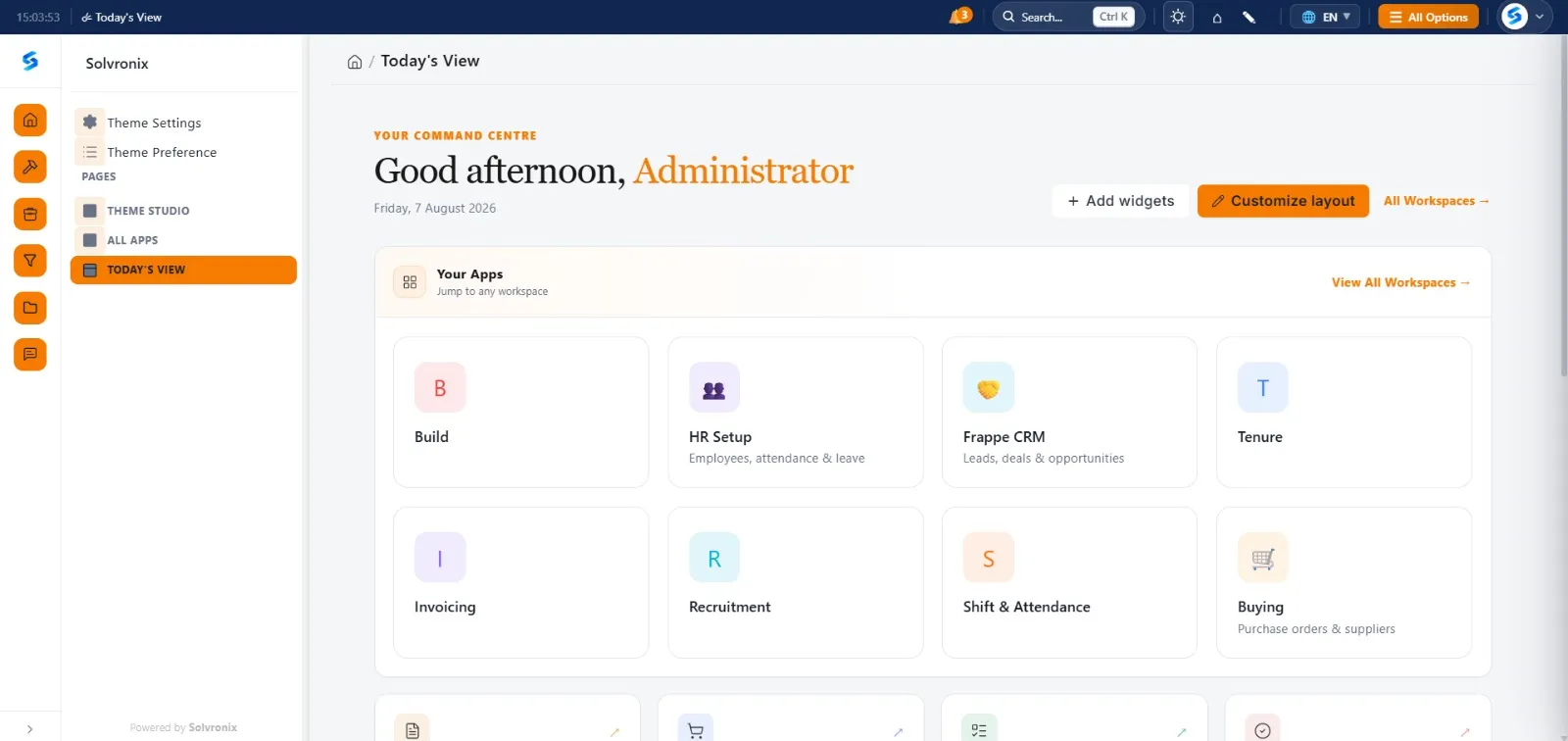
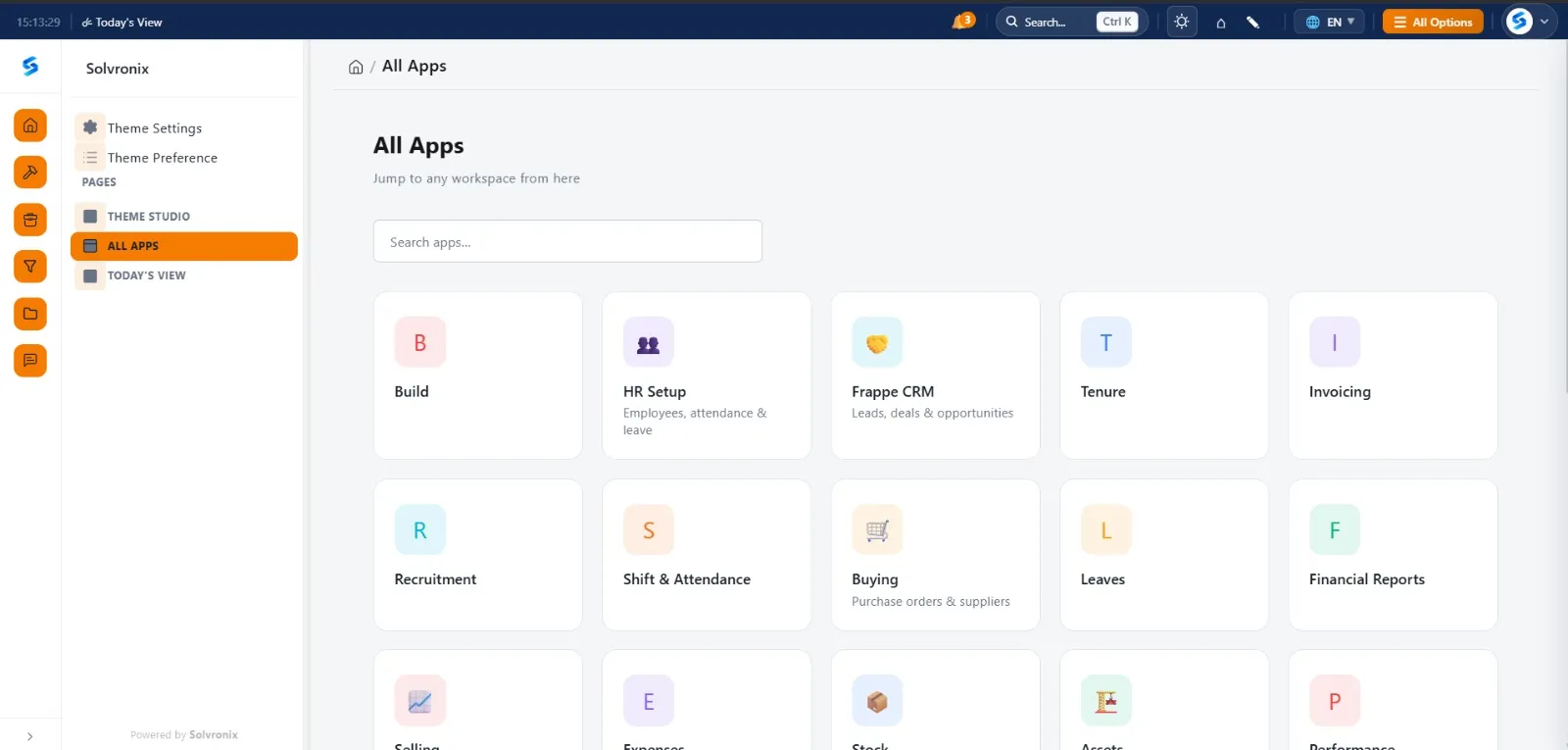
A professional white-label theme for Frappe/ERPNext v16 that makes your ERP look and feel like a modern SaaS product.
The Problem
ERPNext is powerful. But the default interface is overwhelming — too many menus, outdated design, and non-technical users struggle to find anything. Businesses reject ERPNext because it "doesn't look professional" or "is too hard to use."
Solvronix Desk solves this. Install it once and your ERPNext looks and feels like a tool people actually enjoy using — without touching a single line of your business logic.
What You Get
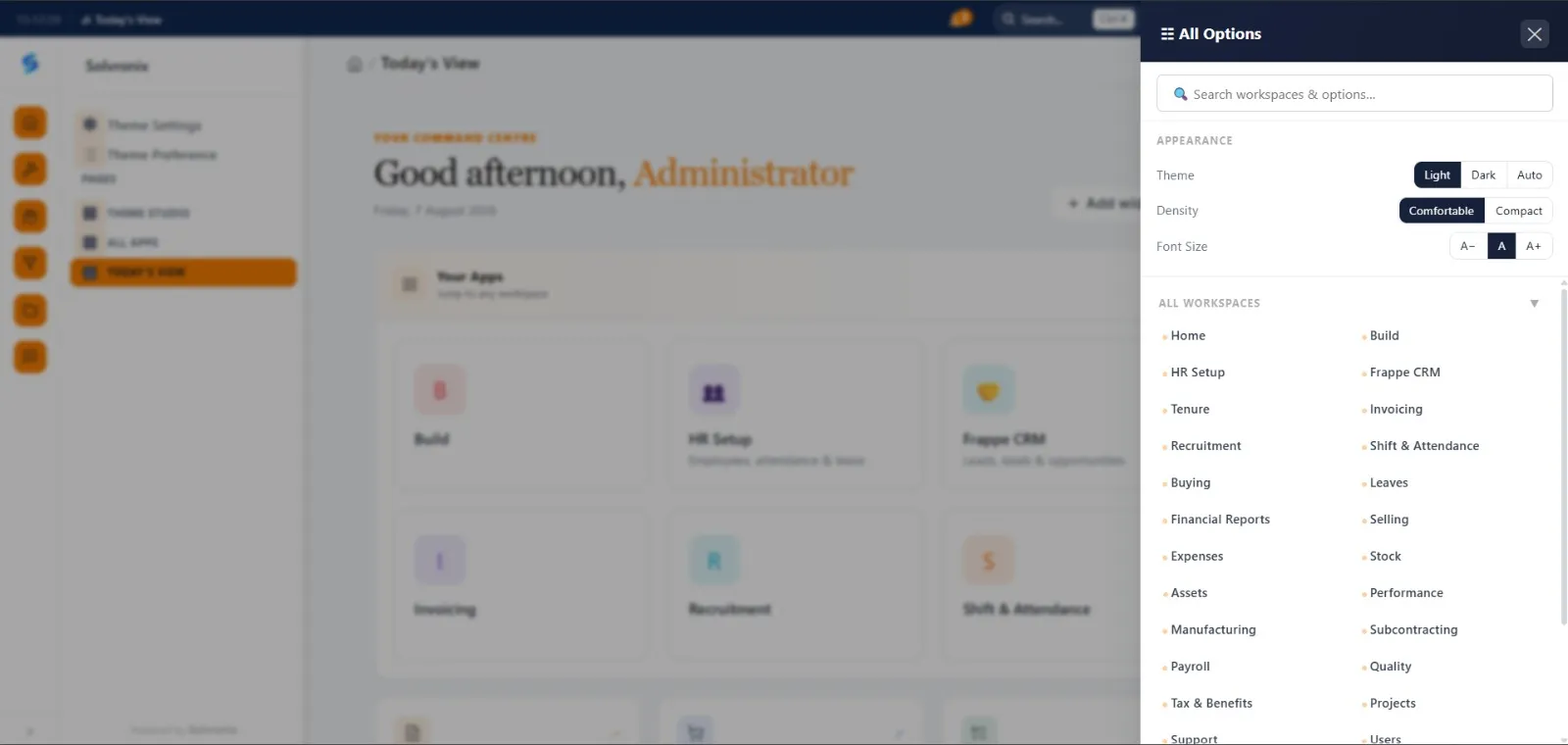
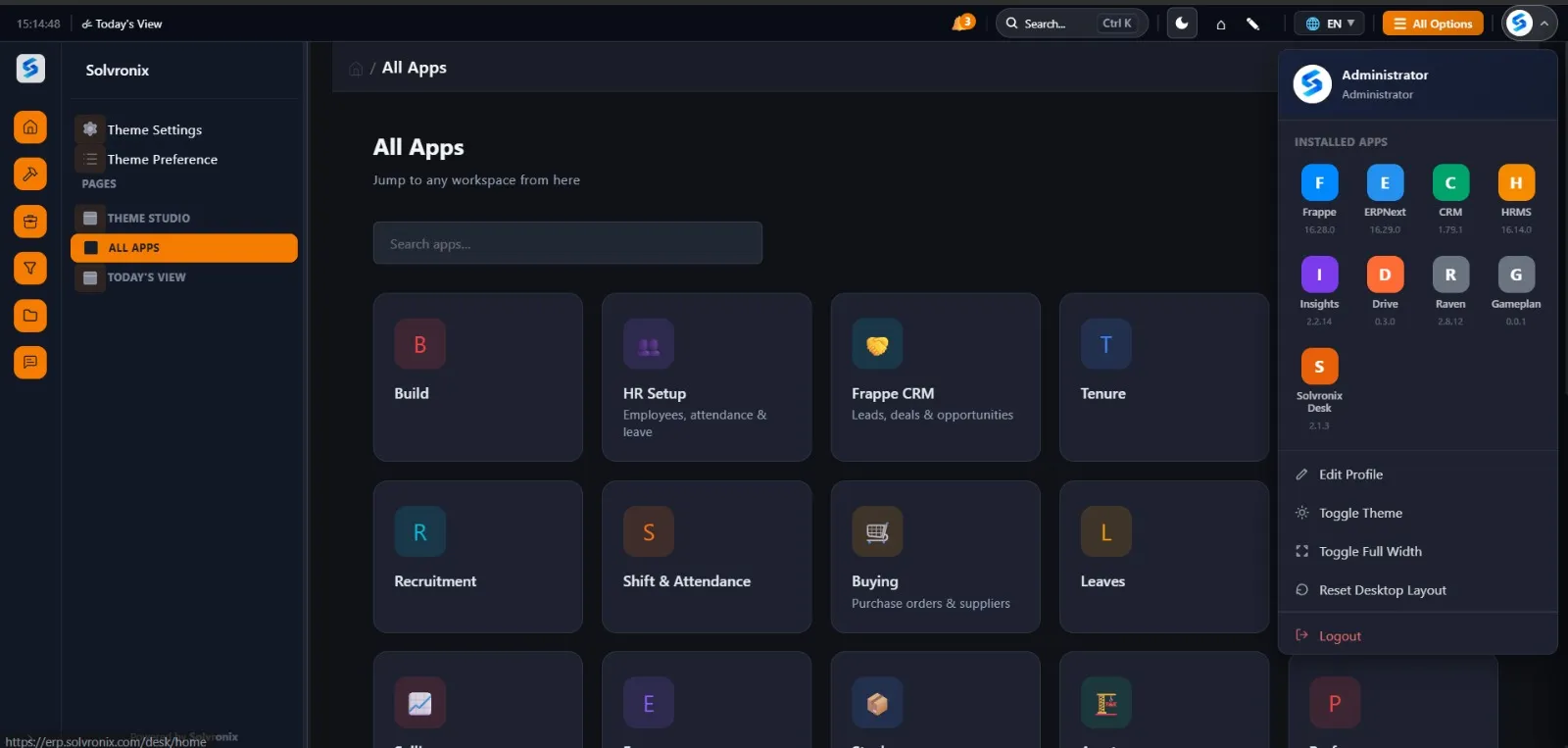
Command Palette — Ctrl+K
Press Ctrl+K from anywhere. Type what you're looking for — a document, a list, a setting — and navigate instantly. No menu hunting. No memorizing paths.
White-Label Branding
Go to Theme Settings, enter your company name, upload your logo, pick your two brand colors. Save. The entire system — sidebar, navbar, login page, buttons — instantly becomes your brand.
Quick Color Presets
Four one-click color presets appear above the color pickers in Theme Settings. Pick a preset — Brand Color and Accent Color update instantly. Includes Solvronix (Navy + Orange), Forest (Green + Gold), Midnight (Slate + Violet), and Plum (Purple + Amber). Use as-is or as a starting point before tweaking.
Auto Color System
You set one brand color. The system automatically generates your complete color palette — backgrounds, hover states, borders, shadows — using CSS color-mix(). Change your brand color and everything updates instantly. No developer needed.
Slim Icon Sidebar
A 64px icon rail (like Slack) instead of the default wide sidebar. Expands to 240px on click. Saves screen space, reduces visual clutter. State is saved per user.
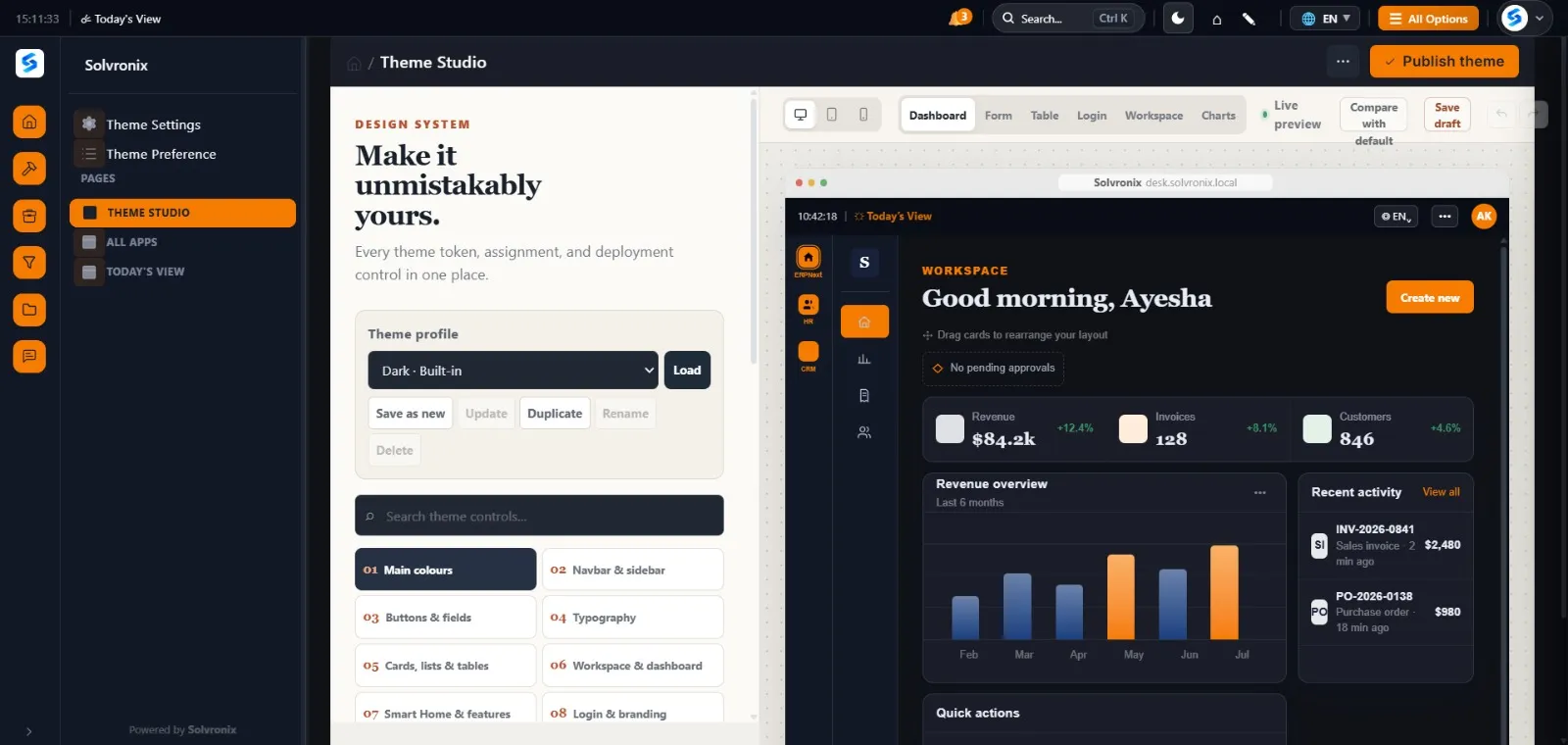
Dark Mode
One click toggles between light and dark. Both modes respect your brand colors. Works on every page.
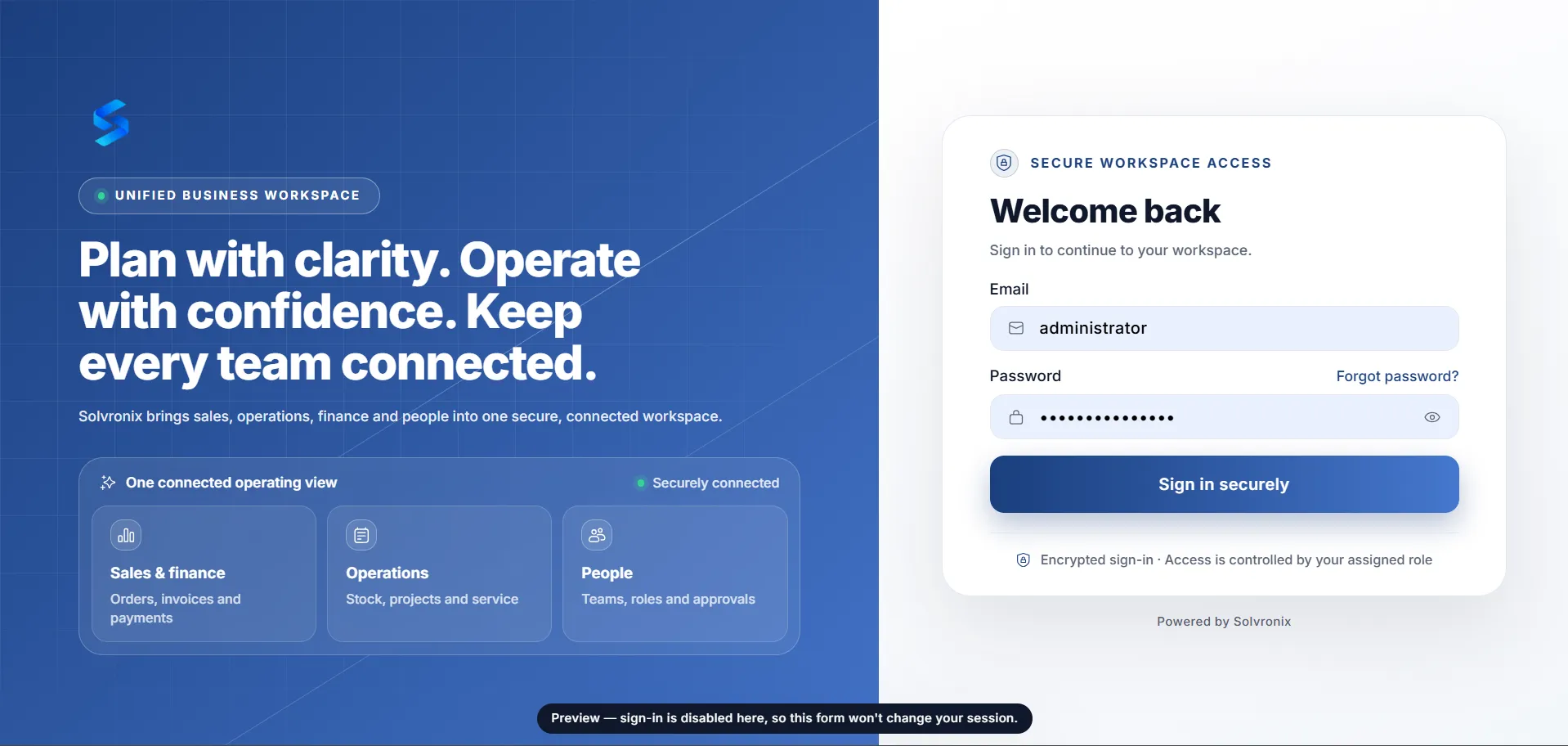
Modern Login Page
A full-screen branded login experience with your company logo and colors. First impression that sets the right tone for your team.
Requirements
| Requirement | Version |
| Frappe Framework | v16 |
| ERPNext | v16 (optional — works on any Frappe app) |
| Python | 3.10+ |
| Node | 18+ |
Open your site
Go to your-site.com/desk. The theme is now active with default Solvronix colors.
Setup Your Branding (5 minutes)
After installation, open Theme Settings — search for it with Ctrl+K or find it in the sidebar.
| Field | What it does |
| Company Name | Shown in the navbar — replaces "ERPNext" |
| Company Logo | Shown in the navbar and login page |
| Brand Color | Sets sidebar, navbar, and login page background |
| Accent Color | Sets buttons, active states, and highlights |
Tip: The Quick Presets row above the color pickers lets you apply a complete color pair in one click. Click any swatch → both fields update → click Save.
Click Save — the entire system updates instantly.
How the Color System Works
You only need to pick two colors. Everything else is generated automatically.
Brand Color → sidebar background, navbar, login page+ auto-generates: hover tints, border colors, page tintAccent Color → buttons, active sidebar item, highlights+ auto-generates: button hover, pressed state
This means any company — whether their brand is navy, green, red, or black — gets a complete, consistent color system from just two color pickers.
Example: Set Brand Color to #006B3C (green). Sidebar becomes green, login page becomes green, page background becomes a very light green tint. Set it back to #1B3F7E (navy) and everything reverts. No code, no rebuild.
Default Colors
| Color | Hex | Used For |
| Brand | #1B3F7E | Sidebar, navbar, login |
| Accent | #F57C00 | Buttons, active items |
| Page Background | Auto-generated | Light tint of brand color |
| Cards / Forms | #FFFFFF | All content surfaces |
Keyboard Shortcuts
| Key | Action |
Ctrl+K / Cmd+K | Open command palette |
↑ ↓ | Move through results |
Enter | Open selected item |
Esc | Close palette |
Compatibility
| Frappe Version | Status |
| v16 | ✅ Fully supported |
| v15 | ⚠️ Not tested |
| v14 | ❌ Not supported |
Works with ERPNext and any other Frappe-based application.
Uninstalling
Your ERPNext returns to its default appearance. No data is deleted.
User Reviews
No reviews yet, be the first to review.
0.0
0 rating
Explore more apps