Frappe
Cloud
Marketplace
Frappe
Products
Insights

Installation Guide
installs
Supported versions
Categories
E-Commerce
.webp)
About
Tally Migration
No 1 Frappe/ERPNext app to migrate data from Tally Prime into ERPNext. Built and maintained by Greycube Technologies.
Open Tally Migrator from the desk. A guided wizard checks your file, shows a preview and changes nothing until you confirm.
Note : The app is free , time is not , if you wish to get our consultancy on this migration , our support packages starts @ 10k (excluding GST) .
Contact us on [email protected]
What It Does
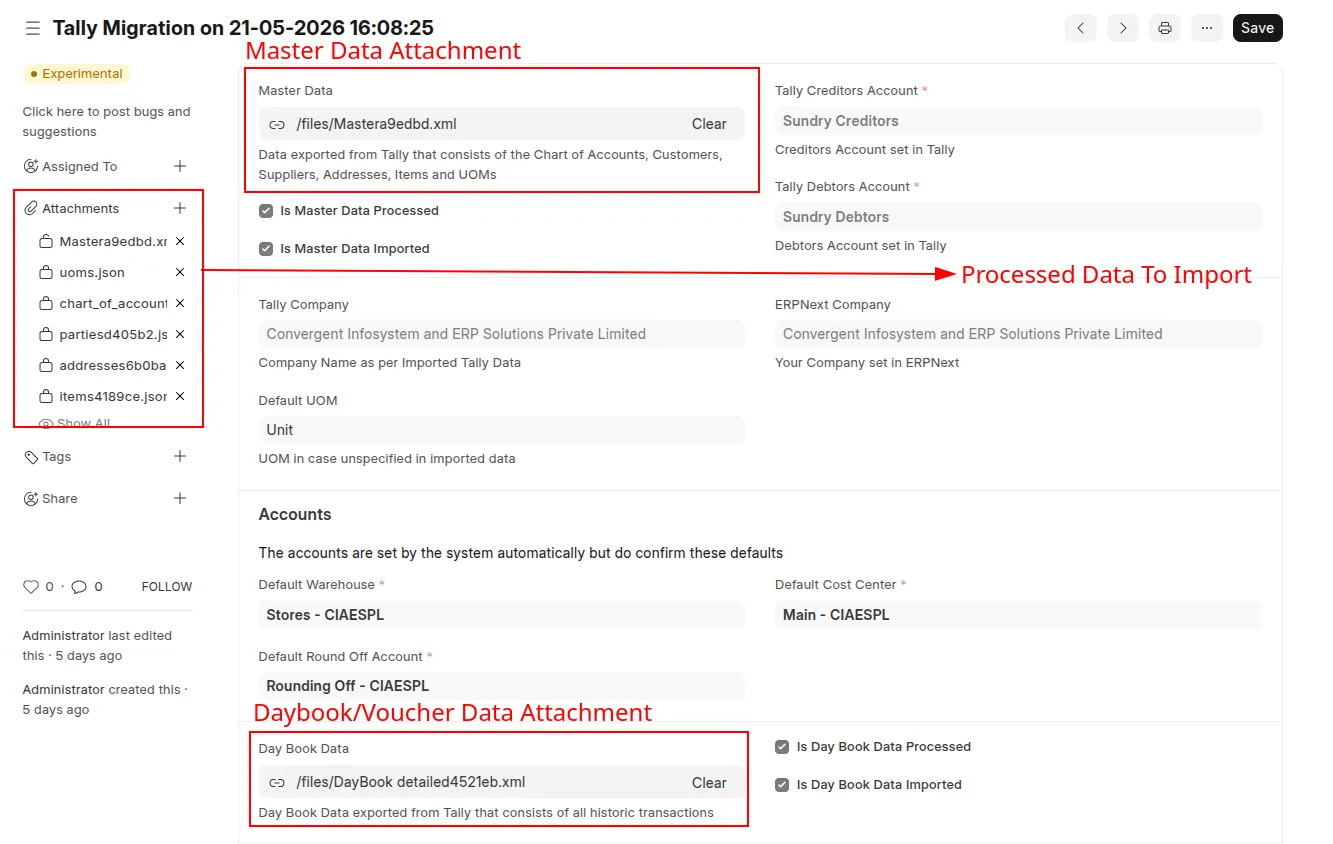
Masters import (from Tally's Master Data XML export):
Chart of Accounts, with a choice to reuse ERPNext's standard accounts or mirror Tally's group tree
Cost Centers
Customers and Suppliers, with addresses, GSTIN, GST category and payment terms
Banks and Bank Accounts
Opening balances:
ledger balances as a submitted opening Journal Entry
invoice-wise (bill-by-bill) receivables and payables as opening invoices, including foreign-currency parties
opening stock as a Stock Reconciliation
Stock Groups, Stock Items, Units of Measure (with conversion factors); HSN codes are carried on the items
Godowns as Warehouses
Price levels as Price Lists and Item Prices
Multi-component lists as BOMs
Batch-wise stock details as Batches
Day Book import (from Tally's Day Book XML export):
Accounting vouchers (Journal, Receipt, Payment, Contra, Sales, Purchase, Credit Note, Debit Note) are imported as submitted Journal Entries.
Inventory vouchers, cancelled vouchers and vouchers that reference Tally's system ledger
Profit & Loss A/care skipped. Each one is listed in the migration log.
Every imported voucher carries its Tally GUID and Voucher Number for traceability.
Requirements
ERPNext v16 (
>=16.0.0,<17.0.0)Python >= 3.10
Users need the Tally Migration Manager role (created on install) or System Manager
Migration Workflow
The wizard has five steps: Upload → Configure → Check → Preview → Migrate. The Preview step only appears when the file contains accounts.
1. Upload
Choose the import type (Masters or Day Book) and provide the Tally XML file in one of three ways:
upload the XML file directly
upload a
.zipcontaining the XML (large exports compress by roughly 90%)paste a Google Drive share link ("Anyone with the link")
Files are read as a stream and previewed with record counts. Large files, zips and Drive links are processed in a background job.
2. Configure
ERPNext Company that receives the data.
Chart of Accounts mode: reuse ERPNext's standard accounts (recommended) or mirror Tally's group tree exactly.
Opening-balance date: the date the opening balances are posted on. Set this to the date your Tally books begin.
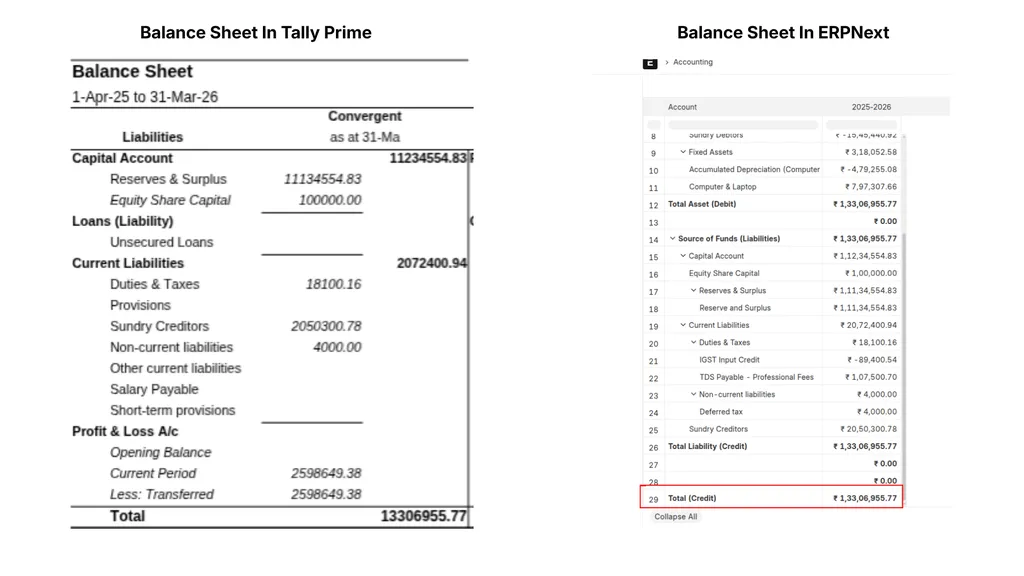
Set the opening-balance date explicitly. If it is left blank, the app falls back to the start of the company's current fiscal year. If your Tally books began in an earlier year, the opening balances land a year late and the Balance Sheet will not match Tally's for the period.
For a Day Book import, choose the existing company that will receive the Journal Entries.
3. Check
A pre-flight check runs before anything is written. Nothing is changed automatically.
Company readiness: verifies the target company has what masters need (default Customer/Supplier Groups, Receivable/Payable accounts, warehouse tree, Fiscal Year). It also warns when the opening-balance date is inside a frozen period or outside any Fiscal Year. Blockers stop the run; warnings do not.
Data quality: flags invalid GSTINs, missing or conflicting states (including GSTIN and PIN code mismatches), missing HSN codes, duplicate names and item-code collisions. GSTIN, state, PIN code and HSN can be corrected inline. The fixes are applied to the imported records only, and your uploaded file is never modified.
Missing UOMs: lists Tally units that don't exist in ERPNext so you can create them or map them to existing ones.
Field coverage report: shows which fields in your file are not migrated (UDFs, custom columns), so nothing is silently dropped.
Day Book date check: compares voucher dates with the company's Masters opening-balance date. Opening balances already include everything up to that date, so a voucher dated before it would be counted twice.
If the check fails, the import is blocked until a re-check succeeds.
4. Preview (Review accounts)
Shows how each Tally ledger becomes an ERPNext account, with its root type, account type and parent. Ledgers whose type was inferred rather than mapped from a standard Tally group are highlighted so you can review them.
5. Migrate
Runs the import with live progress. You can leave the page: the run continues in the background and the wizard reconnects when you come back. Your draft (file, settings, fixes) is saved automatically, so an interrupted session can be resumed.
Reliability and Safety
Idempotent: re-running skips records that already exist. Opening entries are guarded by a per-company lock so two runs cannot double-post them.
One run per company: a second run for the same company is refused while one is active.
Hang guard and auto-resume: a record that hangs is detected, the worker restarts, and the run continues past that record. It ends as Completed with Errors with the skipped record in the log.
Reconciliation report: after a Masters run, an opening Trial Balance is built from Tally's figures and from what ERPNext now holds, and the two are compared row by row (Assets, Liabilities & Equity, Receivables, Payables, Stock, Temporary Opening). It is read-only and stored on the log.
Temporary Opening: any part of Tally's opening that does not balance on its own is held in
Temporary Opening - <ABBR>. The migration warns you when this happens.Revert: from a Tally Migration Log, Revert deletes exactly the documents that run created, and nothing else. You must confirm the company name first. Records touched by later activity are kept and reported.
Migration Log
Every run is recorded in a Tally Migration Log with its status, summary, created-records manifest, per-record errors and warnings, reconciliation, data-quality, coverage and account-mapping reports. Failed records show the reason, so you can fix the data and re-run without redoing the whole migration.
Voucher Type Mapping
Tally Voucher Type | ERPNext Document |
|---|---|
Journal | Journal Entry |
Receipt | Journal Entry |
Payment | Journal Entry |
Contra | Journal Entry |
Sales | Journal Entry |
Purchase | Journal Entry |
Credit Note | Journal Entry |
Debit Note | Journal Entry |
Only accounting-only vouchers are imported. Inventory vouchers are skipped and listed in the log.
Contributing
This app uses pre-commit for code formatting and linting. Install and enable it before contributing:
cd apps/tally_migration
pre-commit install
Pre-commit runs the following tools:
ruff: Python linting and formatting
eslint: JavaScript linting
prettier: JavaScript/CSS formatting
pyupgrade: Python syntax modernization
License
MIT, see license.txt
User Reviews
No reviews yet, be the first to review.
0.0
0 rating
More apps from


Explore more apps