Frappe
Cloud
Marketplace
Frappe
Products
Insights

Installation Guide
installs
Publisher
Supported versions
Categories
E-Commerce
About
EDocument
Create and import PEPPOL-compliant e-documents with ERPNext.
This app provides a flexible framework for generating and parsing electronic documents, with full support for PEPPOL BIS Billing 3.0 using UBL 2.1 XML format.
Features
PEPPOL BIS Billing 3.0 Support: Full implementation of PEPPOL BIS Billing 3.0 specification
UBL 2.1 XML Generation: Generate compliant UBL 2.1 XML for invoices and credit notes
Multiple Document Types: Support for Invoice and CreditNote
XML Validation: XSD schema validation and Schematron business rule validation
Code List Management: Automatic code list handling for PEPPOL standards
Profile-Based Architecture: Extensible profile system for different e-document standards
Import/Export: Import incoming PEPPOL invoices and export outgoing invoices
Installation
Please use a branch that matches the major version of ERPNext you are using. For example, version-15 or version-16. If you are a developer contributing new features, you'll want to use the develop branch instead.
Dependencies
This app requires the following Python packages (automatically installed):
saxonche (~=12.5.0): XSLT 3.0 processor for Schematron validation
lxml (>=4.9.3,<6.0.0): XML parsing and XSD validation
These dependencies are specified in pyproject.toml and will be installed automatically when you install the app.
Setup
Code Lists
E-documents rely on common codes that describe the content of the document. E.g. "C62" is used for the UOM "One" and "ZZZ" is used for a mutually agreed mode of payment.
Common codes are part of a code list. You'll need to import the code lists and map the codes you need to the corresponding ERPNext entities. Please use the "Import Genericode" button in Code List and paste the URL linked below.
Code List | Mapped DocType | Default Value |
|---|---|---|
Payment Terms Template, Mode of Payment | ZZZ | |
UOM | C62 | |
Item Tax Template, Account, Tax Category, Sales Taxes and Charges Template | S | |
Company, Customer, Supplier | EM |
For example, let's say your standard Payment Terms Template is "Bank Transfer, 30 days". You'll need to find the suitable Common Code for bank transfers within the Code List "UNTDID.4461". In this case, the code is "58". Then you add a row to the Applies To table, select "Payment Terms Template" as the Link Document Type and "Bank Transfer, 30 days" as the Link Name. If you now create an Invoice with this Payment Terms Template, the e-document will contain the code "58" for the payment means.
The retrieval of codes goes from the most specific to the most general. E.g. for determining the VAT type of a line item, we first look for a code using the specific item's Item Tax Template and Income Account, then fall back to the code for the invoice's Tax Category or Sales Taxes and Charges Template.
PEPPOL Code Lists
For PEPPOL profiles, additional code lists are required. These can be imported using the "Import Genericode" button in Code List:
Code List | Purpose |
|---|---|
PEPPOL Payment Means Code | Payment methods for PEPPOL invoices |
PEPPOL Unit of Measure Code | Units of measure for PEPPOL line items |
PEPPOL Tax Category Code | Tax categories for PEPPOL invoices |
PEPPOL Country Code | Country codes for addresses |
PEPPOL Electronic Address Identifier Scheme | Electronic address schemes for PEPPOL participants |
These code lists are automatically set up when you install the app. You can verify and update mappings in the Code List doctype.
The PEPPOL code lists are sourced from the PEPPOL BIS Billing 3.0 repository and are included in the app's edocument/profiles/peppol/peppol-bis-invoice-3/structure/codelist/ folder.
The UBL 2.1 XSD schemas are sourced from the OASIS UBL 2.1 specification and are included in the app's edocument/profiles/peppol/UBL-2.1/xsd/ folder.
Electronic Address
If you send your invoice via PEPPOL, you might need to specify your and your customer's electronic addresses. This is done by setting the Electronic Address Scheme and Electronic Address fields in the Company, Customer and Supplier master data.
Please make sure to import the Electronic Address Scheme code list first.
If not specified, email addresses are used as electronic addresses for outgoing invoices. For the Customer, we use the Contact Email or Buyer Address > Email ID. For the Company, we use the Seller Contact > Email ID or Company > Email.
Bank Details
If you want your e-document to contain bank details, you need to set up a Mode of Payment of type "Bank", link the company's corresponding Account and create a Bank Account for the same account with IBAN and BIC (SWIFT number).
Then, you can map a Common Code from Code List "UNTDID.4461", e.g. "Credit Transfer" (30) or "SEPA Credit Transfer" (58), to the Mode of Payment.
Please note that the e-document standard only supports one payment means per invoice, so you should not specify multiple Modes of Payment in the same invoice.
How to Guide
Master Data Configuration
Company Setup
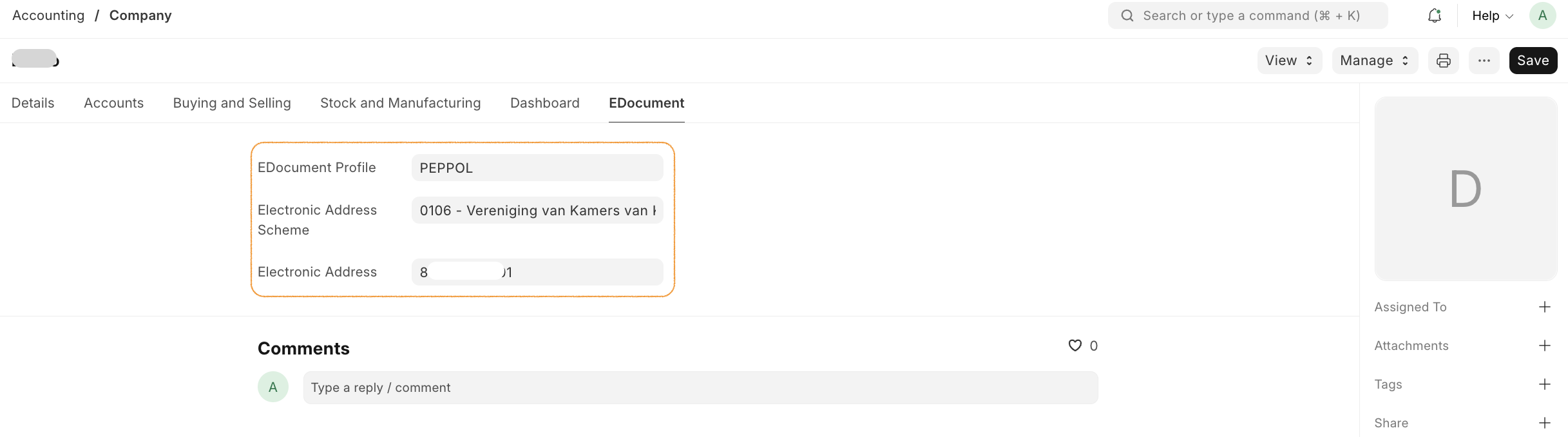
Configure EDocument settings in the Company master data: - EDocument Profile: Default profile to use for this company - Electronic Address Scheme: Scheme for the company's electronic address (e.g., GLN, EAS) - Electronic Address: The company's electronic address identifier
Customer Setup
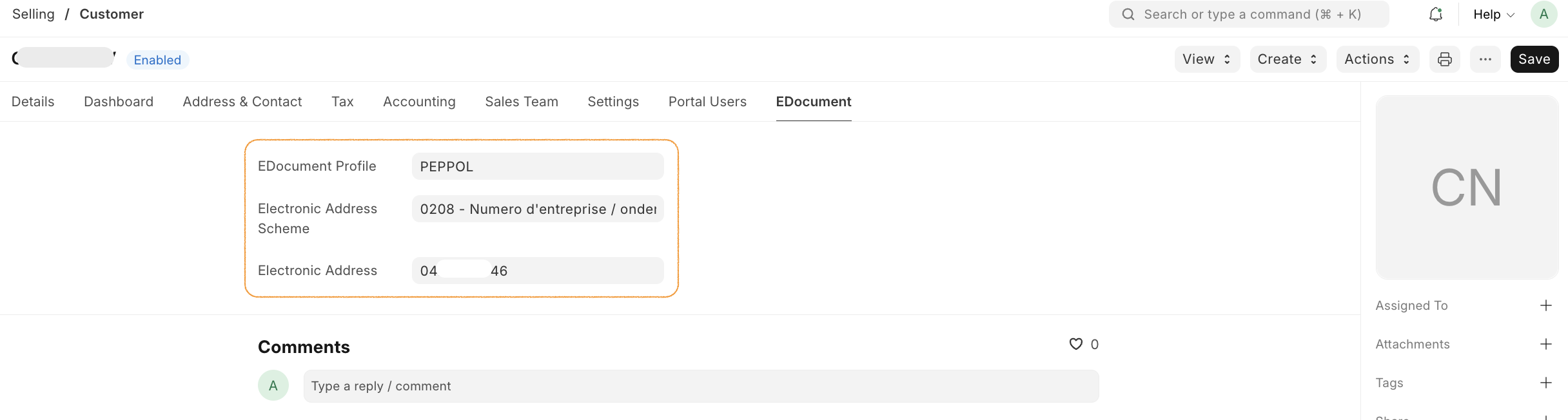
Configure EDocument settings in the Customer master data: - EDocument Profile: Default profile to use for this customer - Electronic Address Scheme: Scheme for the customer's electronic address - Electronic Address: The customer's electronic address identifier
Supplier Setup
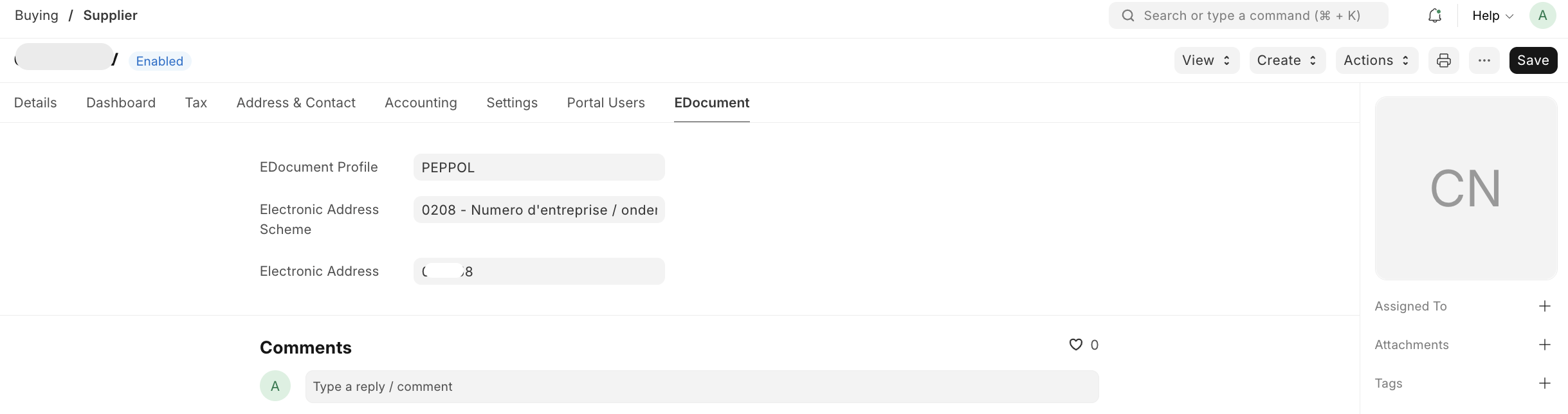
Configure EDocument settings in the Supplier master data: - EDocument Profile: Default profile to use for this supplier - Electronic Address Scheme: Scheme for the supplier's electronic address - Electronic Address: The supplier's electronic address identifier
EDocument Profile
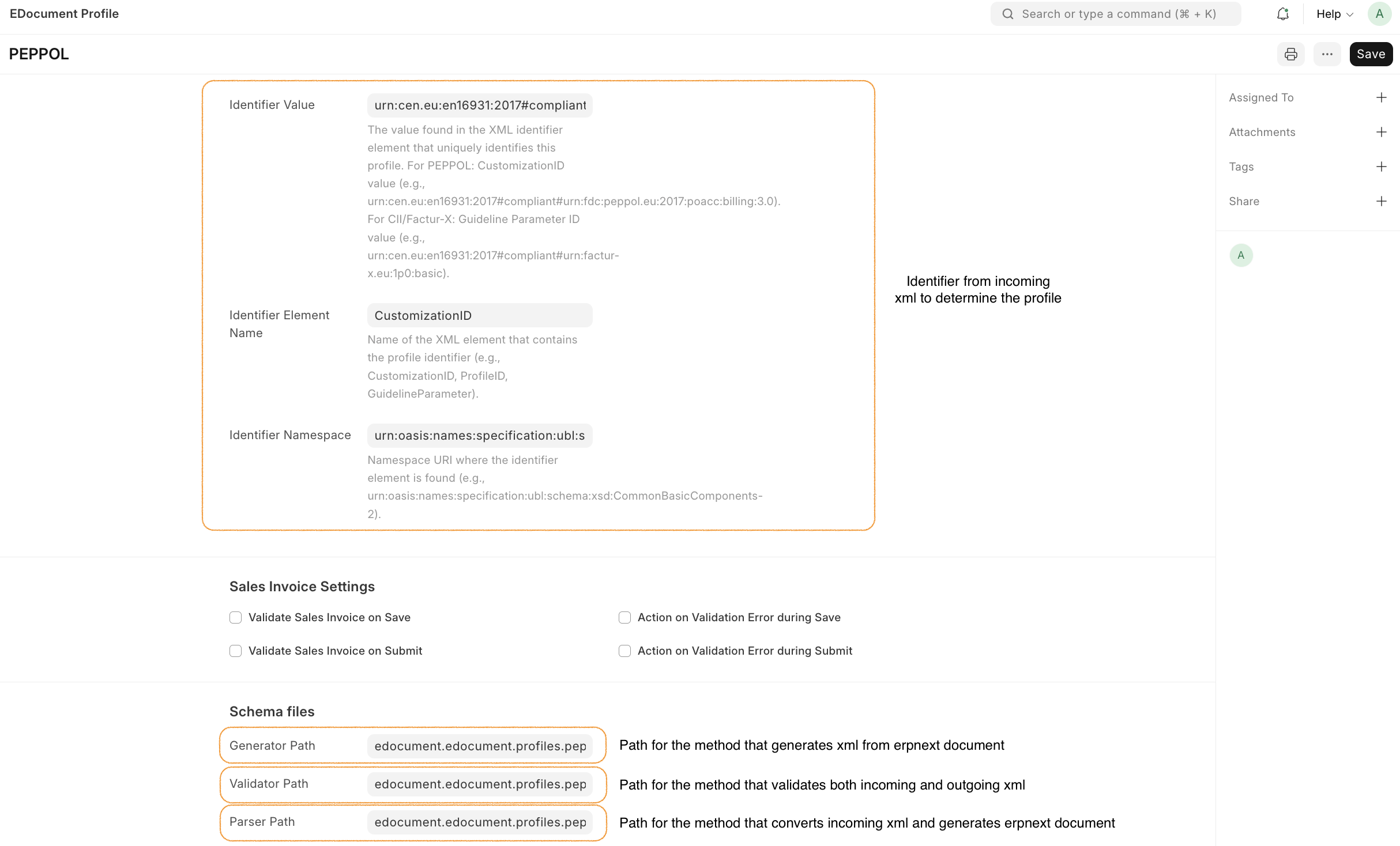
The EDocument Profile defines the configuration for a specific e-document standard (e.g., PEPPOL). It includes: - Identifier Values: Used to detect the profile from XML (namespace, element name, value) - Generator Path: Function that generates XML from ERPNext documents - Parser Path: Function that parses XML into ERPNext documents - Validator Path: Function that validates XML against schemas and business rules - Sales Invoice Settings: Options for automatic validation on save/submit
The PEPPOL profile is automatically created when you install the app.
Sales Invoice
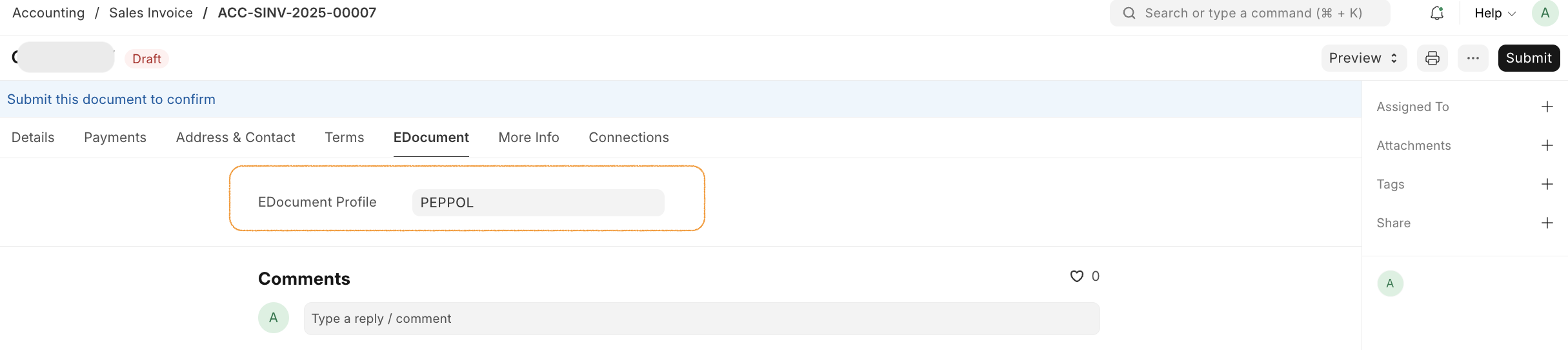
In the Sales Invoice, you can: - Select an EDocument Profile (defaults from Customer if set) - When the invoice is submitted, an EDocument record is automatically created (if profile is set) - The EDocument can then be used to generate and validate the PEPPOL XML
Outgoing EDocument
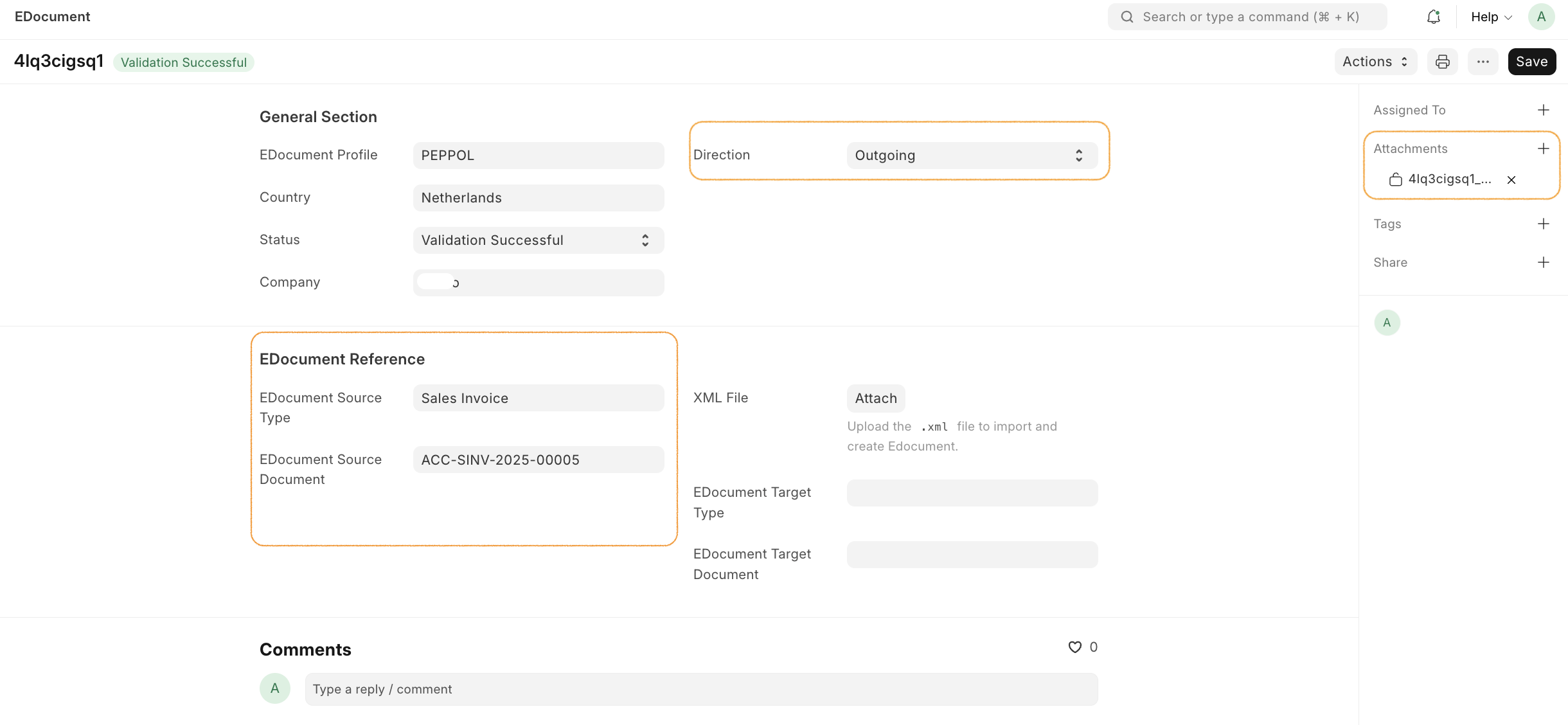
For outgoing e-documents (generated from Sales Invoices): 1. Set the Source Type (e.g., "Sales Invoice") 2. Set the Source Document (the Sales Invoice name) 3. Select the EDocument Profile (e.g., "PEPPOL") 4. Click Generate XML to create the PEPPOL XML 5. The XML is automatically validated 6. The XML file is attached to the EDocument record
Incoming EDocument
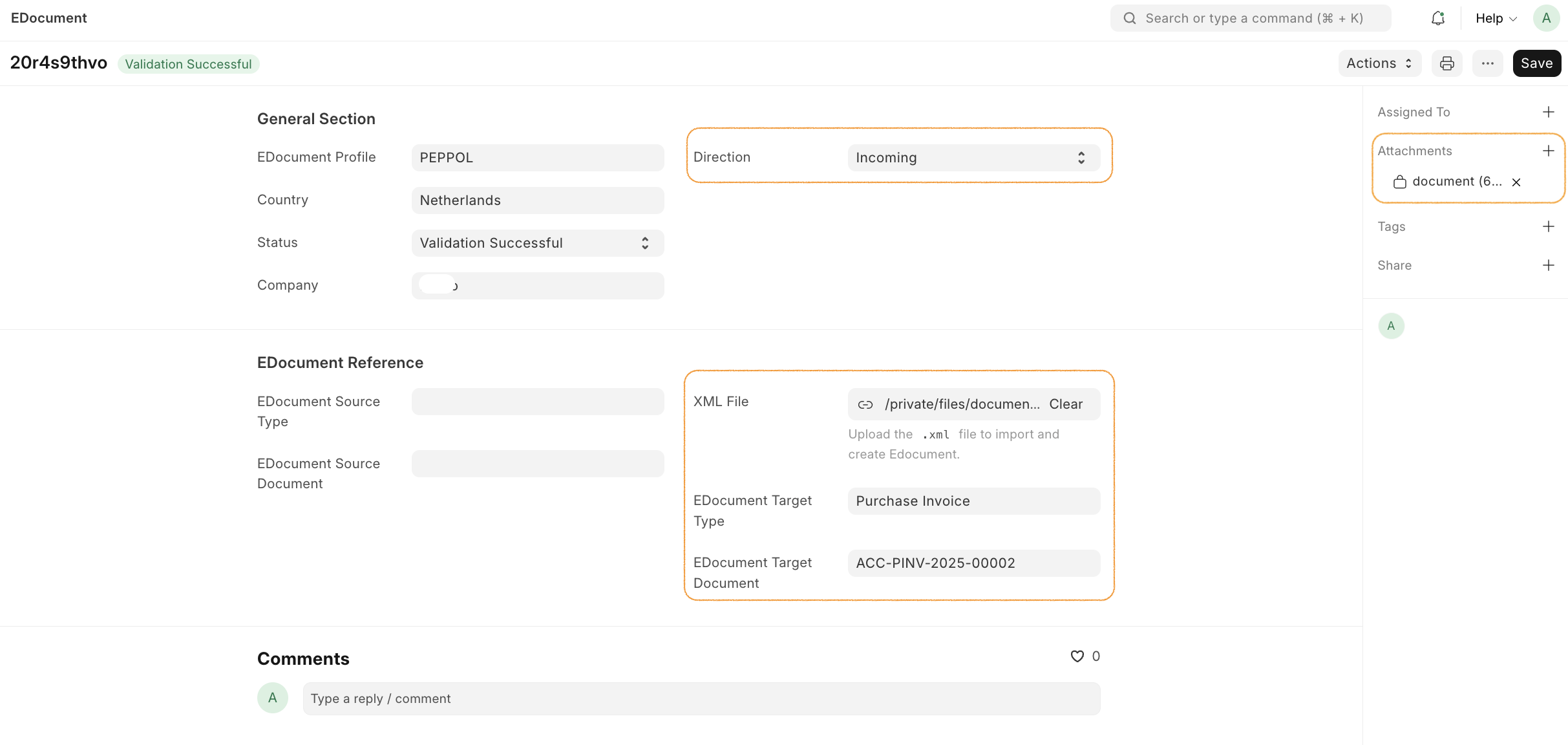
For incoming e-documents (imported XML files): 1. Upload the XML file 2. The app automatically detects the document type and profile 3. The XML is validated against XSD and Schematron rules 4. Click Create Document to parse the XML and create a Purchase Invoice
Validation Errors
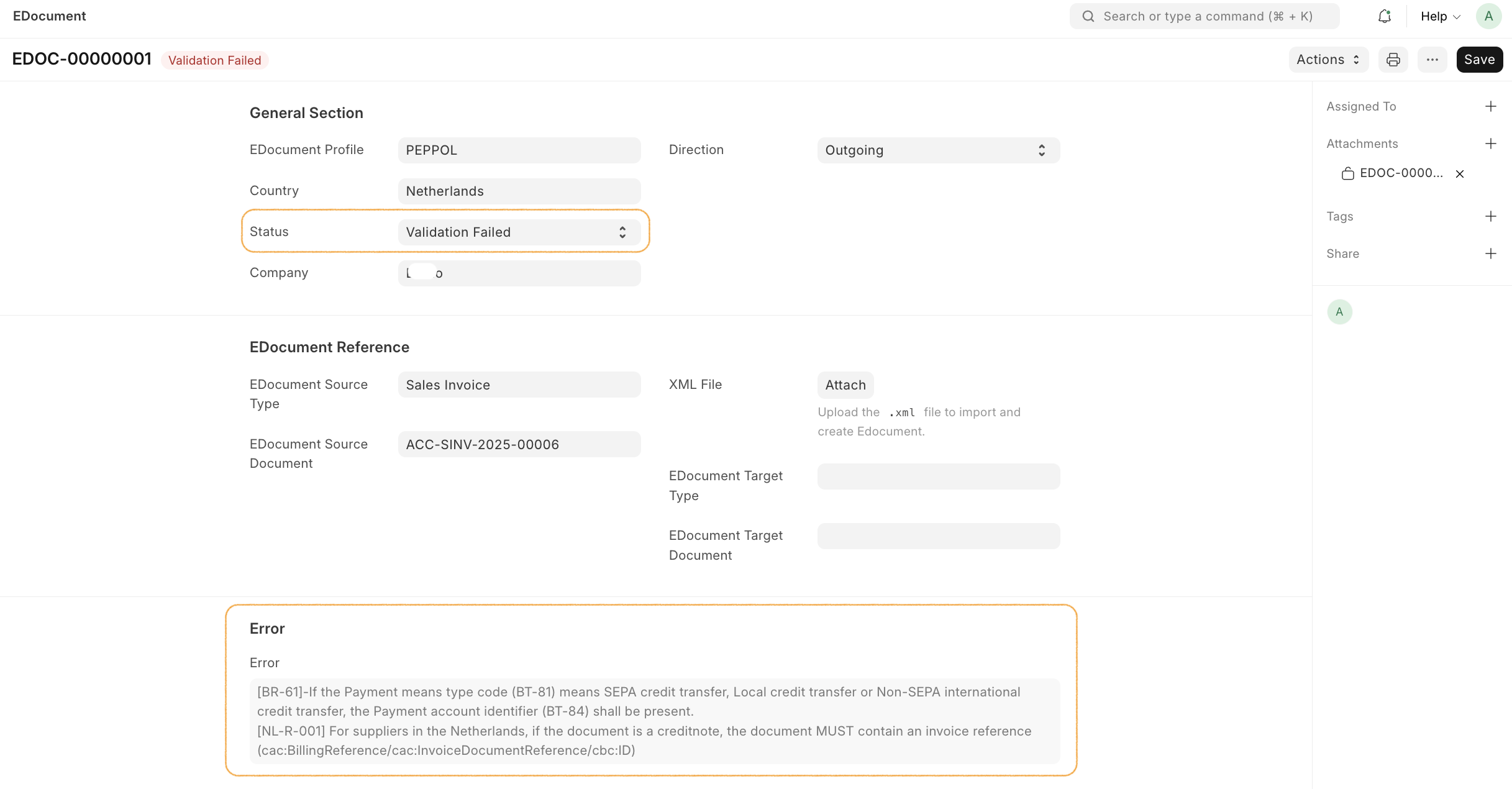
When validation fails, the EDocument record shows: - Status: "Validation Failed" - Error: Detailed validation error messages - Warnings: Any validation warnings (non-blocking)
Common validation errors include: - XSD schema violations (element order, missing required fields) - Schematron business rule violations (BR-CO-15, BR-CO-17, etc.) - Missing required codes or invalid code values
Usage
EDocument Profile
Before using the app, you need to create an EDocument Profile that defines which profile to use (e.g., PEPPOL) and the generator/parser paths.
Go to EDocument Profile doctype
Create a new profile (e.g., "PEPPOL")
Set the profile identifier values:
Identifier Namespace:
urn:oasis:names:specification:ubl:schema:xsd:Invoice-2Identifier Element Name:
CustomizationIDIdentifier Value:
urn:cen.eu:en16931:2017#compliant#urn:fdc:peppol.eu:2017:poacc:billing:3.0
Set the generator and parser paths:
Generator Path:
edocument.edocument.profiles.peppol.generator.create_peppol_xmlParser Path:
edocument.edocument.profiles.peppol.parser.parse_peppol_xmlValidator Path:
edocument.edocument.profiles.peppol.validator.validate_peppol_xml
Sales Invoice
To create an outgoing e-document, you need to create an EDocument record:
Go to EDocument doctype
Create a new document
Set the Source Type (e.g., "Sales Invoice")
Set the Source Document (the Sales Invoice name)
Select the EDocument Profile (e.g., "PEPPOL")
Click Generate XML - this will create the PEPPOL XML and attach it to the document
The XML is automatically validated against XSD and Schematron rules
Click Validate XML - this will validate the PEPPOL XML.
The following fields of the Sales Invoice are currently considered for the e-document:
Invoice type (credit note, corrected invoice, commercial invoice)
Invoice number
Invoice date
Due date (only for invoices, not credit notes)
Currency
Company information (name, address, tax ID, electronic address)
Customer information (name, address, tax ID, electronic address)
Items (name, description, quantity, rate, net amount, tax rate)
Taxes (rate, amount, taxable amount)
Payment means (bank account with IBAN and BIC)
Payment terms
Totals (line extension amount, tax exclusive amount, tax inclusive amount, payable amount)
Document-level discounts and allowances
Credit Notes
Credit notes are automatically detected when a Sales Invoice has is_return = 1. The app will:
Use
CreditNoteas the root XML element (instead ofInvoice)Use
CreditNoteTypeCodeinstead ofInvoiceTypeCodeUse
CreditNoteLineinstead ofInvoiceLineExclude
DueDate(credit notes don't have due dates)Include
BillingReferenceto reference the original invoiceUse the CreditNote XSD schema for validation
Purchase Invoice (Import)
To import an incoming e-document:
Go to EDocument doctype
Create a new document
Upload the XML file
The app will automatically:
Detect the document type (Invoice, CreditNote, etc.)
Detect the profile (PEPPOL)
Validate the XML against XSD and Schematron rules
Parse the XML and create a Purchase Invoice
The following fields are imported from the e-document:
Invoice ID
Issue Date
Currency
Seller (Supplier) information
Buyer (Company) information
Items (product name, description, quantity, rate, tax rate)
Taxes (basis amount, rate, calculated amount)
Payment terms
Payment means (IBAN, BIC)
Monetary totals
Validation
The app performs comprehensive validation of generated and imported XML:
XML Syntax Validation: Ensures the XML is well-formed
XSD Validation: Validates the XML against the UBL 2.1 XSD schema (Invoice or CreditNote)
Schematron Validation: Validates business rules using PEPPOL Schematron files
Validation results are displayed in the EDocument record: - Status: Valid/Invalid - Error: Any validation errors - Warnings: Any validation warnings
External Validation
For PEPPOL invoices (UBL 2.1), you can use the PEPPOL Validation Service or your PEPPOL service provider's validation tools.
Architecture
The app follows a modular, profile-based architecture:
Core Components
generator.py: Converts ERPNext invoice data to UBL 2.1 XMLparser.py: Parses UBL 2.1 XML and creates ERPNext documentsvalidator.py: XSD and Schematron validationprofiles/: Profile-specific implementations (PEPPOL, etc.)
Profile System
The app uses a profile-based system that allows different e-document standards to be implemented:
PEPPOL Profile: Full PEPPOL BIS Billing 3.0 implementation
Extensible: Easy to add new profiles (e.g., country-specific CIUS)
Each profile defines: - Generator function (creates XML from ERPNext data) - Parser function (creates ERPNext data from XML) - Validator function (validates XML) - Profile identifier (for automatic detection)
License
Copyright (C) 2025 Prilk Consulting BV
This program is free software: you can redistribute it and/or modify it under the terms of the GNU General Public License as published by the Free Software Foundation, either version 3 of the License, or (at your option) any later version.
This program is distributed in the hope that it will be useful, but WITHOUT ANY WARRANTY; without even the implied warranty of MERCHANTABILITY or FITNESS FOR A PARTICULAR PURPOSE. See the GNU General Public License for more details.
You should have received a copy of the GNU General Public License along with this program. If not, see https://www.gnu.org/licenses/.
User Reviews
No reviews yet, be the first to review.
0.0
0 rating
Explore more apps