Frappe
Cloud
Marketplace
Frappe
Products
Insights

Installation Guide
installs
Publisher
Supported versions
Categories
E-Commerce

About
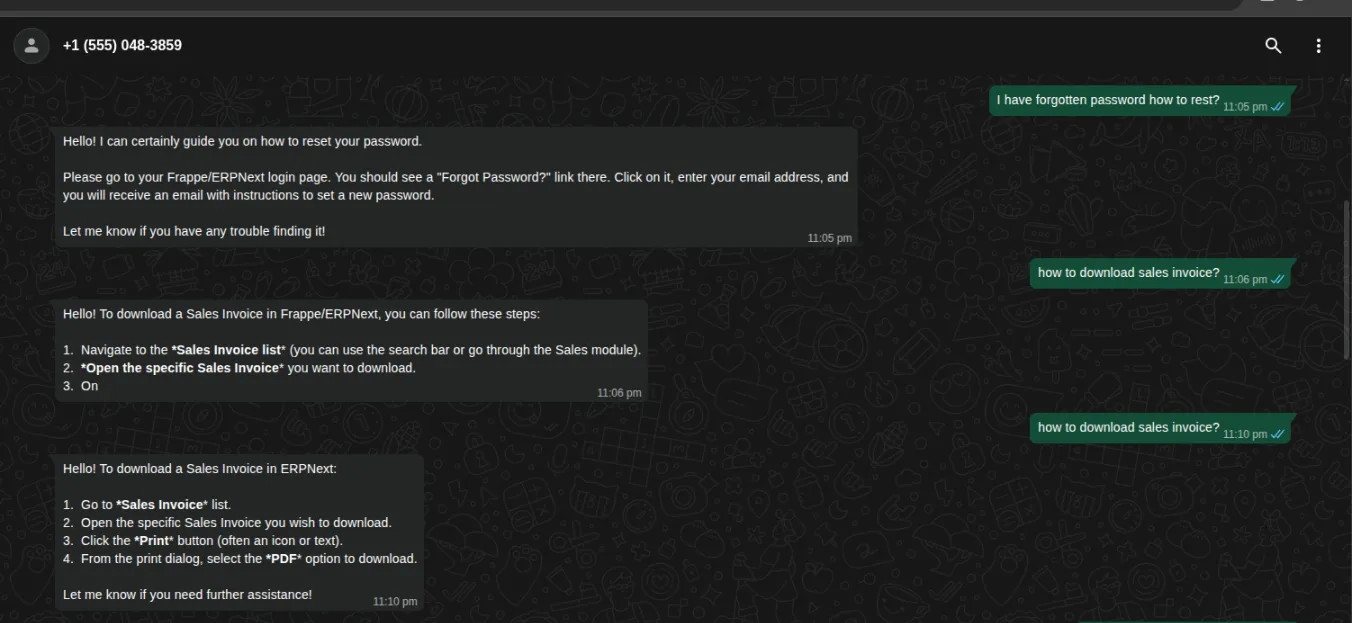
A comprehensive chatbot solution for Frappe WhatsApp integration. Supports keyword-based replies, multi-step conversation flows with dynamic scripting, and optional AI-powered responses.
Features
Keyword-Based Replies: Configure automatic responses based on keywords with multiple match types
Conversation Flows: Multi-step decision trees with user input collection and validation
Dynamic Script Responses: Execute Python scripts to generate dynamic responses (e.g., check order status from database)
Document Creation: Automatically create Frappe documents from collected flow data
Optional AI Integration: OpenAI and Anthropic support for intelligent responses
Session Management: Track user conversations with automatic timeout handling
Business Hours: Restrict bot responses to business hours
Flexible Configuration: All settings managed via Frappe Desk UI
Installation
Prerequisites
Frappe Framework >= 13.0.0
frappe_whatsapp app (must be installed first)
Install the App
# Inside your Frappe benchbench get-app https://github.com/shridarpatil/frappe_whatsapp_chatbot
bench --site your-site install-app frappe_whatsapp_chatbot
Optional Dependencies (for AI features)
pip install openai # For OpenAI integrationpip install anthropic # For Anthropic Claude integration
Quick Start
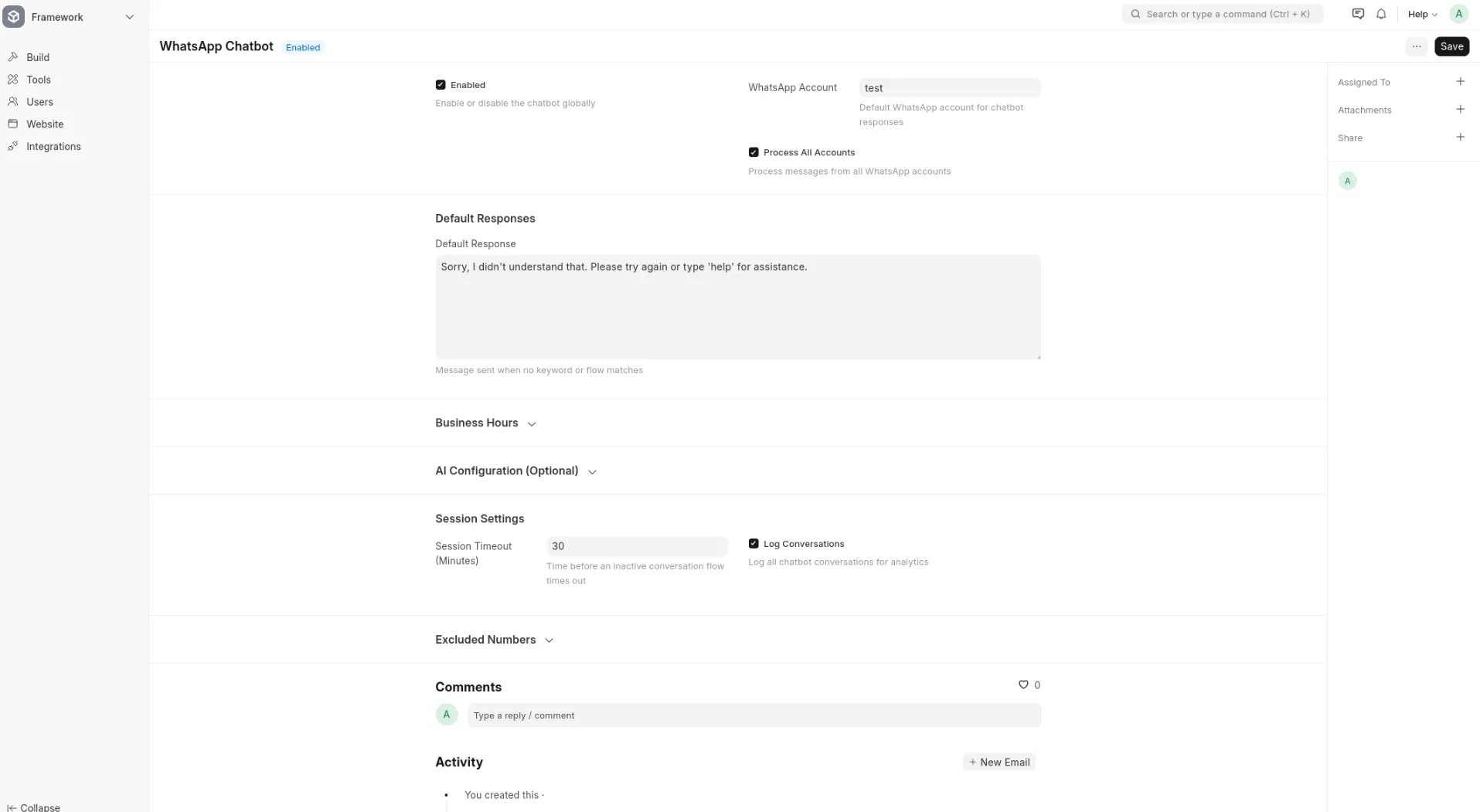
1. Enable Chatbot
Navigate to WhatsApp Chatbot (single DocType) and:
Check Enabled
Select the WhatsApp Account (or enable "Process All Accounts")
Set a default response message for unmatched messages
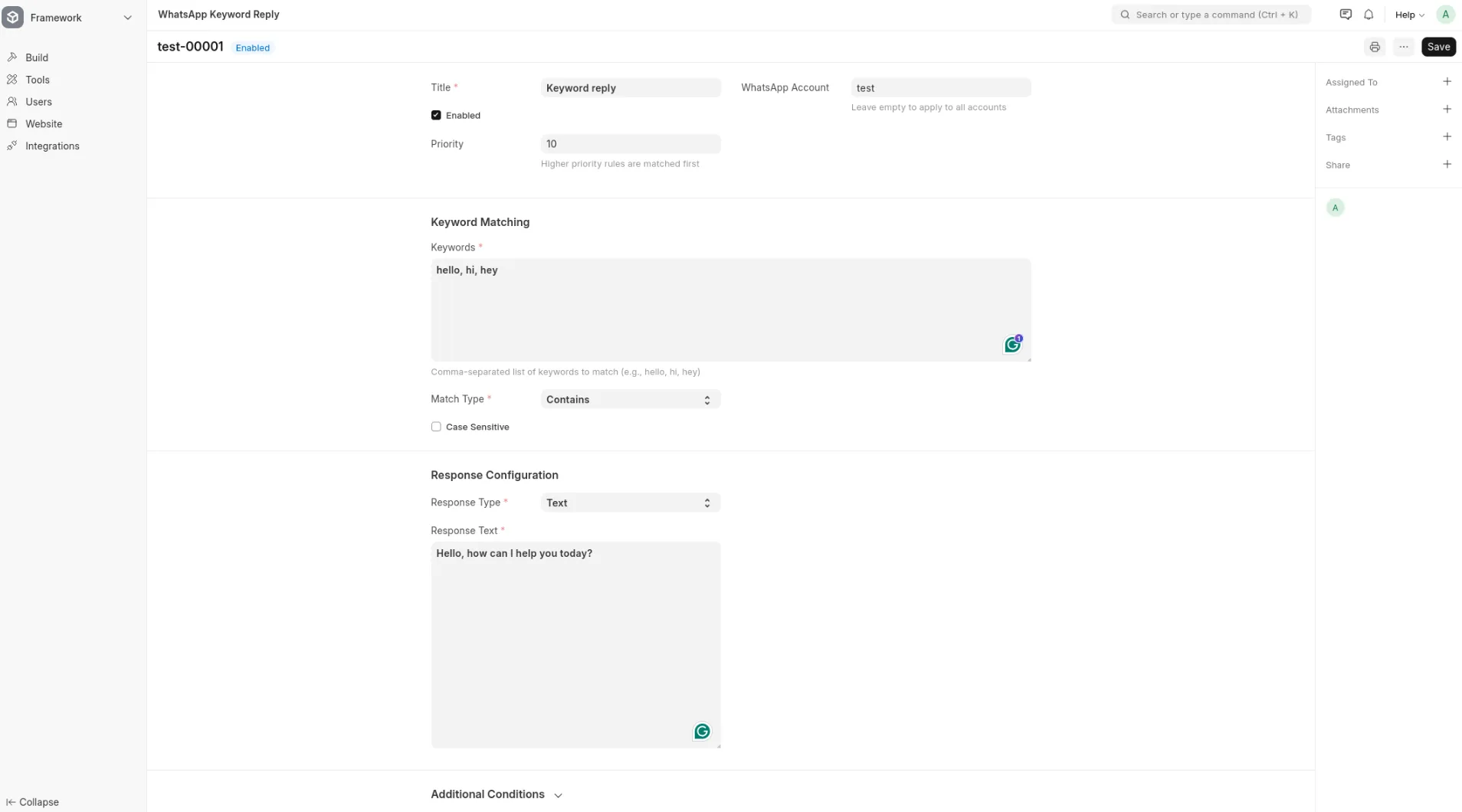
2. Create Your First Keyword Reply
Go to WhatsApp Keyword Reply list and create a new rule:
Title: GreetingKeywords: hello, hi, hey
Match Type: Exact
Response Type: Text
Response Text: Hello! How can I help you today?
3. Test It
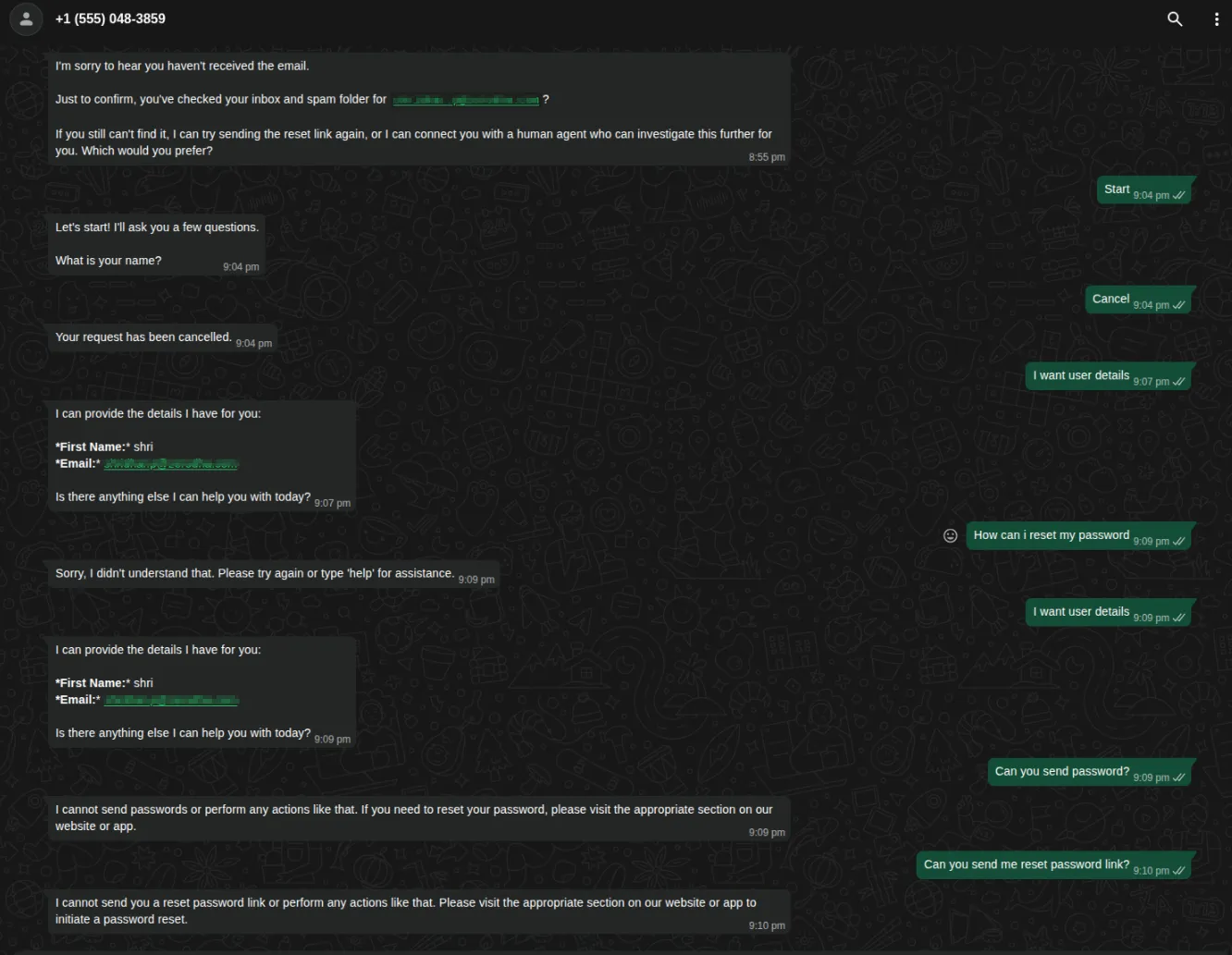
Send "hello" to your WhatsApp Business number and receive the automated reply!
Configuration Guide
WhatsApp Chatbot Settings
SettingDescription | |
Enabled | Master switch to enable/disable the chatbot |
WhatsApp Account | Specific account to process (or use "Process All Accounts") |
Default Response | Message sent when no keyword/flow matches |
Session Timeout | Minutes before an inactive flow session expires (default: 30) |
Business Hours Only | Only respond during specified hours |
Enable AI | Use AI for fallback responses |
Keyword Reply Configuration
FieldDescription | |
Keywords | Comma-separated keywords (e.g., "hello, hi, hey") |
Match Type | Exact - exact match, Contains - keyword anywhere in message, Starts With - message starts with keyword, Regex - regular expression |
Case Sensitive | Enable for case-sensitive matching |
Response Type | Text - plain text, Template - WhatsApp template, Media - image/video/document, Flow - trigger a conversation flow |
Priority | Higher priority rules are matched first (default: 10) |
Active From/Until | Optional date range for time-limited responses |
Conversation Flows
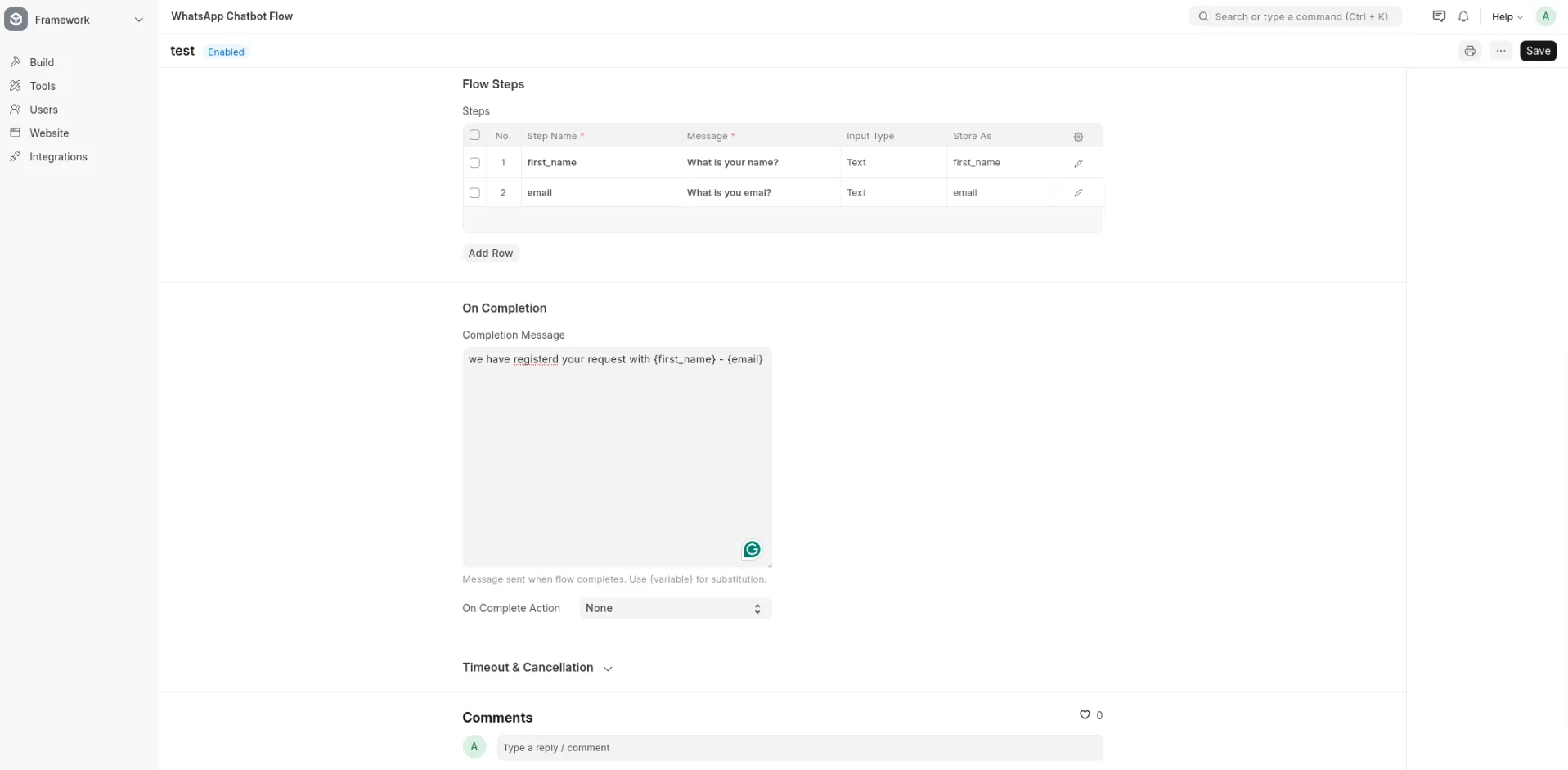
Flows allow multi-step conversations to collect information from users.
Flow Settings
FieldDescription | |
Flow Name | Unique identifier |
Trigger Keywords | Comma-separated keywords that start this flow |
Initial Message | First message sent when flow starts |
Steps | Table of flow steps (see below) |
Completion Message | Message sent when flow completes. Use |
On Complete Action | None, Create Document, Call API, or Run Script |
Cancel Keywords | Words that cancel the flow (default: cancel, stop, quit, exit) |
Flow Step Configuration
FieldDescription | |||
Step Name | Unique identifier for this step | ||
Message | Message to send. Use | ||
Message Type | Text - plain message, Template - WhatsApp template, Script - dynamic Python script | ||
Input Type | Expected input: None, Text, Number, Email, Phone, Date, Select | ||
Store As | Variable name to store user's input (e.g., | ||
Options | For Select type: pipe-separated options (e.g., `Option 1 | Option 2 | Option 3`) |
Validation Regex | Custom regex pattern for input validation | ||
Next Step | Explicit next step name (leave empty for sequential order) | ||
Conditional Next | JSON mapping input to next step (see examples below) | ||
Skip Condition | Python expression to skip this step |
Examples
Example 1: Simple FAQ Bot
Create keyword replies for common questions:
Keyword Reply: Business Hours
Keywords: hours, timing, open, closeMatch Type: Contains
Response Type: Text
Response Text: We're open Monday-Friday, 9 AM to 6 PM IST.
Keyword Reply: Location
Keywords: address, location, whereMatch Type: Contains
Response Type: Text
Response Text: We're located at 123 Main Street, Mumbai, India. Google Maps: https://maps.google.com/...
Example 2: Lead Collection Flow
Flow Name: Contact SalesTrigger Keywords: sales, contact, demo, pricing
Initial Message: Great! I'd be happy to connect you with our sales team.
Steps:
┌─────────────────────────────────────────────────────────────────┐
│ Step 1 │
│ Step Name: ask_name │
│ Message: What's your name? │
│ Input Type: Text │
│ Store As: customer_name │
├─────────────────────────────────────────────────────────────────┤
│ Step 2 │
│ Step Name: ask_email │
│ Message: Thanks {customer_name}! What's your email address? │
│ Input Type: Email │
│ Store As: customer_email │
├─────────────────────────────────────────────────────────────────┤
│ Step 3 │
│ Step Name: ask_company │
│ Message: And which company are you from? │
│ Input Type: Text │
│ Store As: company_name │
└─────────────────────────────────────────────────────────────────┘
Completion Message: Thank you {customer_name}! Our sales team will contact you at {customer_email} within 24 hours.
On Complete Action: Create Document
Create DocType: Lead
Field Mapping:
{
"lead_name": "customer_name",
"email_id": "customer_email",
"company_name": "company_name"
}
Example 3: Order Status Check (Using Script)
This example shows how to use the Script message type to query the database dynamically.
Flow Name: Order StatusTrigger Keywords: order status, track order, my order
Steps:
┌─────────────────────────────────────────────────────────────────┐
│ Step 1 │
│ Step Name: ask_order_id │
│ Message: Please enter your Order ID (e.g., SAL-ORD-2024-00001) │
│ Input Type: Text │
│ Store As: order_id │
├─────────────────────────────────────────────────────────────────┤
│ Step 2 │
│ Step Name: show_status │
│ Message: (placeholder - script will generate response) │
│ Message Type: Script │
│ Input Type: None │
│ Response Script: │
│ │
│ order_id = data.get('order_id') │
│ try: │
│ order = frappe.get_doc('Sales Order', order_id) │
│ response = f"""Order Details: │
│ Order ID: {order.name} │
│ Status: {order.status} │
│ Total: {order.grand_total} │
│ Expected Delivery: {order.delivery_date or 'TBD'}""" │
│ except frappe.DoesNotExistError: │
│ response = f"Sorry, order '{order_id}' was not found." │
│ except Exception as e: │
│ response = "Sorry, unable to fetch order details." │
│ │
└─────────────────────────────────────────────────────────────────┘
Completion Message: Is there anything else I can help you with?
Script Variables Available
When using Message Type: Script, these variables are available:
VariableDescription | |
| Dictionary of all collected session data (keyed by Store As names) |
| Frappe module for database queries |
| JSON module |
| Current session document |
| User's WhatsApp phone number |
| Set this variable with the message to send |
Example 4: Conditional Branching
Create different paths based on user input:
Flow Name: Support RequestTrigger Keywords: support, help, issue
Steps:
┌─────────────────────────────────────────────────────────────────┐
│ Step 1 │
│ Step Name: ask_issue_type │
│ Message: What type of issue are you facing? │
│ Input Type: Select │
│ Options: Billing|Technical|General │
│ Store As: issue_type │
│ Conditional Next: │
│ { │
│ "billing": "billing_step", │
│ "technical": "technical_step", │
│ "general": "general_step" │
│ } │
├─────────────────────────────────────────────────────────────────┤
│ Step 2a │
│ Step Name: billing_step │
│ Message: For billing issues, please email [email protected] │
│ Input Type: None │
├─────────────────────────────────────────────────────────────────┤
│ Step 2b │
│ Step Name: technical_step │
│ Message: Please describe your technical issue in detail. │
│ Input Type: Text │
│ Store As: issue_description │
├─────────────────────────────────────────────────────────────────┤
│ Step 2c │
│ Step Name: general_step │
│ Message: Please describe your question. │
│ Input Type: Text │
│ Store As: issue_description │
└─────────────────────────────────────────────────────────────────┘
AI Integration (Optional)
Setup
Enable AI in WhatsApp Chatbot settings
Select provider: OpenAI or Anthropic
Enter your API key
Configure model (e.g.,
gpt-4o-mini,claude-3-haiku-20240307)
AI Context
Create WhatsApp AI Context documents to provide knowledge to the AI:
Static Text Context:
Title: Company InfoContext Type: Static Text
Static Content:
Our company, ABC Corp, was founded in 2010. We specialize in...
Our products include: Product A, Product B, Product C...
DocType Query Context:
Title: Product CatalogContext Type: DocType Query
DocType: Item
Fields to Include: item_name, description, standard_rate
Filters: {"disabled": 0, "is_sales_item": 1}
The AI will use this context to answer questions intelligently.
Processing Priority
When a message is received, the chatbot processes it in this order:
Active Flow Session - Continue ongoing conversation
Keyword Match - Check keyword rules (highest priority first)
Flow Trigger - Check flow trigger keywords
AI Fallback - Generate AI response (if enabled)
Default Response - Send configured default message
DocTypes Reference
DocTypeTypePurpose | ||
WhatsApp Chatbot | Single | Global settings |
WhatsApp Keyword Reply | List | Keyword-to-response mappings |
WhatsApp Chatbot Flow | List | Conversation flow definitions |
WhatsApp Flow Step | Child Table | Steps within flows |
WhatsApp Chatbot Session | List | Track active conversations |
WhatsApp Session Message | Child Table | Message history within sessions |
WhatsApp AI Context | List | Knowledge base for AI responses |
WhatsApp Excluded Number | Child Table | Numbers to exclude from bot |
Hooks & Scheduled Jobs
Document Events
doc_events = {"WhatsApp Message": {
"after_insert": "frappe_whatsapp_chatbot.chatbot.processor.process_incoming_message"
}
}
Scheduled Jobs
FrequencyFunctionDescription | ||
Hourly |
| Expire inactive sessions and send timeout messages |
Troubleshooting
Chatbot Not Responding
Check if Enabled is checked in WhatsApp Chatbot settings
Verify the WhatsApp Account is correct
Check Error Log for any exceptions
Ensure the phone number is not in Excluded Numbers
Flow Not Triggering
Check trigger keywords match exactly (case-insensitive)
Verify no active session exists for that phone number
Check the flow is enabled
Session Data Not Saving
Ensure Store As field is filled in flow steps
Check that Input Type is not "None" for steps that collect data
Script Response Not Working
Set Message Type to "Script"
Ensure the script sets the
responsevariableCheck Error Log for script execution errors
View Logs
Frappe Desk > Error LogFilter by "WhatsApp Chatbot" to see chatbot-specific errors.
License
MIT License with Commons Clause - Free to use, modify, and distribute, but cannot be sold commercially. See LICENSE for details.
Author
Shridhar Patil ([email protected])
User Reviews
No reviews yet, be the first to review.
0.0
0 rating
More apps from




Explore more apps