Frappe
Cloud
Marketplace
Frappe
Products
Insights
.webp)
Publisher
Supported versions
Categories
E-Commerce
About
Pine Labs payments for ERPNext. Take card and UPI payments on a Pine Labs terminal, or send a hosted payment link, straight from an invoice. When the customer pays, the ERPNext Payment Entry is created for you.
WHAT IT DOES
Pay on Machine (terminal)
Card and UPI payments on a physical Pine Labs Cloud terminal.
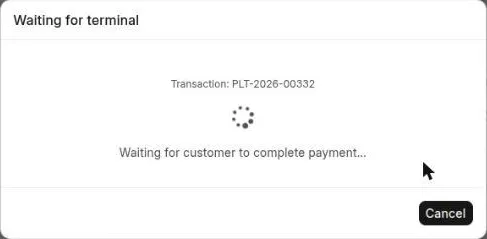
A "Waiting for terminal" window shows the live status, and a background job finishes the payment even if the browser is closed.
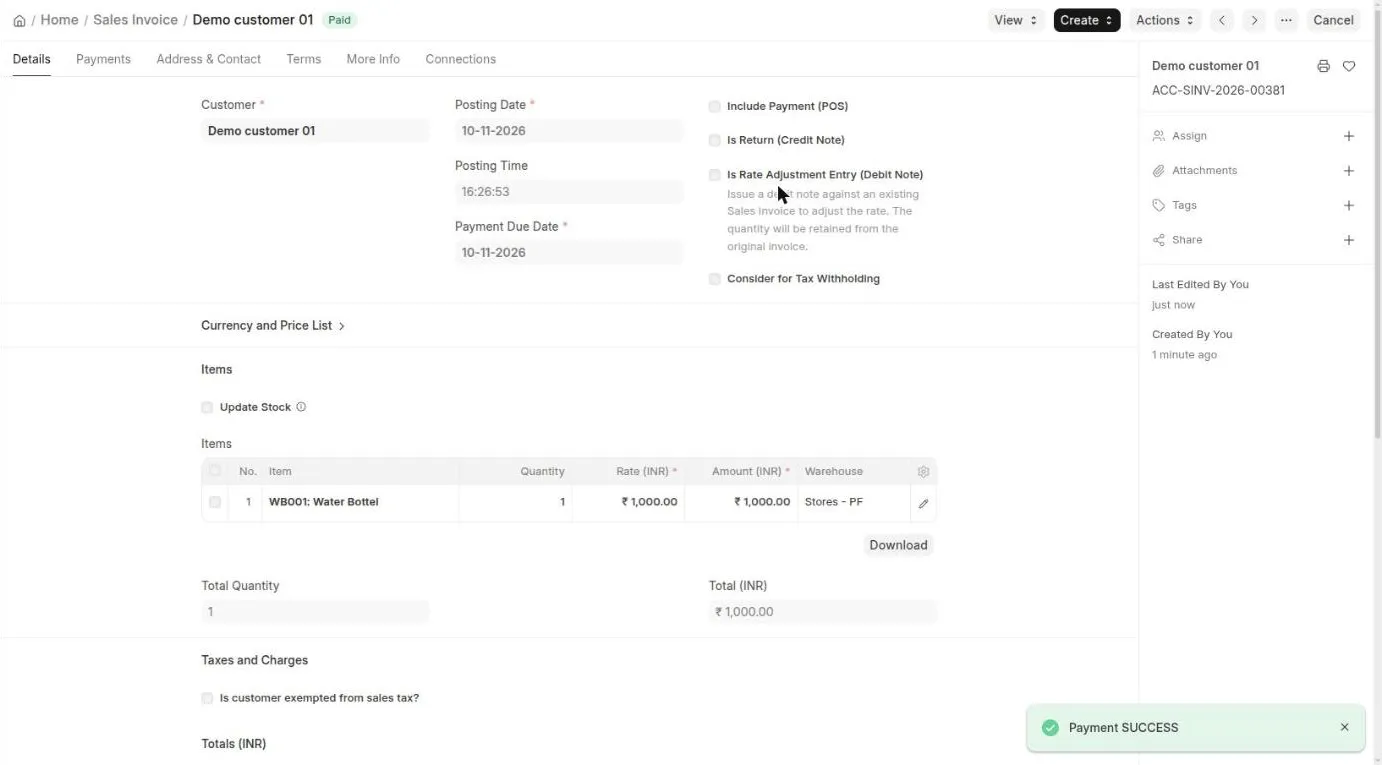
On success the Payment Entry is created automatically and the invoice is marked Paid.
Send Payment Link (online)
Plural hosted checkout: card, UPI, netbanking and wallets.
Pine Labs sends the link to the customer by SMS and email.
A signed webhook and a one-minute reconcile job mark the invoice Paid when the customer pays.
KEY FEATURES
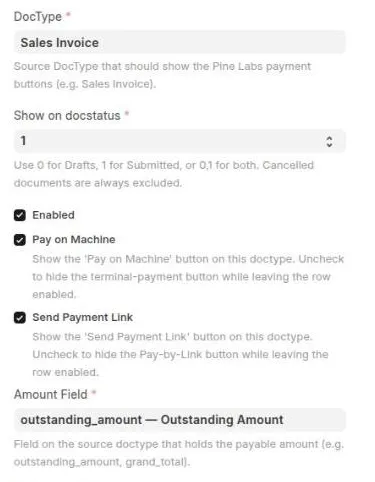
Buttons on Sales Invoice, POS Invoice and Payment Request, and on any other doctype you choose in settings.
Part payments: pay less than the full amount and the invoice shows the correct outstanding balance.
Several terminals: pick the terminal automatically by user, warehouse, company or POS profile.
Fail-fast checks: if a Mode of Payment has no account set for the company, or the customer cannot be found, you get a clear error before the customer is charged.
No double payments: only one active payment per document, and a payment is never recorded twice.
Full audit trail: every payment is one Pinelabs Transaction record with its status (Initiated, Pending, Success, Failed, Cancelled) and the gateway request and response.
Clean install: no custom fields are added to Sales Invoice, POS Invoice, Payment Entry, Customer, Contact or Mode of Payment. Three Modes of Payment are created on install: PineLabs - Card, PineLabs - UPI and PineLabs - Payment Link.
SECURITY
Payment actions accept POST requests only.
A payment can never be started for more than the amount due.
Access errors are the same whether a document does not exist or you are not allowed to see it.
Secrets are masked in logs and in stored gateway data.
Gateway URLs must use https with certificate checks.
Webhooks are verified with an HMAC-SHA256 signature, and a paid event whose amount does not match is refused.
SET UP IN FOUR STEPS
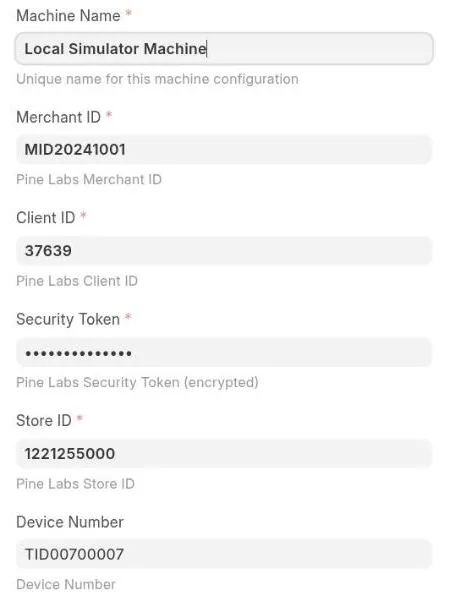
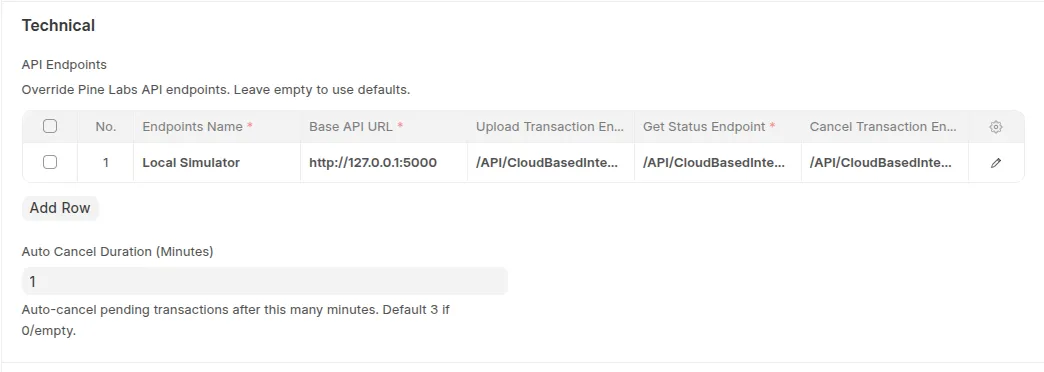
Open Pinelabs Settings and add your terminal details (Client ID, Security Token, Merchant ID, Store ID, Terminal ID).
For payment links, enable Payment Links and add your Plural Client ID, Client Secret and a Webhook Secret. Register the webhook URL shown in the app in your Plural dashboard.
Open each of the three PineLabs Modes of Payment and add a default account for your company.
In Payable Documents, add the doctypes that should show the payment buttons.
Open a submitted invoice and the Pay on Machine and Send Payment Link buttons appear at the top.
REQUIREMENTS
Frappe v16 and ERPNext v16
A Pine Labs account with a Cloud terminal (Pay on Machine) and/or a Plural account (Send Payment Link)
LIMITATIONS
Indian Rupee (INR) only.
Refunds are not started from the app. Use the Pine Labs refund process, then record the change in ERPNext.
Do not rename the three PineLabs Modes of Payment. The app finds them by name.
LICENSE
MIT. Built with Frappe by Finstein.
User Reviews
No reviews yet, be the first to review.
0.0
0 rating
More apps from
Explore more apps