Frappe
Cloud
Marketplace
Frappe
Products
Insights
Publisher
Supported versions
Categories
E-Commerce
About
VunaPOS
VunaPOS is a modern point-of-sale application built on top of Frappe Framework and ERPNext.
It provides cashiers with a fast and focused interface for finding items, selecting customers, managing a cart, processing payments, and creating ERPNext invoices. VunaPOS uses existing ERPNext configuration and accounting documents, keeping stock, taxes, payments, and invoices within the standard ERPNext workflow.
Key Features
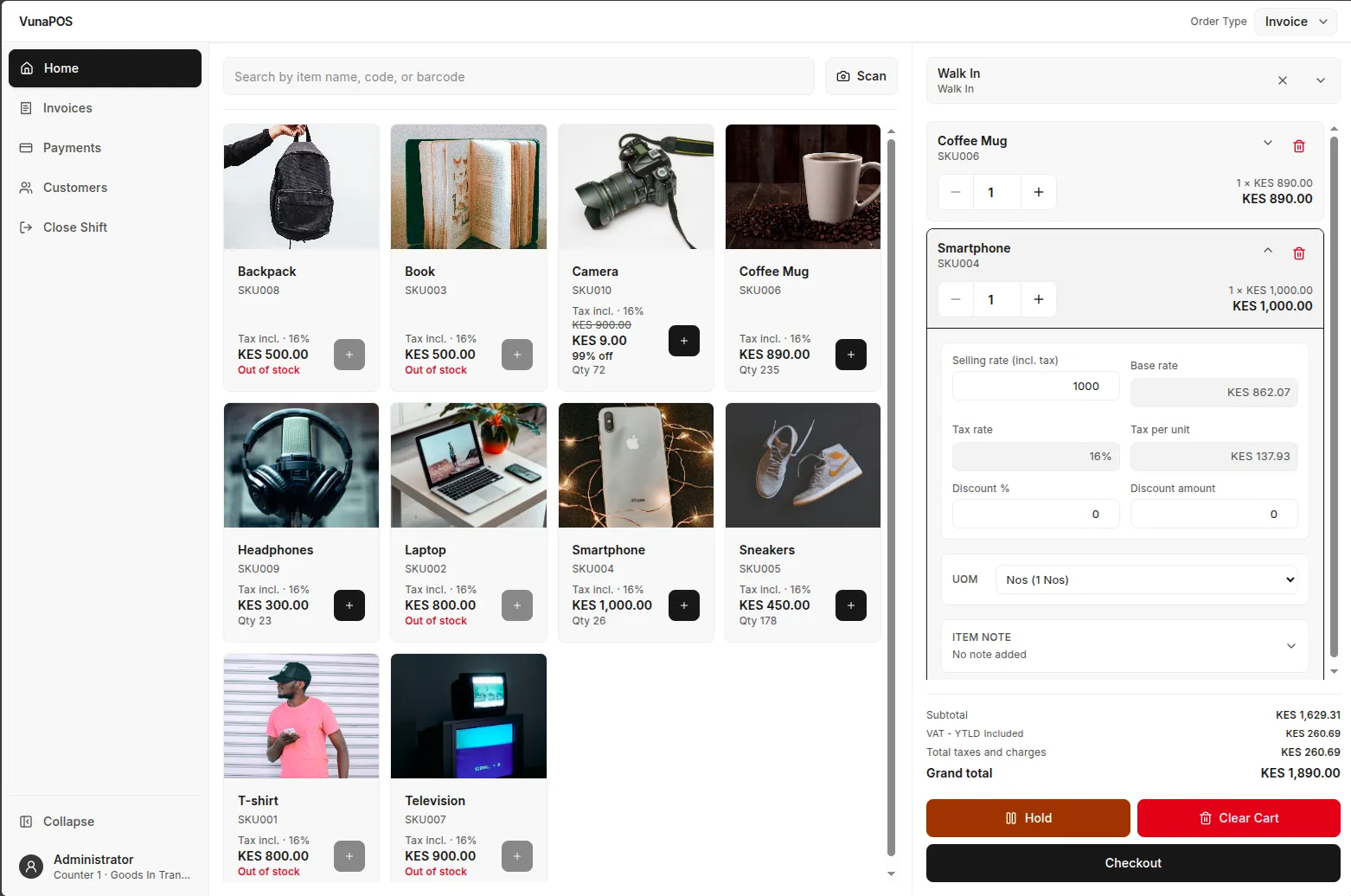
Item Search - Find items quickly using item names, codes, or barcodes.
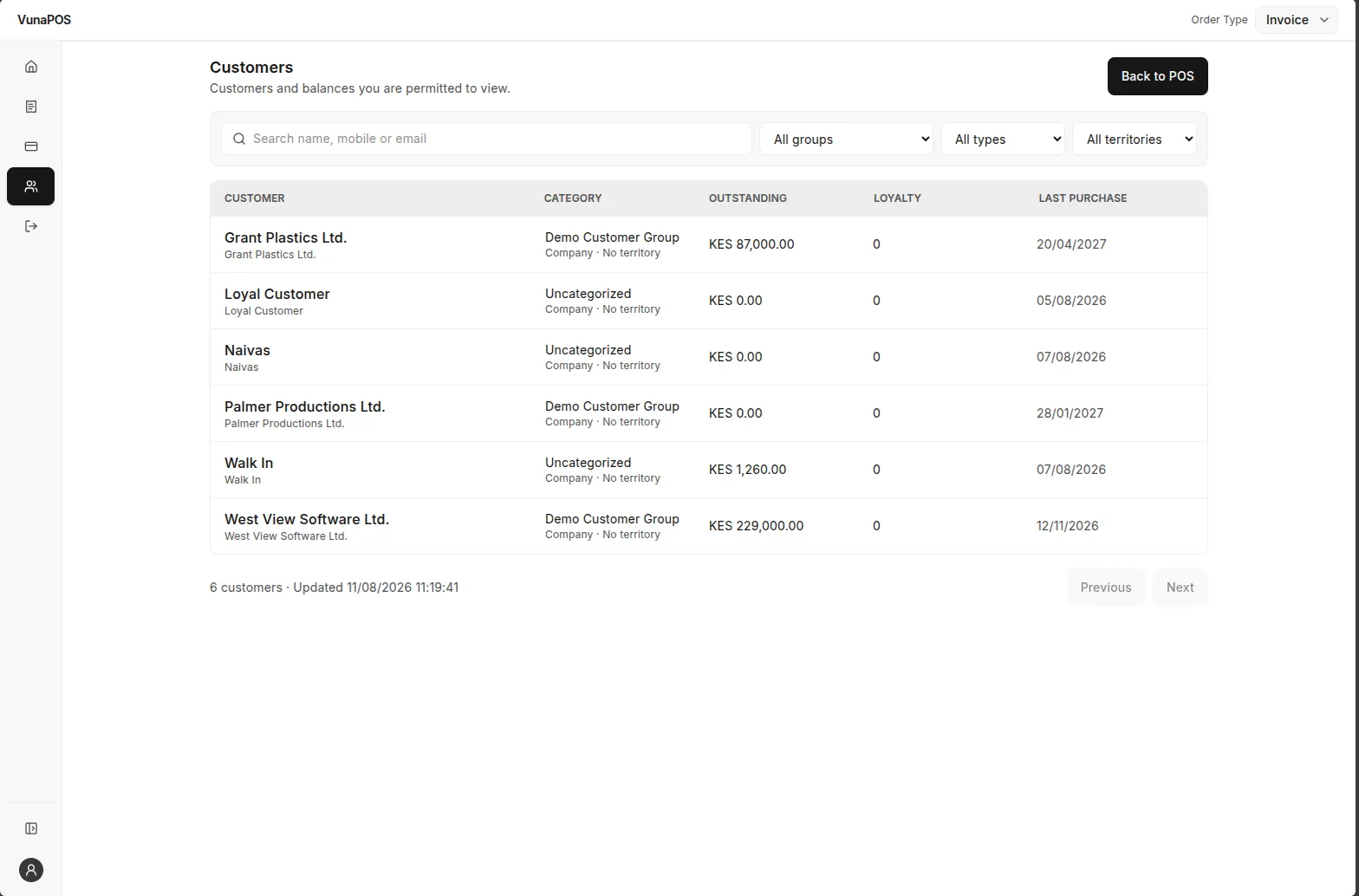
Customer Selection - Search for existing customers or use the default customer configured in the POS Profile.
Cart Management - Add items, change quantities, remove items, clear the cart, and view invoice totals.
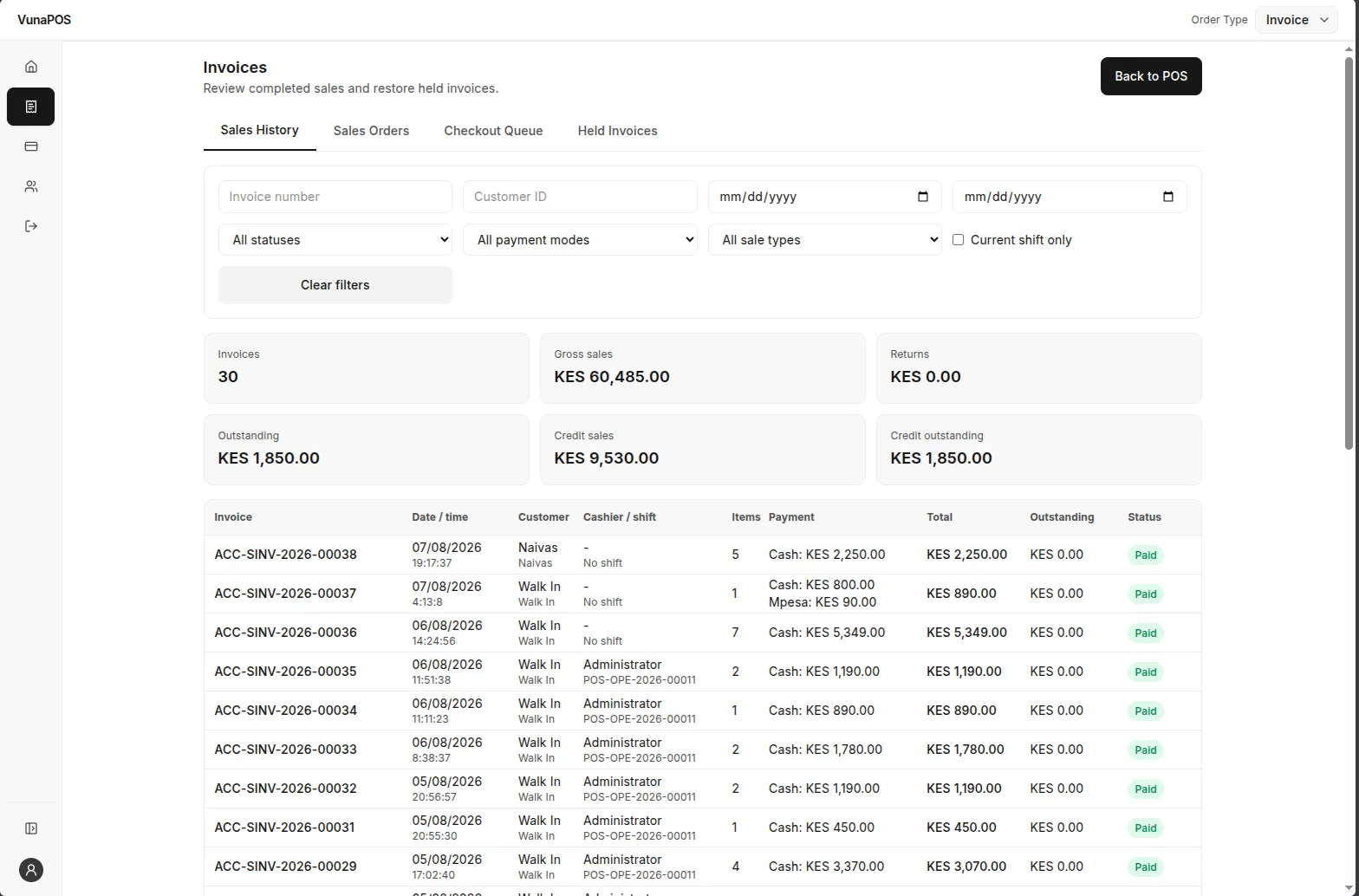
Hold and Restore - Save an active sale as a draft invoice and restore it later.
Flexible Invoicing - Create either a Sales Invoice or POS Invoice, depending on the configured POS Settings.
Tax Handling - Support ERPNext inclusive and exclusive tax calculations.
Batch Allocation - Automatically allocate stock from valid batches, including quantities distributed across multiple batches.
Serial Number Allocation - Automatically allocate available serial numbers for serialised items during checkout.
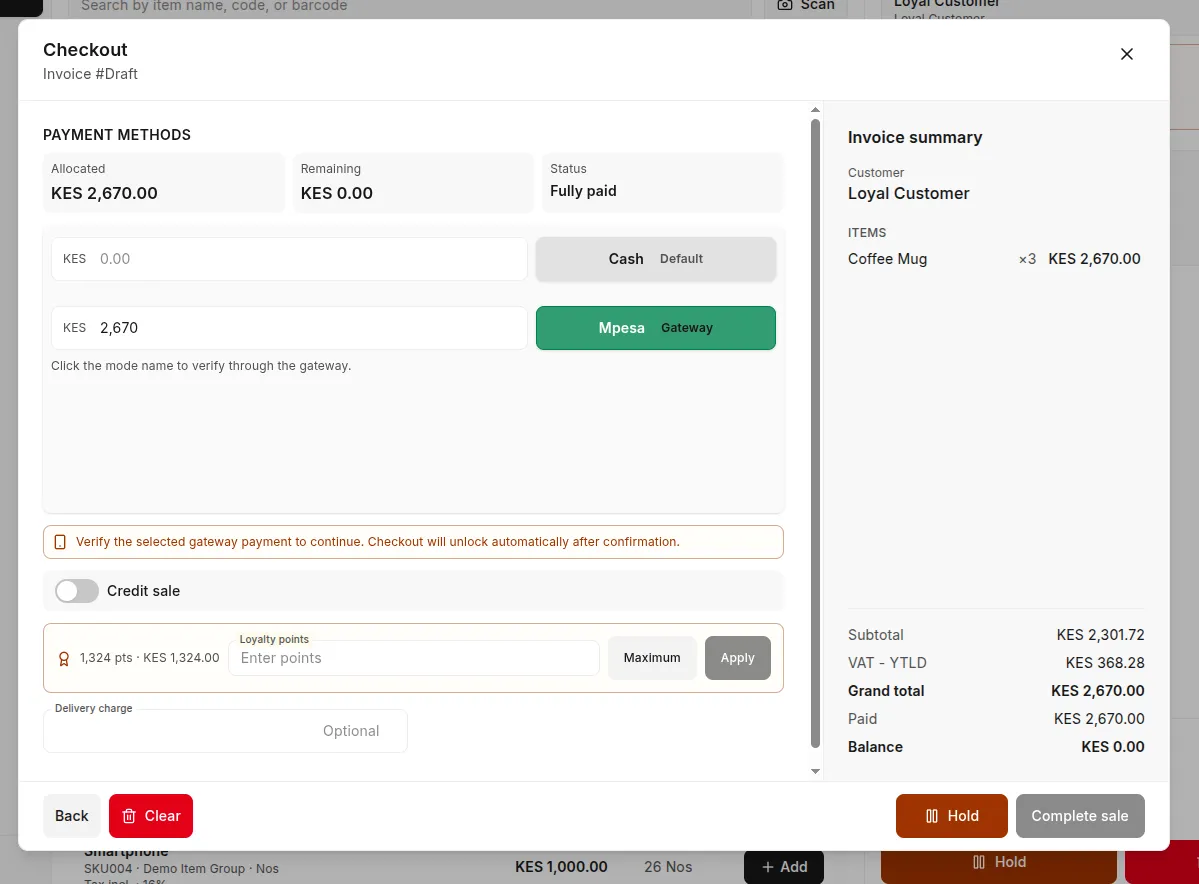
Multiple Payment Modes - Use the payment methods configured in the ERPNext POS Profile.
M-Pesa Payments - Verify payments using STK Push or existing C2B transactions.
Receipt Printing - Render and print receipts using ERPNext Print Formats.
API-First Backend - Expose reusable Frappe APIs that can support alternative POS frontends.
Basic Usage
Start a Sale
Open VunaPOS.
Search for an item using its name, item code, or barcode.
Select the item to add it to the cart.
Select a customer where required.
Adjust quantities and review the invoice totals.
Complete Checkout
Click Checkout.
Select a mode of payment.
Enter or verify the payment amount.
Complete any required gateway verification.
Click Complete Sale.
Print the resulting receipt where required.
Hold a Sale
Add the required items to the cart.
Click Hold.
Restore the draft later from the held sales list.
Configuration
VunaPOS uses standard ERPNext configuration wherever possible.
POS Settings determine whether VunaPOS creates a Sales Invoice or POS Invoice.
POS Profile provides the company, warehouse, price list, default customer, modes of payment, and print format.
Items and Item Prices control the products and selling rates available in the POS.
Sales Taxes and Charges Templates and Item Tax Templates control tax calculation.
Modes of Payment define the payment options available during checkout.
User Reviews
No reviews yet, be the first to review.
0.0
0 rating
More apps from






Explore more apps