Operational Manual
This documentation is intended to help consultants carry out daily operational tasks on FC smoothly.
Terminology
| Term | Description |
|---|---|
| FrappeCloud | Platform for hosting customer sites |
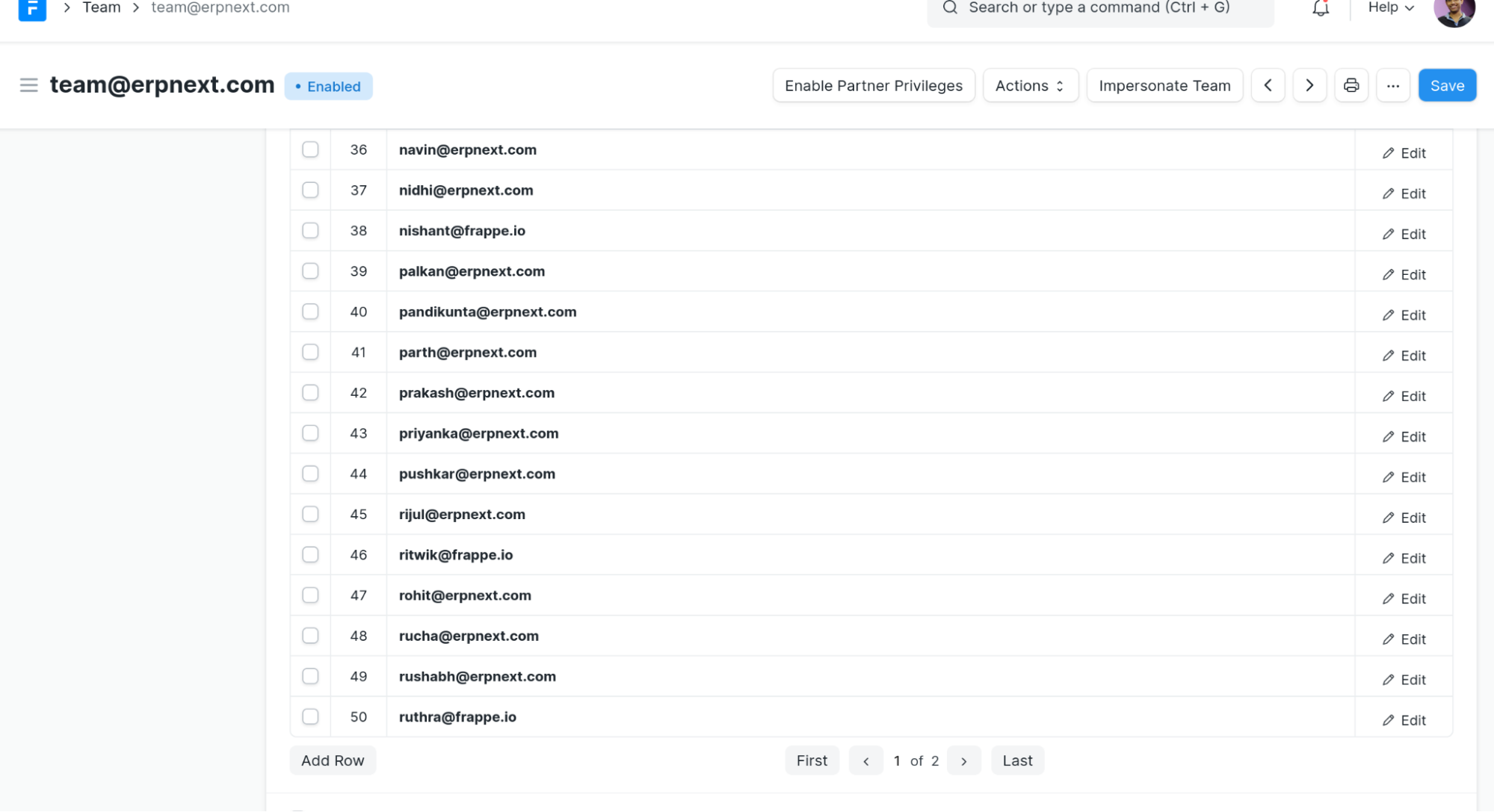
| Team | A team represents a group of people. Every account created on Frappe Cloud belongs to a team. If a user signs up on Frappe Cloud without an invite, they’ll belong to their own team. A Team document has a child table of user emails |
| Desk Page/Document/Doc | Any webpage that starts with frappecloud.com/app in the url, powered by Frappe Framework, similar to the one you see on frappe.io. Customers of Frappe Cloud cannot access these pages |
| Dashboard Page | Any webpage that starts with frappecloud.com/dashboard in the url, powered by Vue js, custom UI for users. Customers of Frappe Cloud only see these pages. |
Site Desk Page
- Go to frappecloud.com/app and search for Site List.
- In the site list, search for the required site and open it
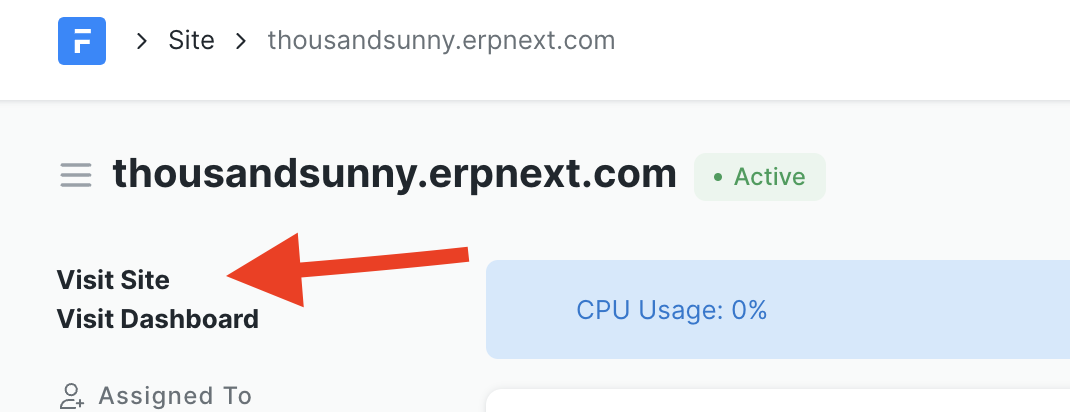
Visit Dashboard page from Desk page
- In the desk page of site, use the view in dashboard link in the sidebar to see the corresponding Dashboard page of site.
Visit Desk page of Site from Dashboard
- From the dashboard page of site, click on Actions -> View in Desk to see desk page

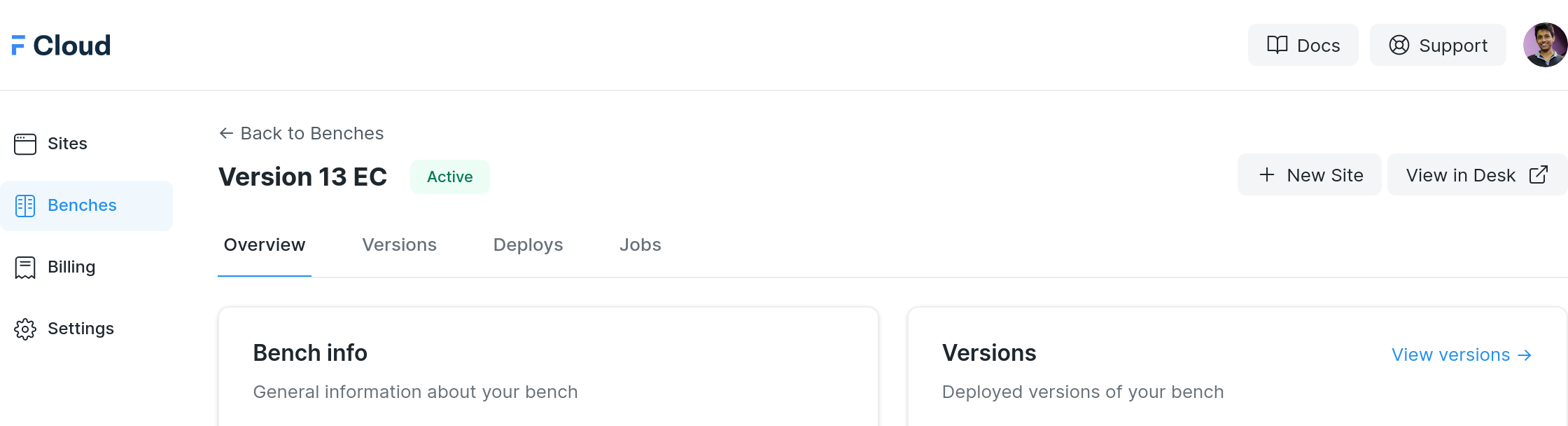
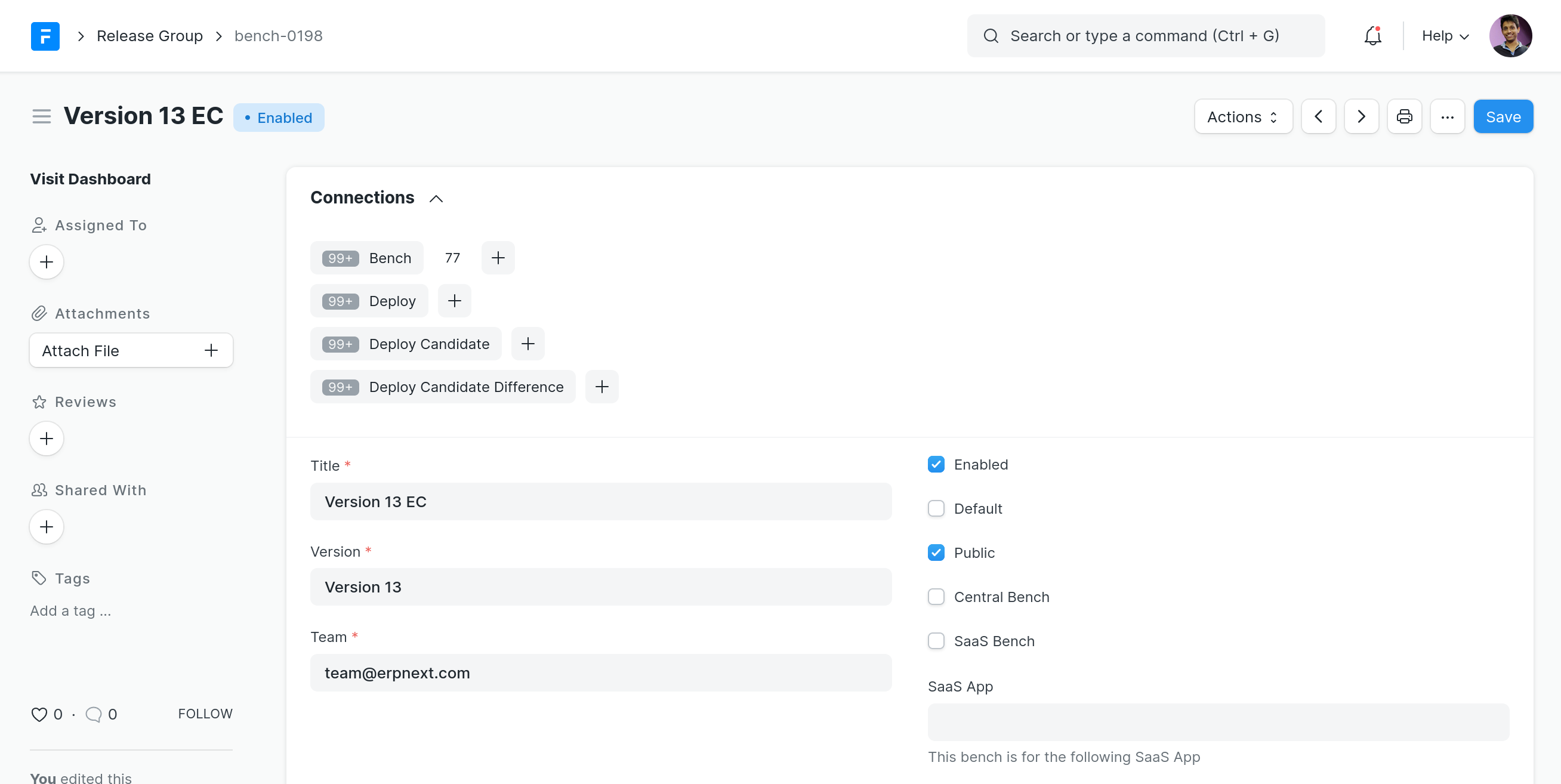
Visit Desk page of Bench Group from Dashboard
- From the dashboard page of bench group, click on View in Desk to see desk page. This corresponds to the Release Group doctype.
Visit Desk Page of Team
- Go to frappecloud.com/app and search for Team List
- In the Team list, search for the required team and open it
Visit Dashboard from Team's perspective
- From Team’s Desk page, click on Impersonate Team button

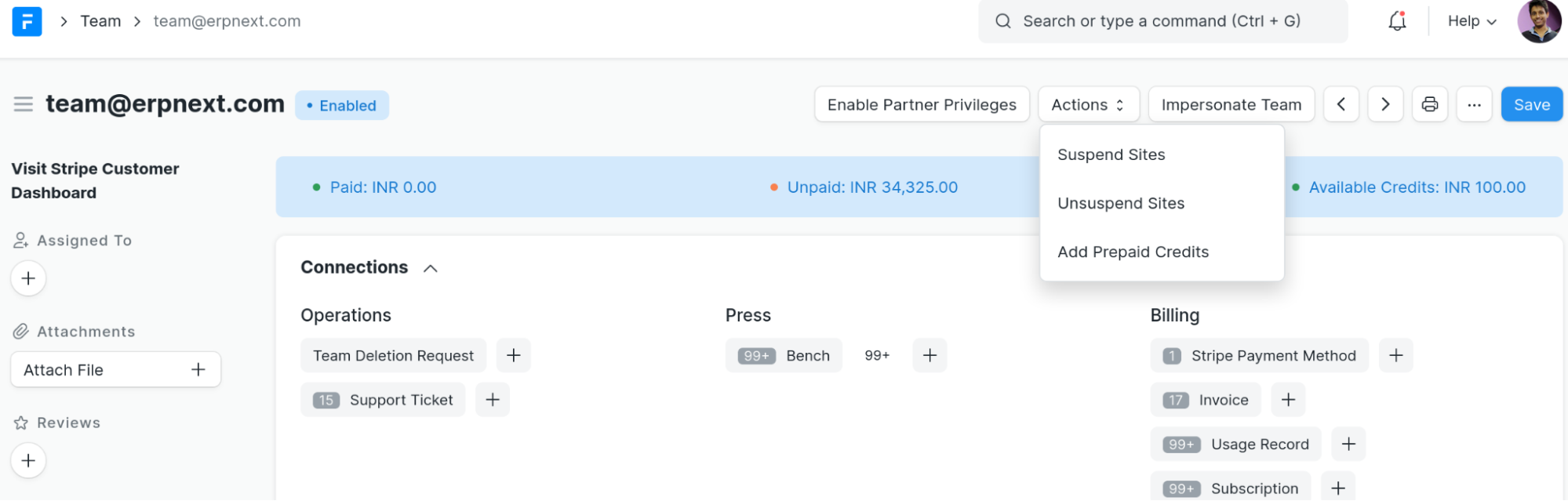
Adding Credits to a team
- At times when customers pay via alternate means, credits equivalent to the amount they paid can be given by using Add prepaid credits option under Actions in the Team document.
Add/Remove users from a Team
- In a team's desk page, add/remove the user from the Team Members child table.
Add app to Site
From the dashboard page of the site, go to apps section and click on Add app

Then you can select an app from the list shown. If the app you desire is not found on the list, contact a Frappe Cloud developer.
Change Plan
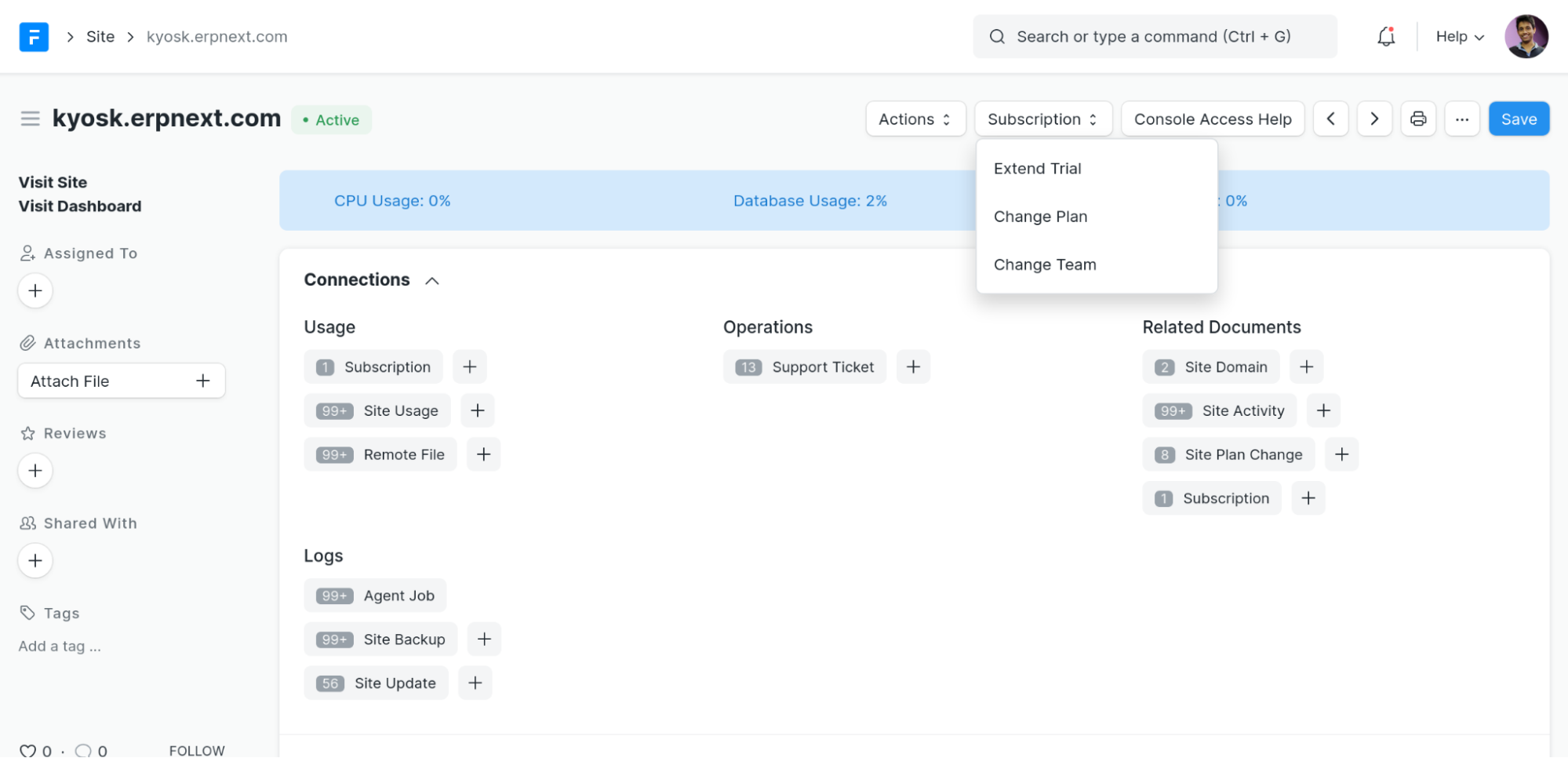
- In the Site’s Desk page, Subscription -> Change Plan
Change Ownership of a Site
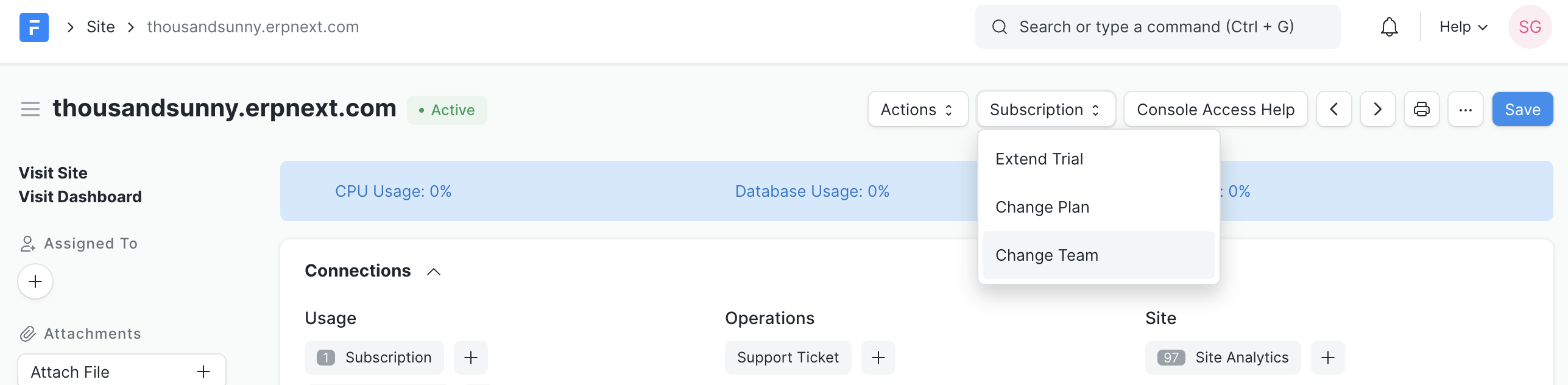
- In the Site's Desk page, Subscription -> Change Team
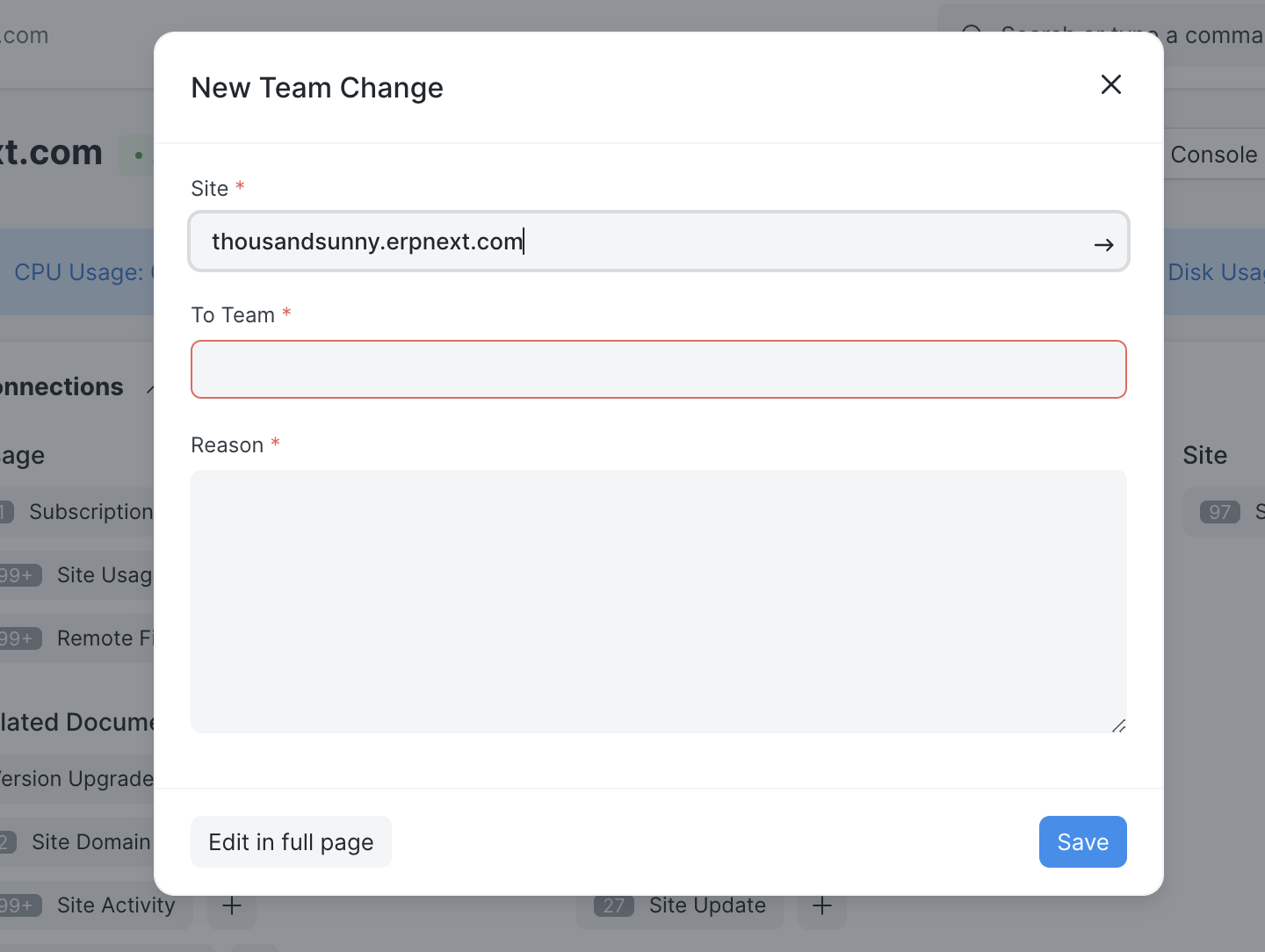
- Enter the team name you want to transfer the ownership to along with the reason to transfer.
Change Ownership of a Bench Group
- To change the team of a bench group, simply change the team of the corresponding Release Group.
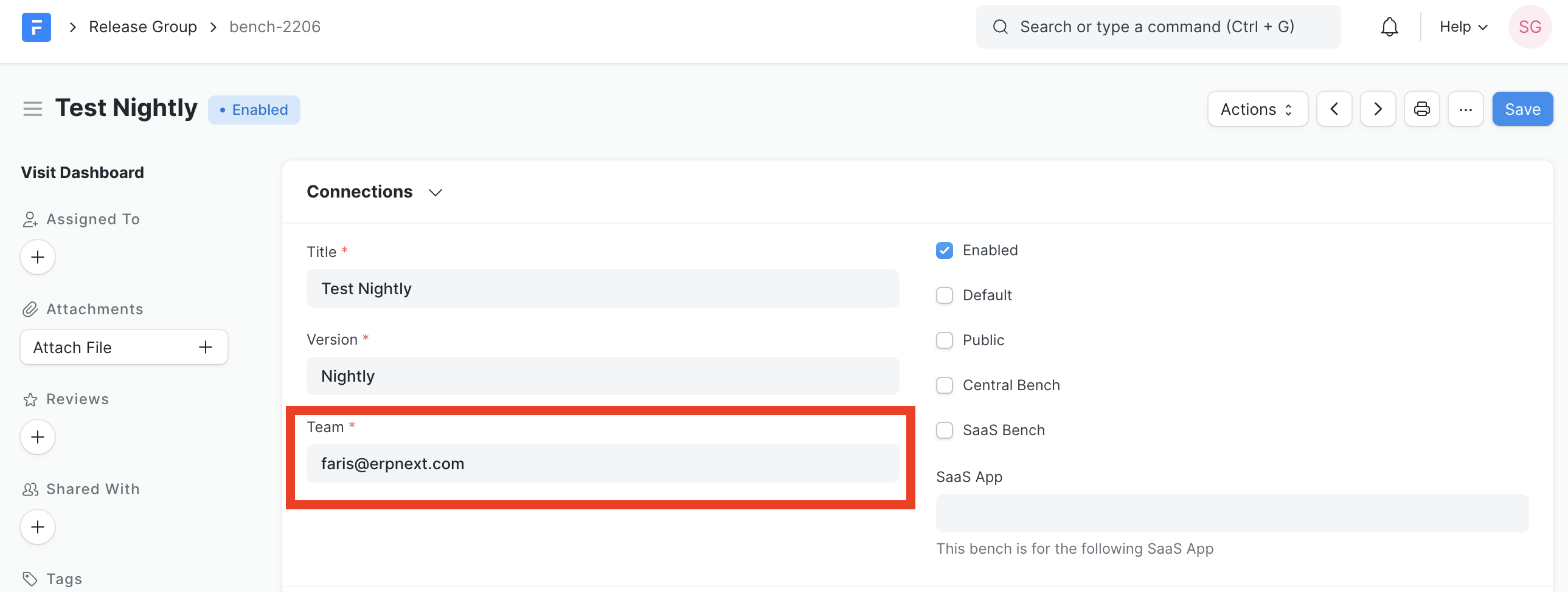
Create Team for a project (partners)
In some cases, it may be so that multiple partners are working on features for a project, hence they would want access to same Bench Group on FC. For these cases, we can create a new team and add the required partners as members in this team.
- Signup on FC in incognito tab with
[email protected]email. The+is important, i.e if your company email is[email protected], and project is Karam, use[email protected]. - Complete signup with the verification email you get in your company email inbox (
[email protected]in this case) - Mark your account as Free from desk page of the newly created team
- Invite other parties involved in the project to this newly created team from settings in your FC dashboard
- Change bench group ownership to the newly created team
This method works because we use Gmail for company email. Gmail allows for email aliases using + after our username.
Central/ERPNext.com Sites
- These sites are the ones migrated from central to Frappecloud.
- They are all under common team i.e [email protected] and common plan i.e Central Site
- Frappecloud pricing doesn't apply to them
Extend trial date of a site
- In the Site's desk page, click Subscription -> Extend Trial
Update limits/expiry of Central/ERPNext Site
- Open the Support Profile doc on
frappe.io
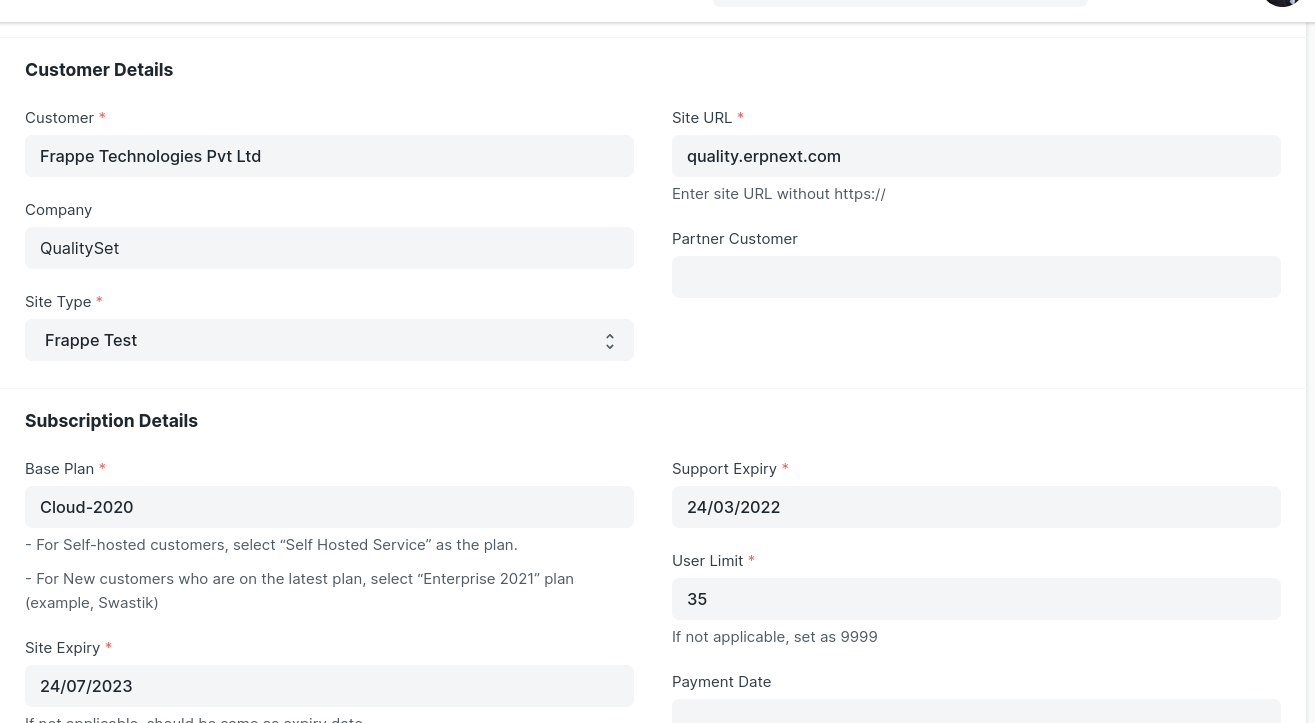
- Update the limits or expiry as per requirement and click Save.
Resetting the Usage Limit for a Site
For consultants, please take a help of an Engineer.
- SSH into the site server using User SSH Certificate.
- Once you are in the site bench ie. after running
docker exec -it <bench-name> bash - Start redis-cli by running
redis-cli -p 13000command. - Usage limit can be reset by deleting the latest redis rate-limit-counter keys
- To see the avalaible keys,
KEYS <db_name>|rate-limit-counter*
- To delete a key,
DEL <db_name>|rate-limit-counter-XXXXX
dbname can be found in siteconfig file of the site
Suspend and Unsuspend a site
- To suspend a site, click on Suspend from Actions button.

- To unsuspend a site, click on Unsuspend from Actions button.
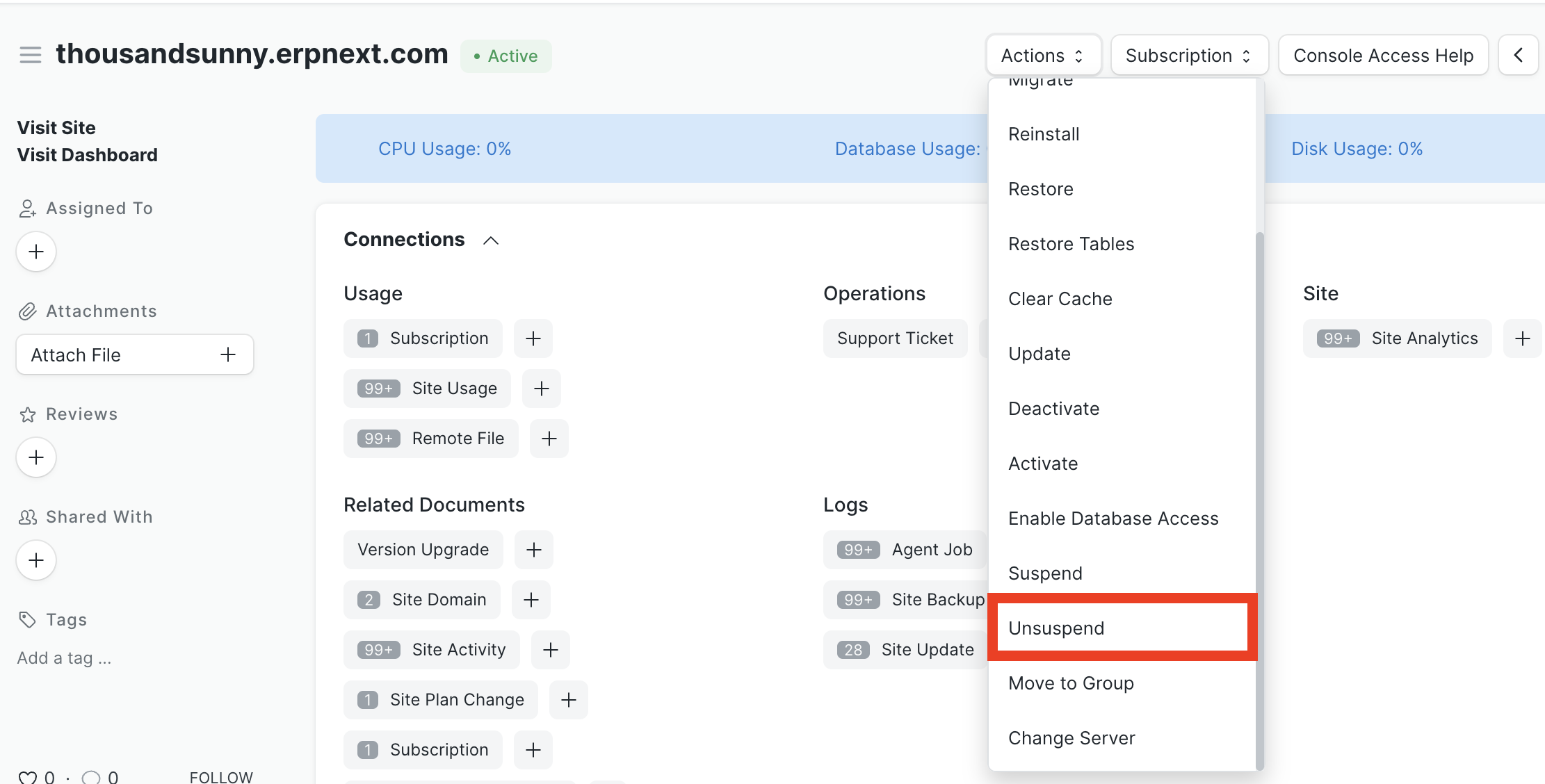
Once a site is suspended, it will be archived after 30 days.
Archive/Drop a site
- To archive or drop a site, click on Archive from Actions button.
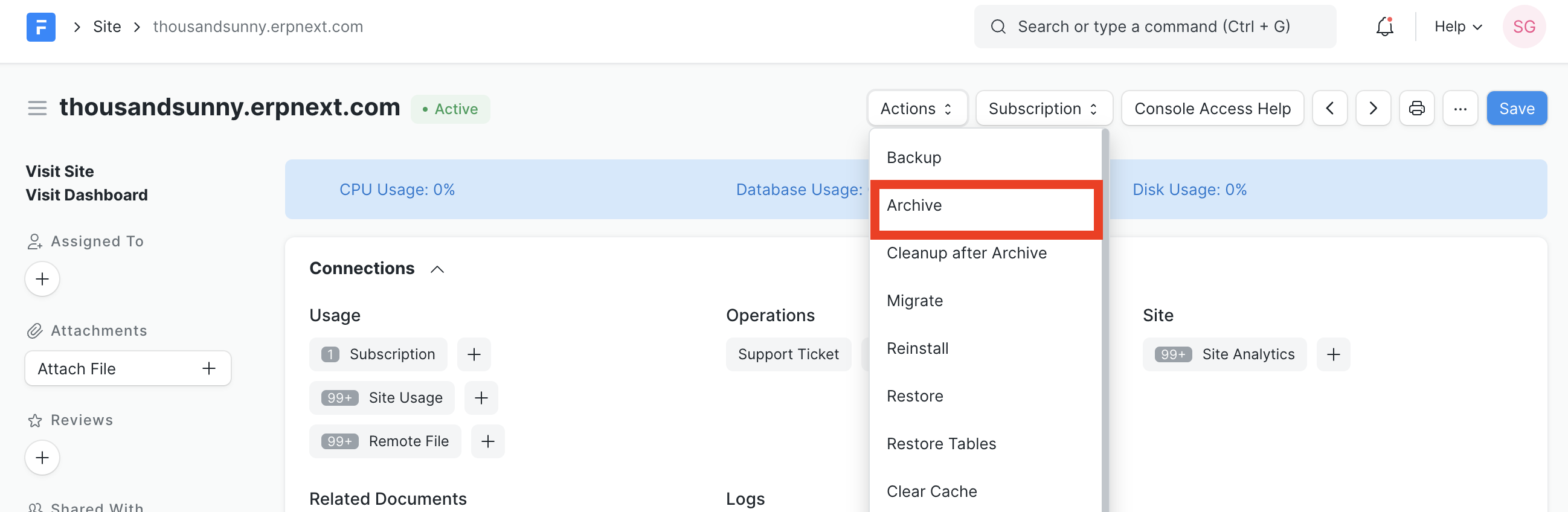
Once a site is archived, it can't be restored back again.
Transferring Central Site to Frappe Cloud customer
- From Site doc, go to Subscription > Change Team and select the team you want to move the account to
- From Site doc, go to Subscription > Change Plan and select desired plan
- From dashboard page of site config, remove
limitskey and values - Uninstall Journeys app and ERPNext Support app
- Uncheck free site checkbox if checked (Billing Section)
- Move them to a non ERPNext Release Group (
bench-0001,bench-0020) so they don’t get free emails and other things incommon_site_config(You may skip this step for now)
Replicate a Site
Take an Offsite backup of the site you want to replicate. Skip this step if last Offsite backup (usually a day old) is fine
- Open desk page of site you want to copy
- Go to linked Site Backup doctype list
- Create new
- Check the
with filesandoffsiteoption and save - Go to dashboard page of site to see progress and wait for it to finish
Open Site Replication doctype list
- Enter name of the site
- Enter new subdomain. Eg:
xxx-copyif you want to createxxx-copy.frappe.cloud - Save. This will replicate site in the same bench group.
Be careful when taking backup of large sites (>15G) as it might slow the site down depending on what server it's on.
Restore Offsite backup on site without download
Take an Offsite backup of the site you want to replicate. Skip this step if last Offsite backup (usually a day old) is fine
- Open desk page of site you want to copy
- Go to linked Site Backup doctype list. Keep this open in another tab.
- Create new
- Check the
with filesandoffsiteoption and save - Go to dashboard page of site to see progress and wait for it to finish
Restore backup on target site
- Open desk page of site you want to restore to. Eg:
xxx-copy.frappe.cloud. Note that the data in this site WILL BE LOST. - Go to Remote Files section
- Fill Remote Database File , Remote Private File, Remote Public File fields using value of fields from the tab you kept in previous step


- Save
- Actions -> Restore Site. Note that the data in this site WILL NOW BE OVERWRITTEN with the data in the backup
- Open desk page of site you want to restore to. Eg: