Update Agents on Prod
Agent Update Tool is an internal ops tool for updating agent in bulk.
This tool update agent sequentially. So, the process looks like this -
- Trigger agent update on a server.
- Verify update and wait for agent to come back online.
- If something looks wrong, it will revert agent update.
- In case of successful agent update, it will move to next target.
Preview -
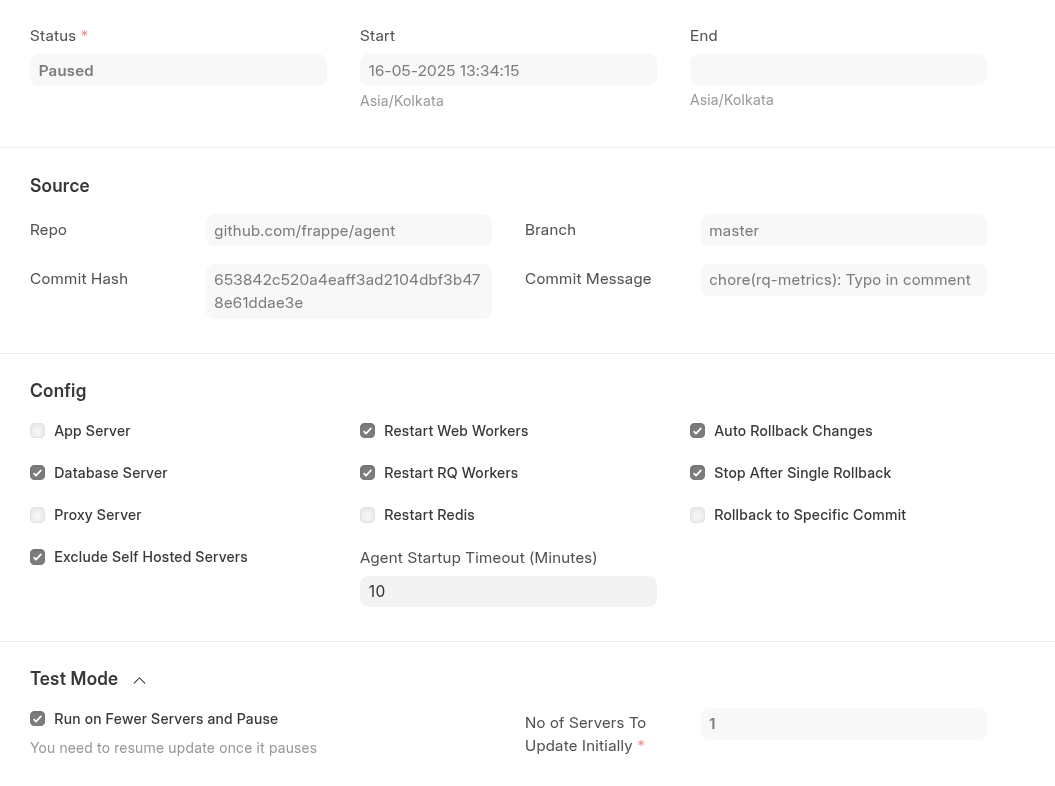
Let's understand all the section one by one -
General Info
Top section contains overall status, start and end time.
Source
You need to provide the info of git repo and branch info here.
You can ignore all of these fields, the repo and branch will be fetched from Press Settings in case you don't provide any choice.
If you want to update to a specific commit hash only, you can provide that info, else it will auto populate the info after save.
Config
- Server Type - Chose the server types, that you want to update. This will help to auto populate the server list later.
Restart Mode - Most of your updates don't need RQ or Redis restart. So, chose only the required ones to impact server very less.
Currently, RQ Workers will be restarted gracefully. So, If RQ worker is executing some task, until unless that stop worker will not be stopped. That's why it's better to avoid restarting RQ worker (If possible)
Rollback Settings - You can chose to auto rollback changes on failed update. Also you can decide whether to continue or not after a successful rollback.
There is an additional option
Rollback to Specific Commit, this you can use to rollback to specific commit on all agent update (Useful in Development Environment)
How to Update ?
Create a agent doctype, with all necessary config,
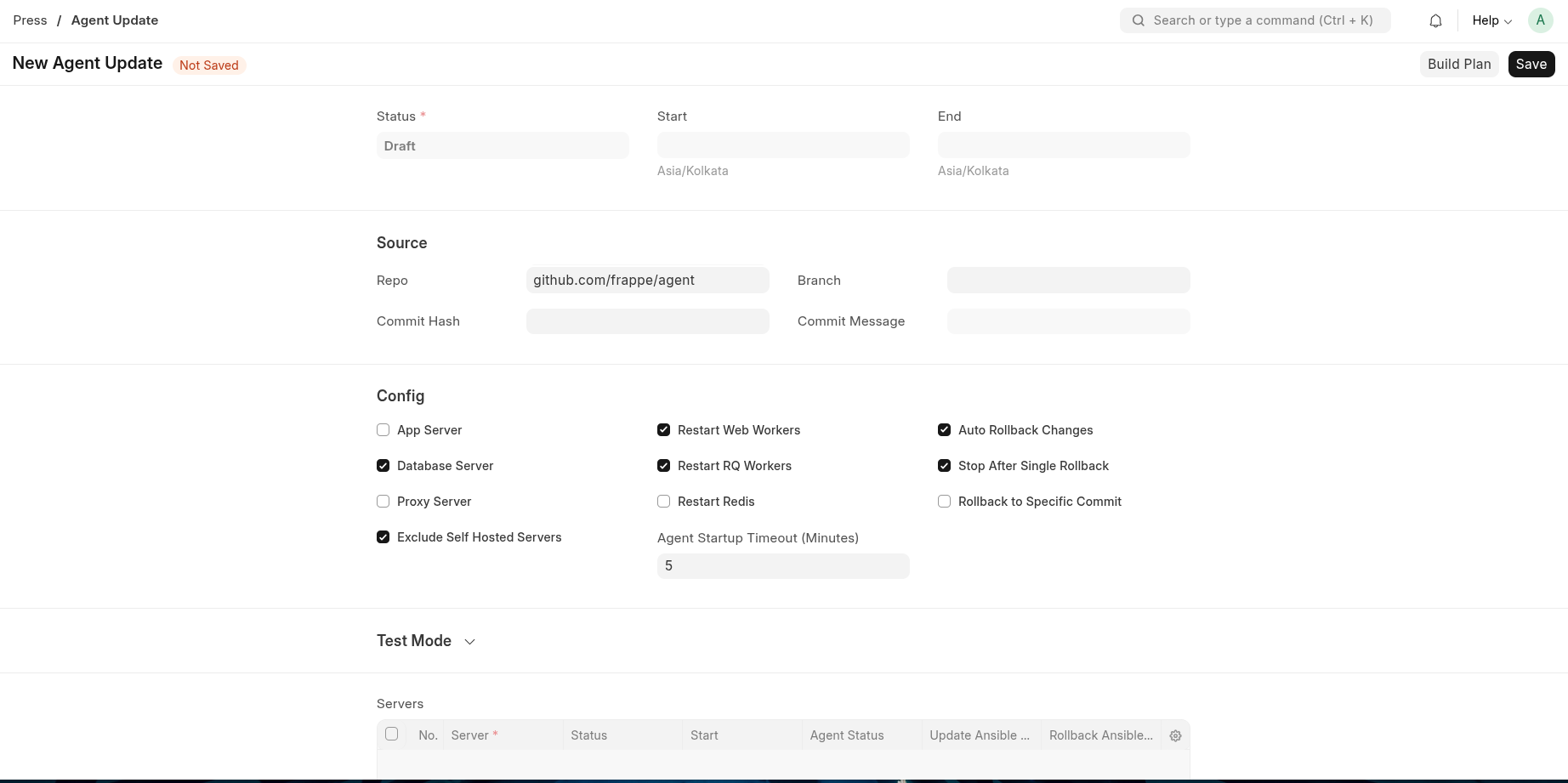
Once you save the doctype, server list will be populated.
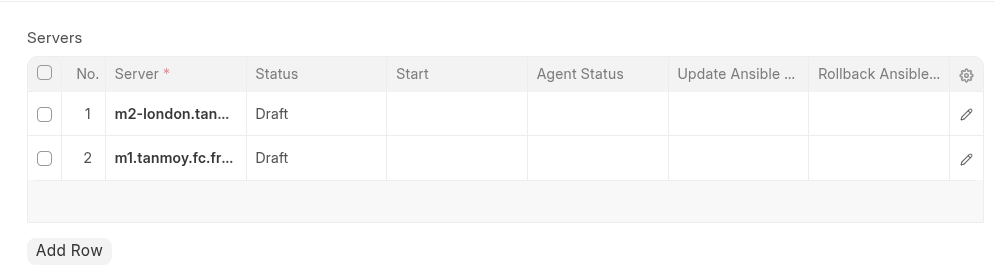
Check the sever list once. If you want to remove some servers, just remove the row. If the agent on the server is already updated, the tool will automatically skip update. You don't need to do anything for that.
Then, click on
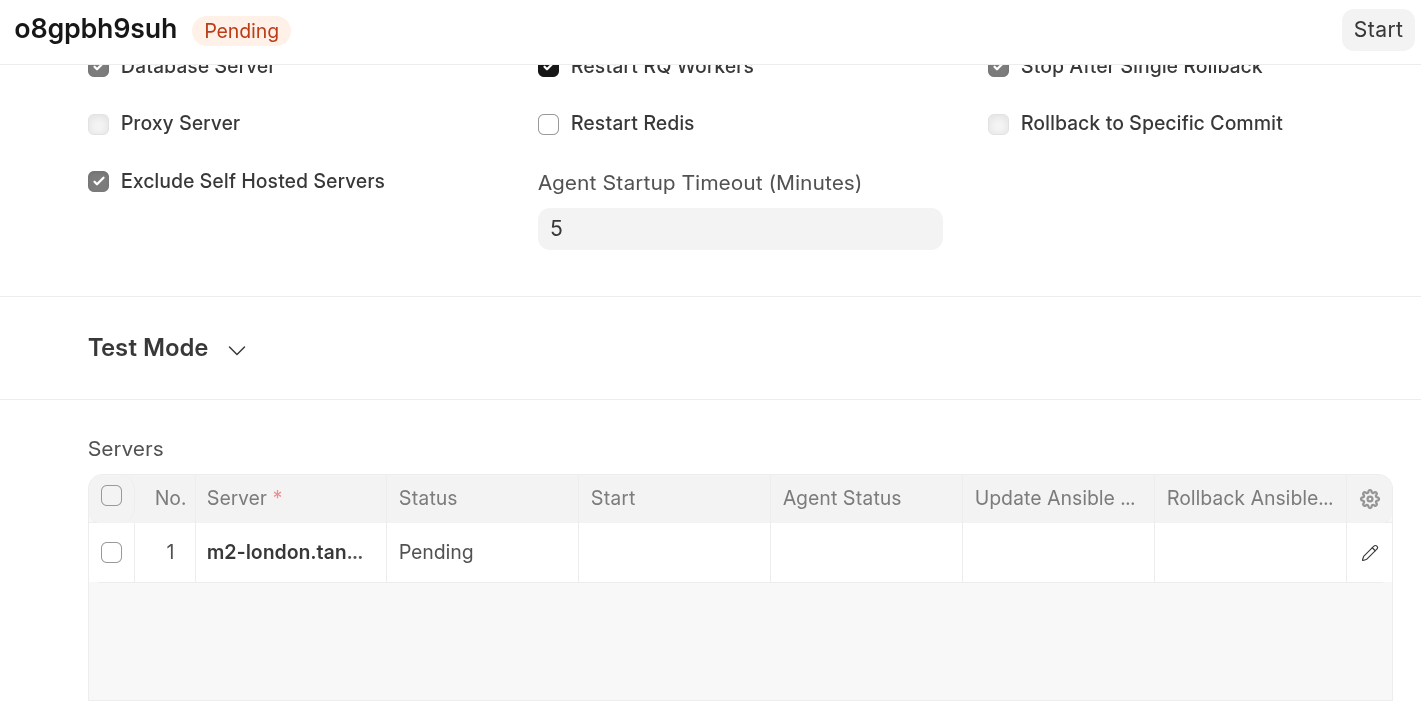
Build Planbutton. This process can take few minutes. During this will gather the current installed agent information and plan the whole update.- Once done, status will be changed to
Pending
- You can now click on
Startand relax.
Pause Update
If you want to pause whole process, click on the Pause button. You will get a Resume button as well.
Test Mode
Assume, you just want to update on 2~3 servers and then on other servers.

So after 4 updates, it will pause the updates. You need to Resume update manually.
Splitting Updates
For example, you are going to roll out update to 500 servers and each server update take 2mins in total.
So, it's going to take 1000 minutes (almost 16 hrs)
This feature will solve that. You can split 500 updates in 10 batches. So, that 10 parallal updates happen, that will take 1/10th time (1.6 hr)
Steps -
For example, we have an agent update doctype with 2 servers.
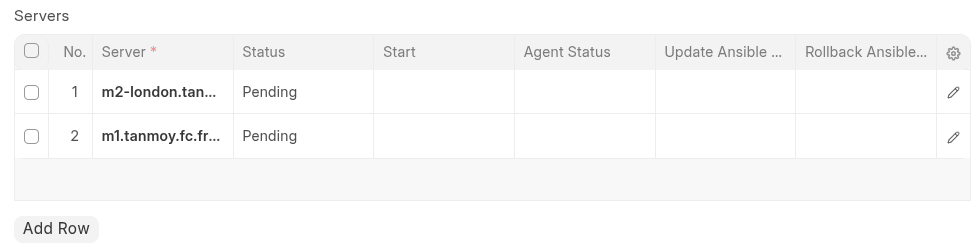
I want to split it in 2 batches
- Click on
Split Updatebutton (Note - This button will appear only inPendingupdate status, soBuild Planis mandatory) Choose number of batches and submit.

Now, you will see there is 2
Agent Updaterecords, from which you can manage 2 separate batch. You can run both parallelly or one by one as per your choice.